The Tax Optimizer Window
Instructions
The Tax Optimizer has three main sections. These have been listed below.
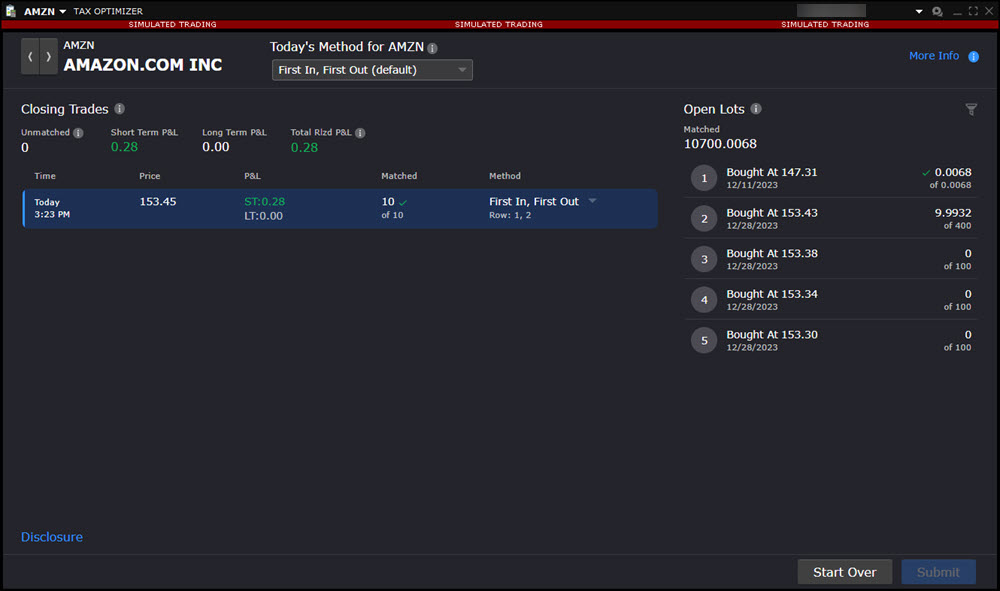
 Main Window
When you first open the Tax Optimizer, the screen displays:
-
Information about your profit and loss for the current day or the prior day (depending on your selection) as well as the current trade date and the amount of time remaining until you can no longer change your tax lot-matching method for today.
-
The default matching method for your account and the default matching method for today. If you change the matching method for today, it overrides the account default matching method for today only.
-
A list of your positions, and the current day's short term and long term profit and loss for each symbol. Click the Show button for any position to open the Tax Lot Detail panel for that symbol.
Match Details Window
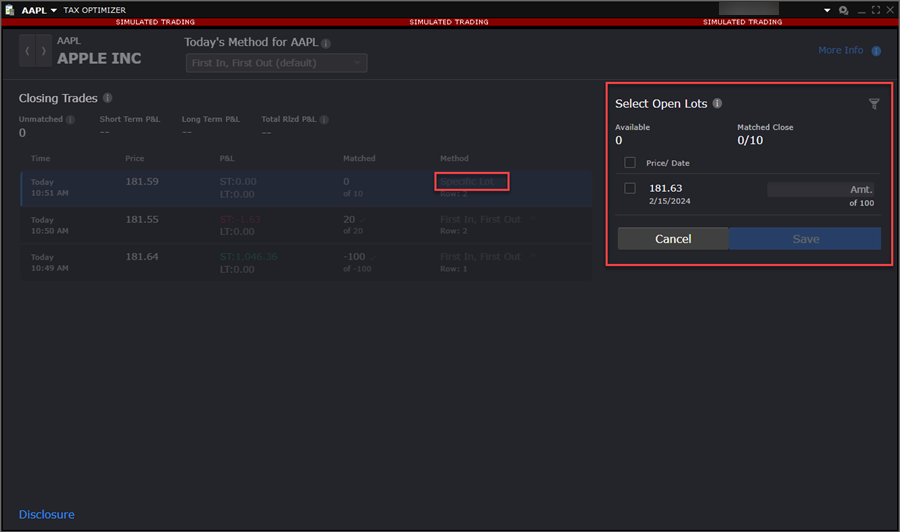
The Match Details window is where you manually match sales to open lots (only when the matching method is Specific Lot). To do so, select the Method drop-down menu and select Specific Lot. The Match Details window displays:.
-
The open lot you selected in the Tax Details Panel.
-
All possible sales that could be matched to that open lot.
-
For lots whose matching method is Specific Lot, a Quantity field in which you enter the number of shares or contracts to match. This is how you manually match sales to open lots.