Chart Panel
Instructions
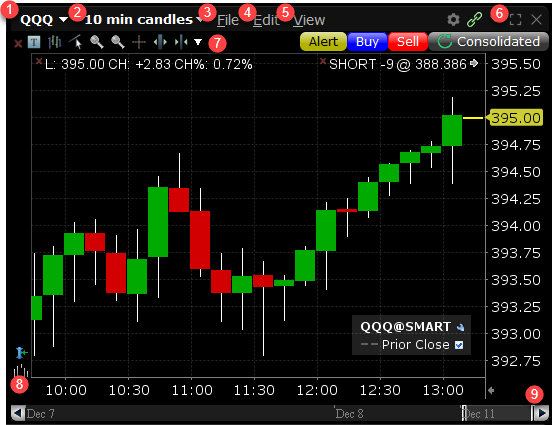
The Mosaic Chart Panel allows you to view and edit a chart for a specified symbol. Find out more about customizing charts, setting parameters, applying indicators, and more by clicking here.
-
The Symbol of the product you are viewing.
-
The current time period: Click to view the drop-down list and change the display type, time period and more.
-
File: Click to create a new tab, save, or print
-
Edit: Click to add studies, annotations, and change parameters.
-
View: Click to adjust the viewing of the graph
-
Click to view the chart in full size, double-click the Title Bar (or use the Maximize icon). Double-click again to restore original size.
-
The Tool Bar: Click to increase bar width, shift time period, add arrow, etc.
-
Add a volume chart to the bottom by clicking the Volume icon on the bottom left.
-
Click to use the slider along the bottom of the chart to expand and reduce the time period.