View Lots
Instructions
We offer the ability to View Tax Lots in the Client Portal. To do so, please follow the steps outlined below.
-
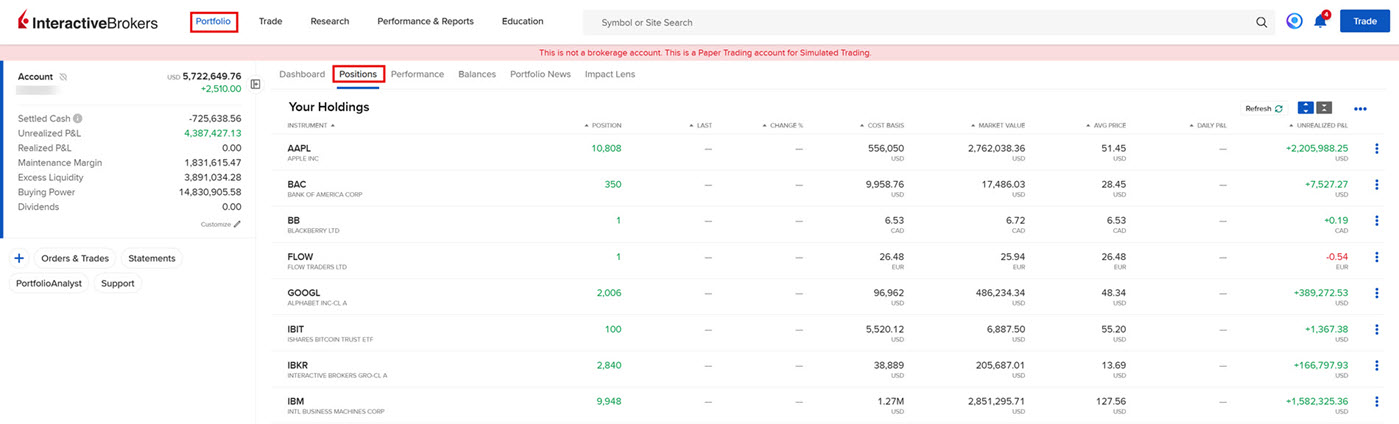
Navigate to the Portfolio tab and select Positions.
-
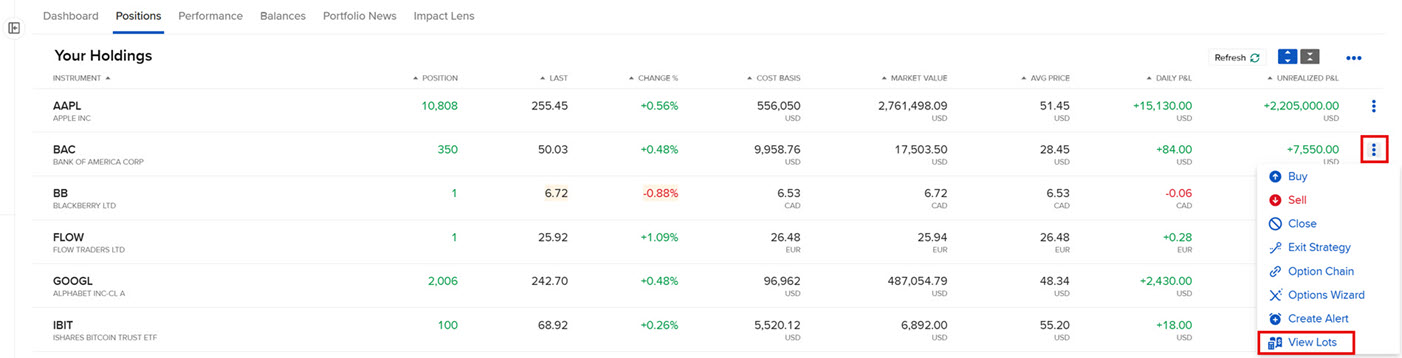
Click the 3 dot icon to the right of the desired position and select View Lots.
-
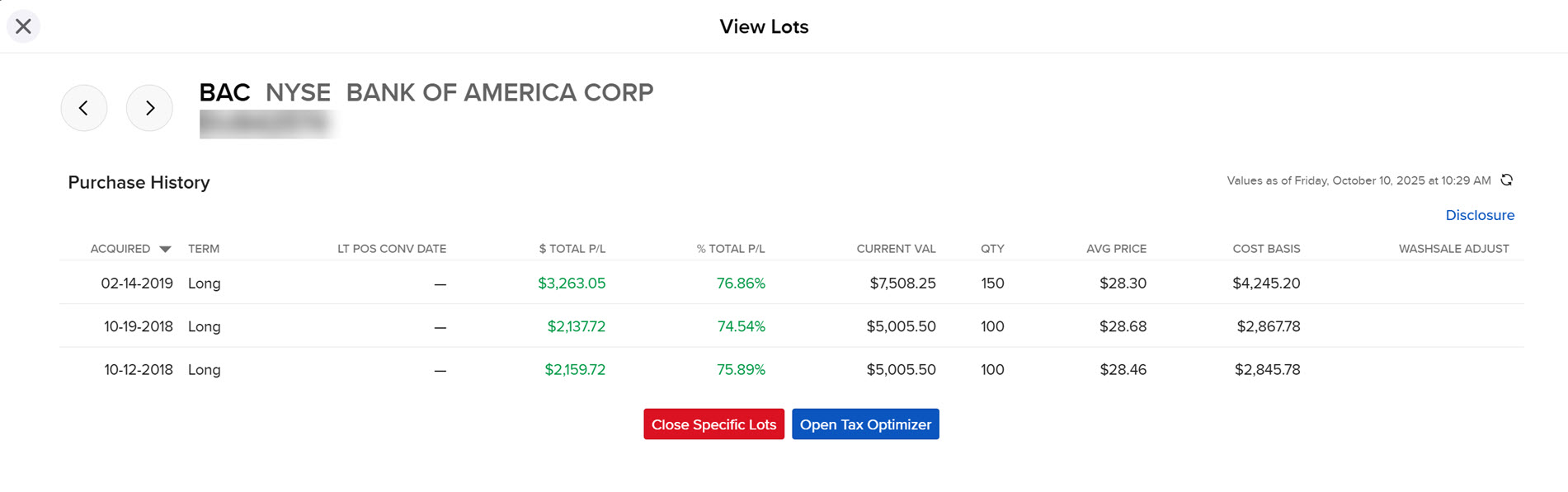
The View Lots screen will populate.
-
For this order, the Acquired Date, Term, Long Term Position Conversion Date, Total P&L, Percentage of Total P&L, Current Value, Quantity, Average Price, Cost Basis Total, and Washsale Adjustment will populate on your screen.
-
Select the arrow buttons in the top left corner of this screen to navigate through all portfolio holdings.
-
Click Close Specific Lots to multi-select any tax lot(s) to place a closing order for.
-
Click Open Tax Optimizer to manage this Tax Lot and the below page will populate on your screen.
-
Updates to Tax Optimizer can be found here.