AI Instructions
Instructions
Clients can now use Claude, ChatGPT, Grok, and Perplexity to ask questions and receive responses that include IBKR account, portfolio, and related information directly within the assistant’s interface. IBKR securely integrates with these providers to ensure that only the appropriate client data is accessed.
Clients may also initiate non‑binding “instructions” through supported third‑party AI assistants. All such instructions must be reviewed and explicitly confirmed by the client within an IBKR application (for example Portal) before any action is taken.
To grant authorization, please take the steps outlined below.
-
Click Menu in the top left corner > Trade > Orders and Trades.
-
Alternatively, click Menu in the top left corner > Trade > Orders and Trades.
-
-
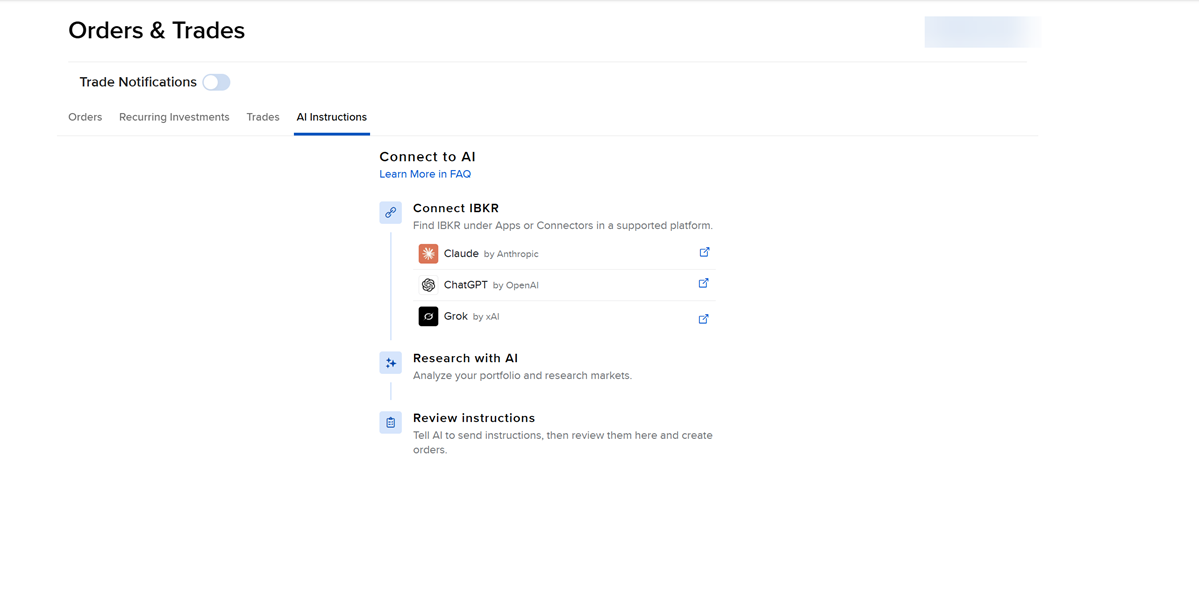
Select the AI Instructions tab.
-
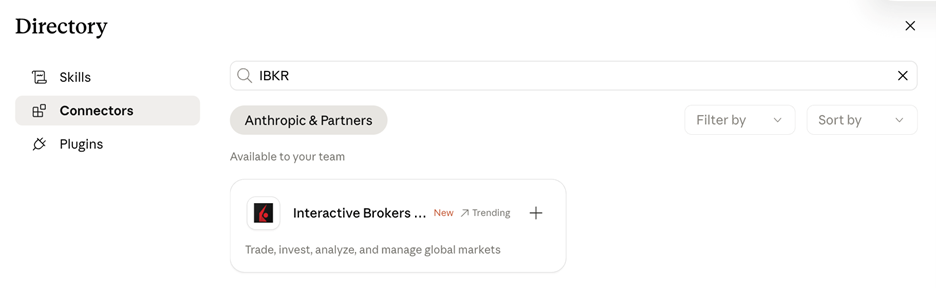
Select Claude, ChatGPT, or Grok which will open up into a new window. Search IBKR in the search bar.
-
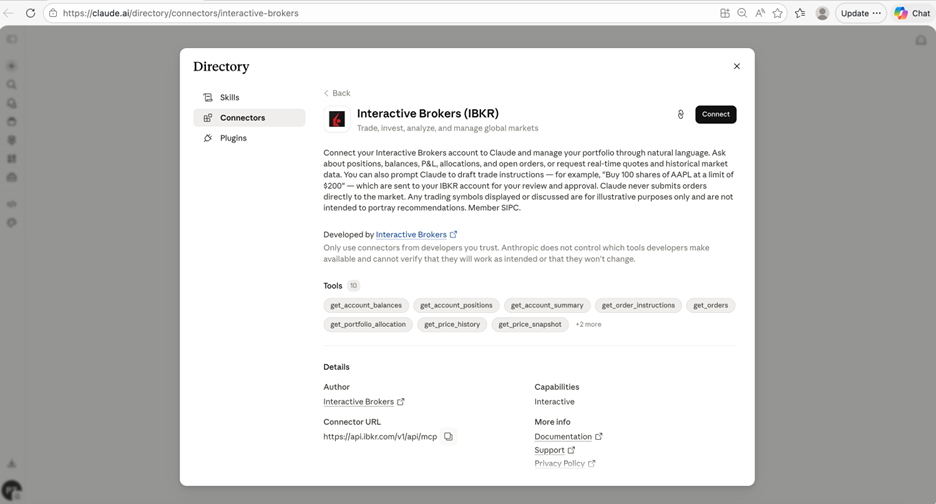
Choose the Interactive Brokers (IBKR) Connector, and click Connect.
-
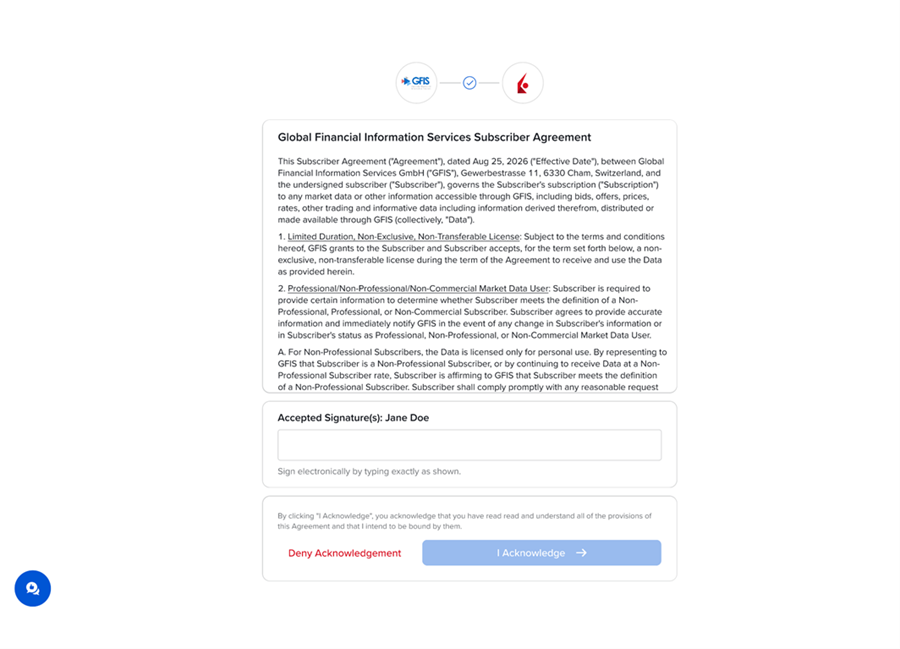
You will be presented with a few Agreements and Disclosures. Read these entirely, sign your name and click I acknowledge.
-
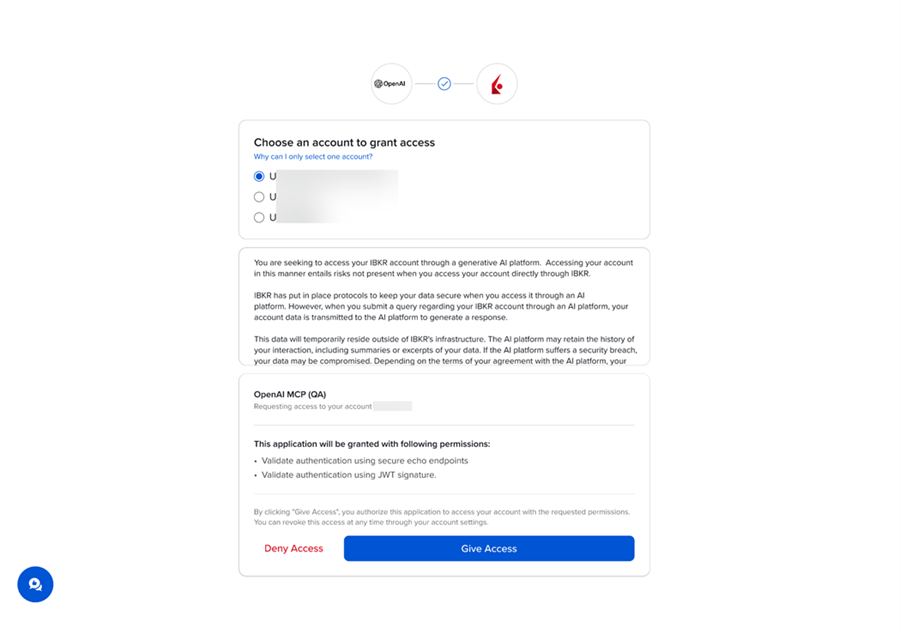
If you have multiple accounts, please select an account to grant access and click Give Access.
-
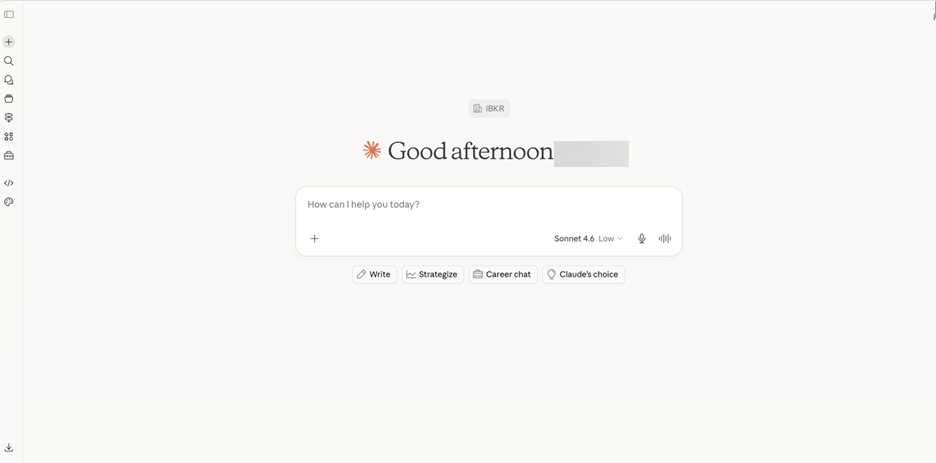
Your IBKR account is now connected. You can begin using Claude, ChatGPT, or Grok to research your portfolio and create instructions.
Using AI Instructions in Portals
-
Click Open Claude, Open ChatGPT, or Open Grok and research your portfolio and the market within this assistant.
-
Depending on the prompts added in the third-party assistant, you will see instructions appear in the AI Instructions tab in Portals.
-
To convert an instruction into a live order, click Review & Submit. To remove the order, click Reject.
-
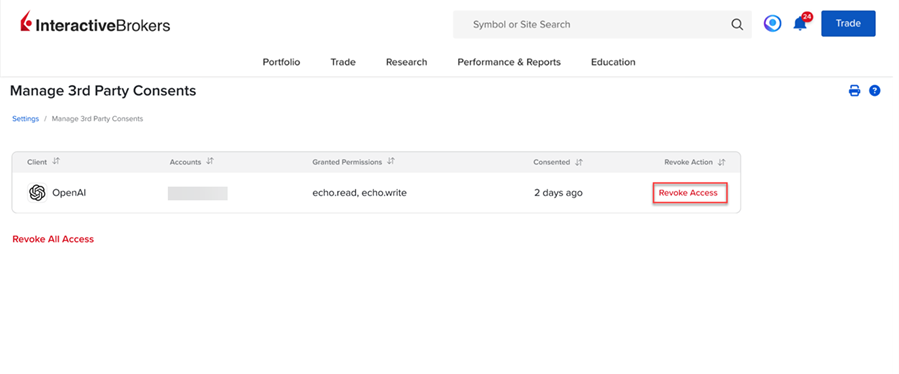
At any point if you would like to revoke the third-party assistant access, please navigate to the head and shoulders icon in the top right corner > Select Settings > Select Manage Third-Party Consents > Select Revoke Access.