Money Manager
A Professional Advisor who specializes in trading specific asset classes in different locations and trades for client accounts instead of gathering customer assets. Money Managers can open an IBKR Money Manager account and sell their trading services to Wealth Managers in the Money Manager Marketplace. Money Managers cannot add client accounts, fund client accounts, set client fees or set client trading permissions in IBKR Money Manager accounts. Find out more information by reviewing the Guide to Choosing the Right Account page and the What You Need for the Application page.
To open this type of account, please take the steps outlined below.
-
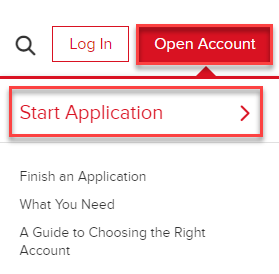
Navigate to www.interactivebrokers.com and select the Open Account button in the top right corner followed by Start Application.
-
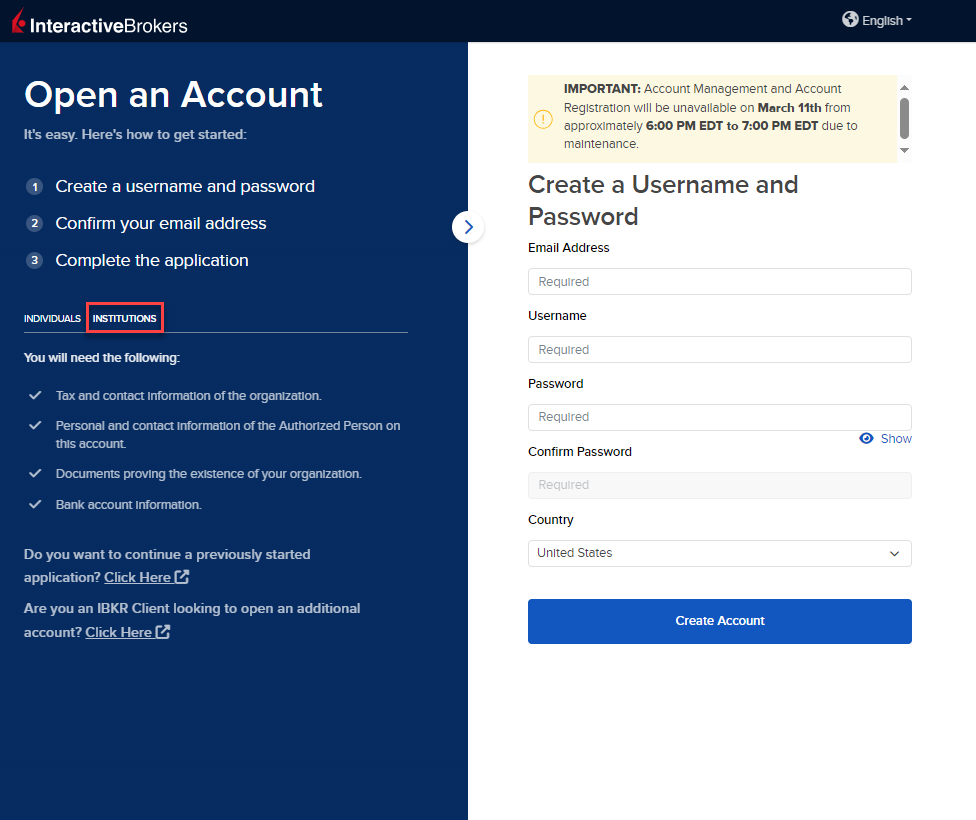
Select the Institution tab on the left hand side and input an Email Address, Username, Password, and Country for this account.
-
Select Create Account to navigate to the next page.
-
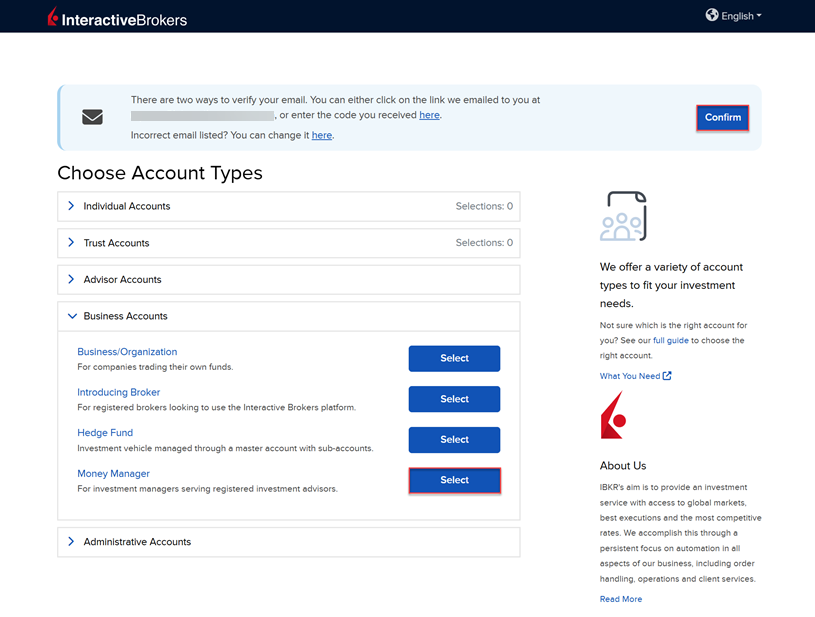
Confirm your email address by selecting the blue Confirm button in the top right corner. Select the Business Accounts tab followed by Money Manager from the account type drop-down menu.
-
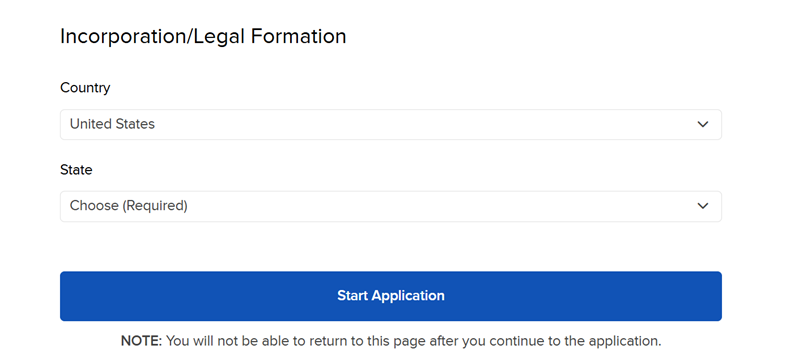
Upon selecting the account type, you will be prompted to enter the Incorporation/Legal Formation information (Country and State). Once these have been selected, click Start Application.
-
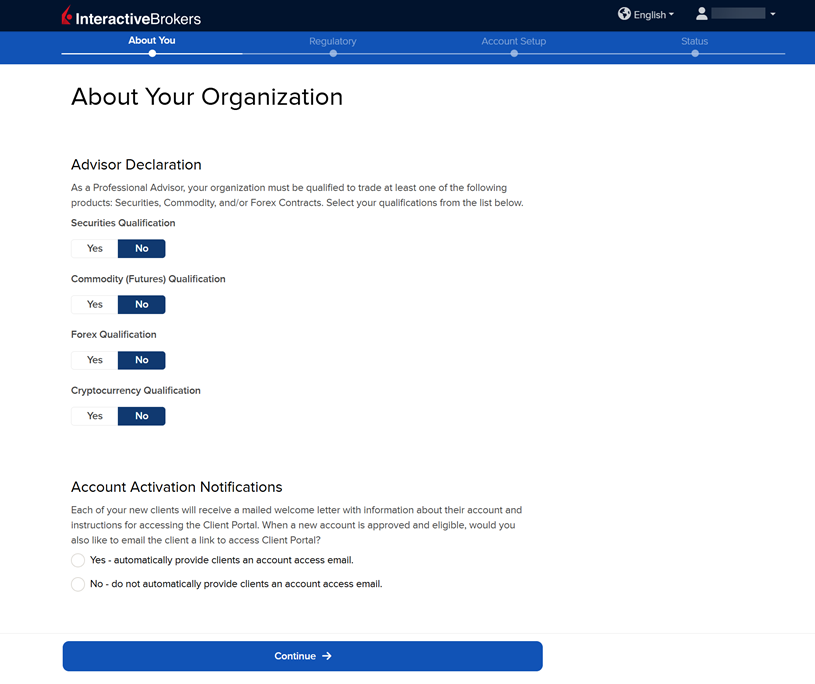
The next page of the application is the About Your Organization section. Fill this out accordingly and press Continue. If you select Yes, you must enter if you're US Registered or Non-US Registered.
-
The following page is an additional About Your Organization section. Fill this out accordingly and press Continue.
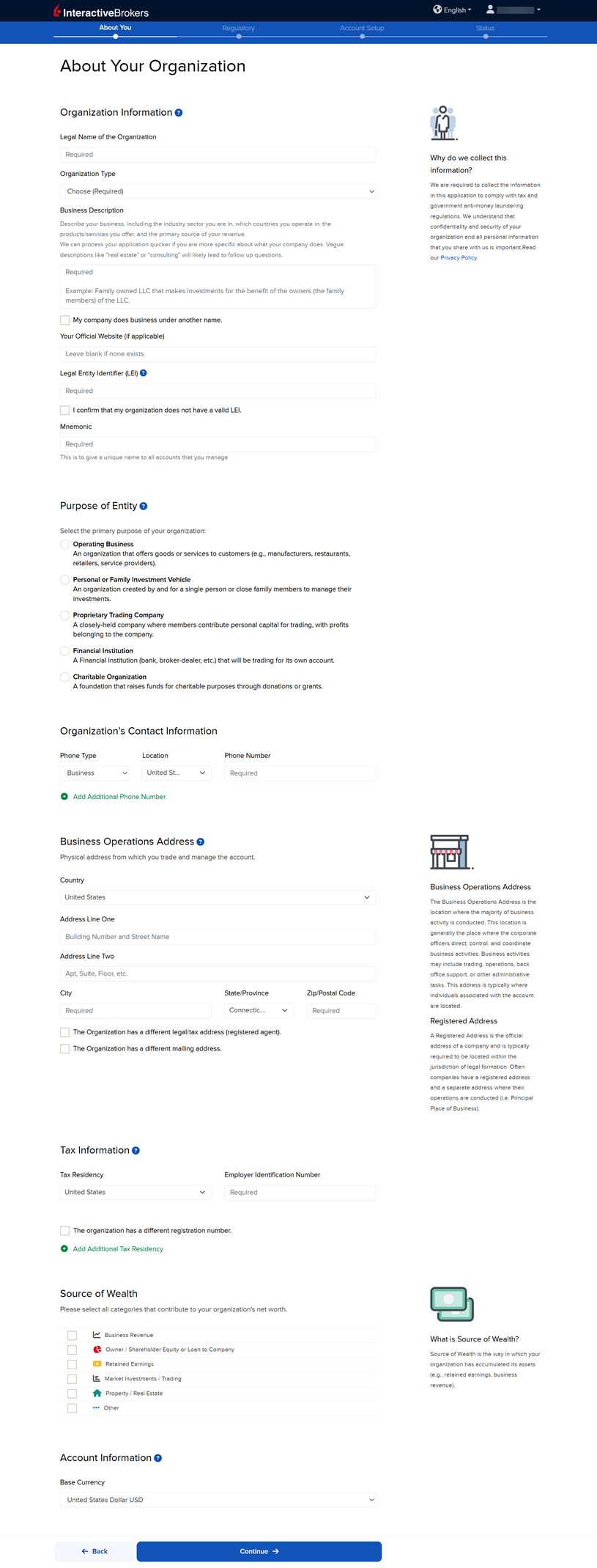
Please note, to the extent required by law, we will take appropriate technical and organizational measures to keep your Personal Information confidential and secure in accordance with our internal procedures covering the storage, disclosure of and access to Personal Information. To review our privacy policy, please click here.
-
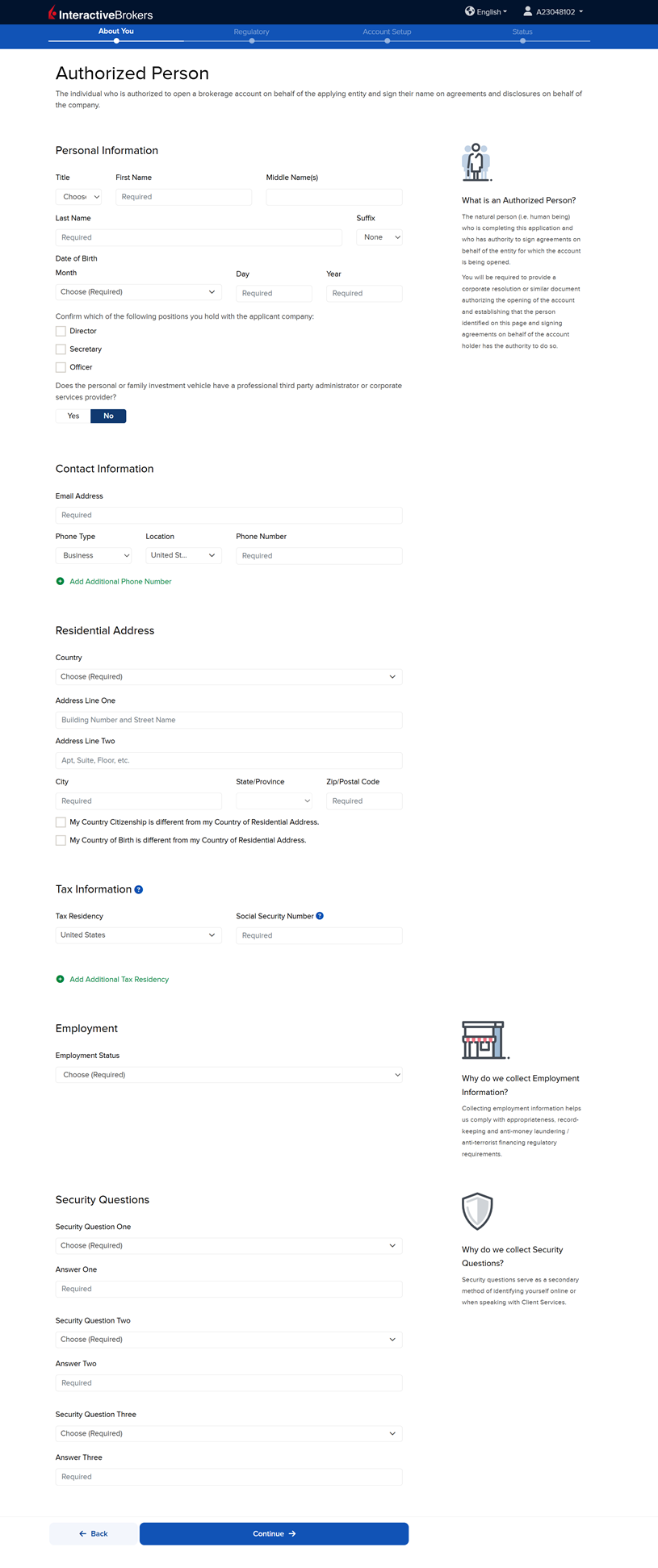
On the following page, enter the Authorized Person information and press Continue.
-
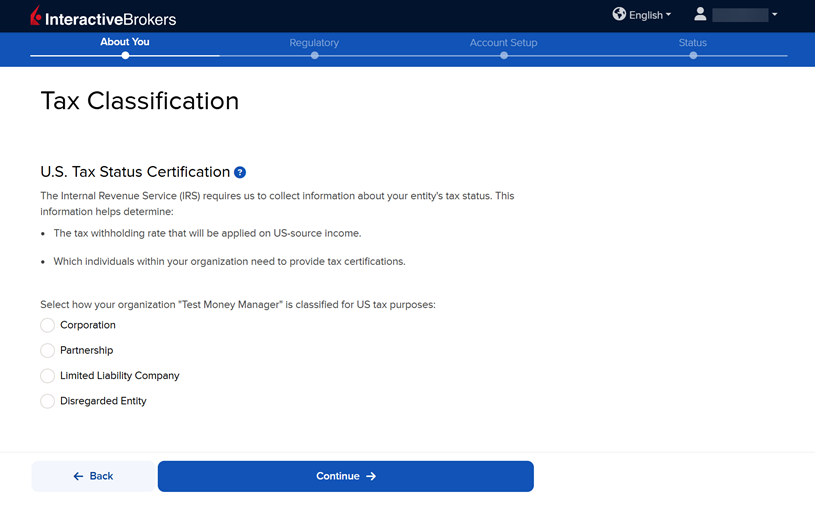
The next page is the Tax Classification section. Enter the information and press Continue.
-
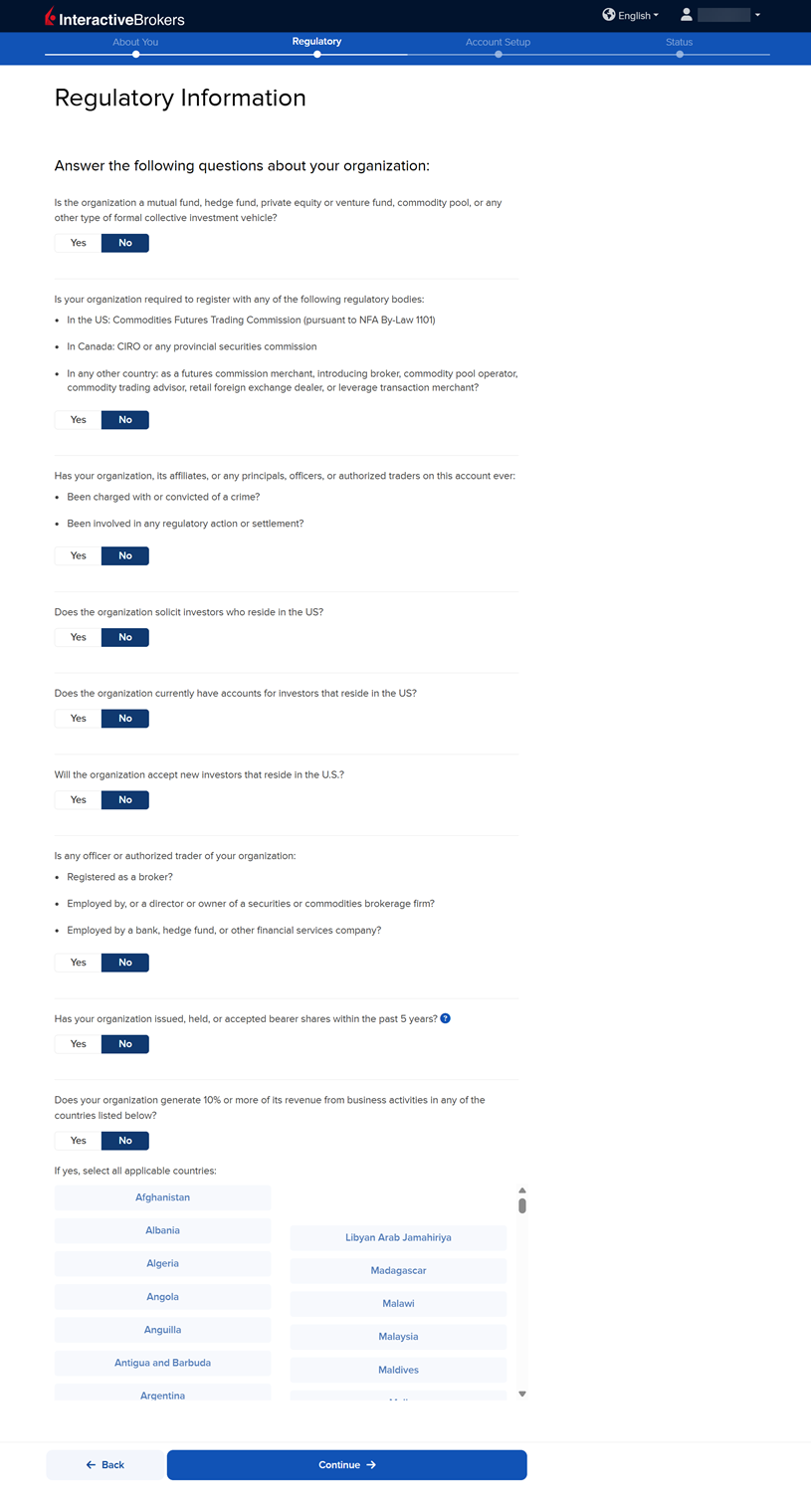
Fill out the Regulatory Information and press Continue.
-
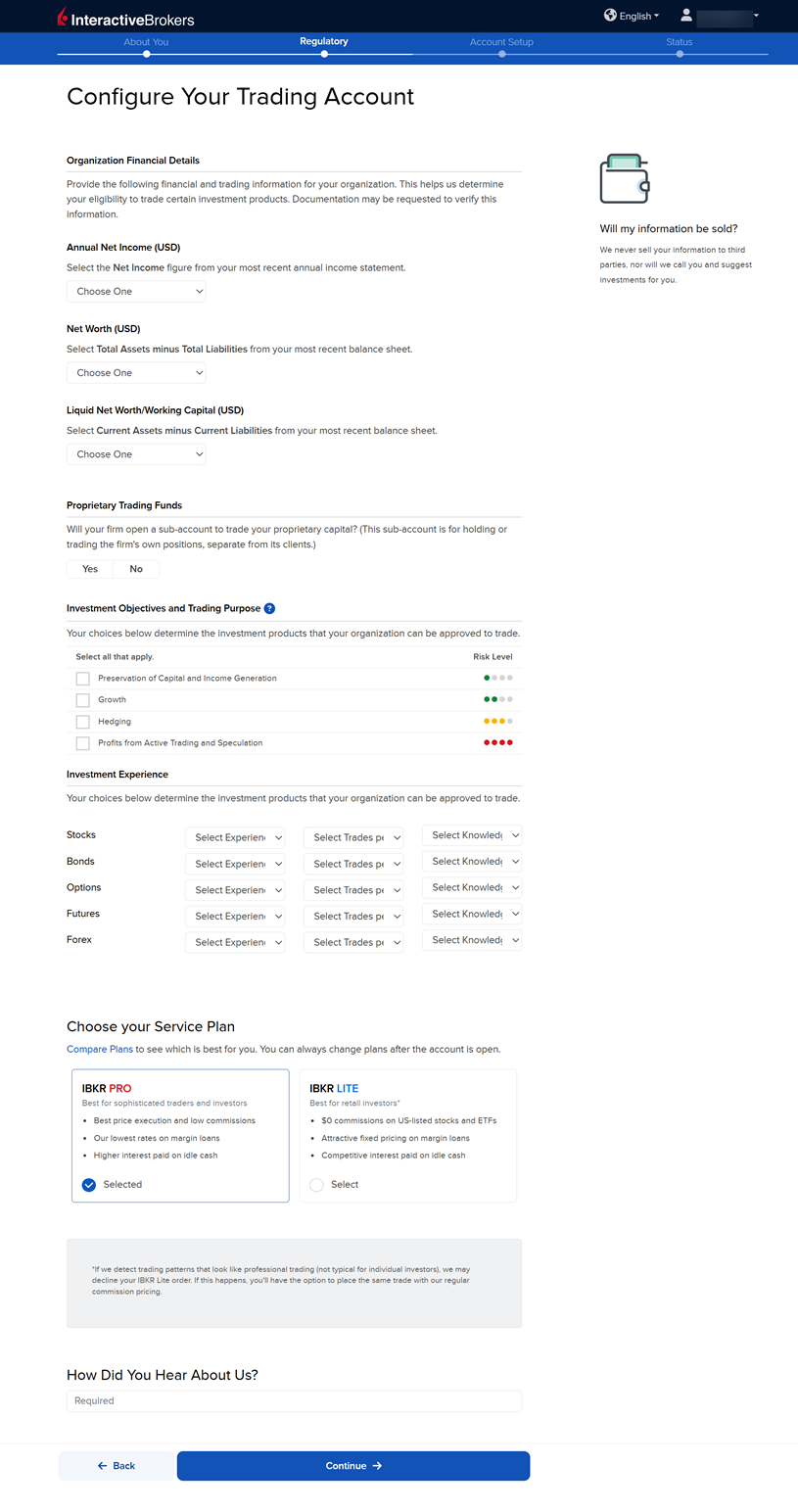
The next page is the Configure Your Trading Account section. Fill this out accordingly and press Continue.
-
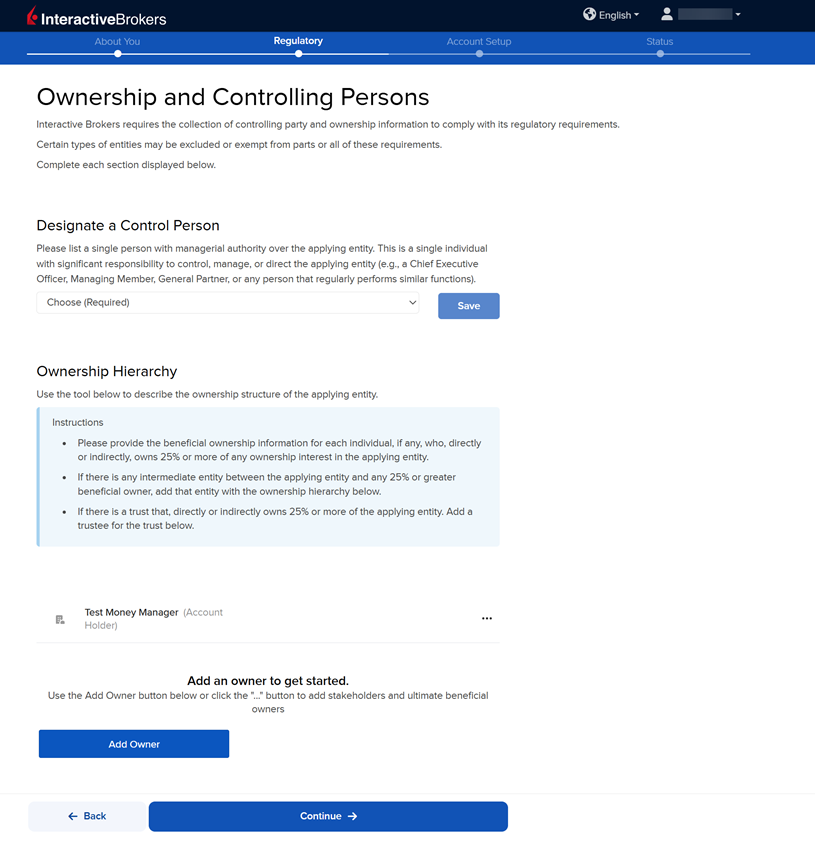
The following page asks you to add information on Ownership and Controlling Persons. Fill this out accordingly and press Continue. Please note, after entering an individual's information you need to navigate back to that section and add a percentage of ownership.
-
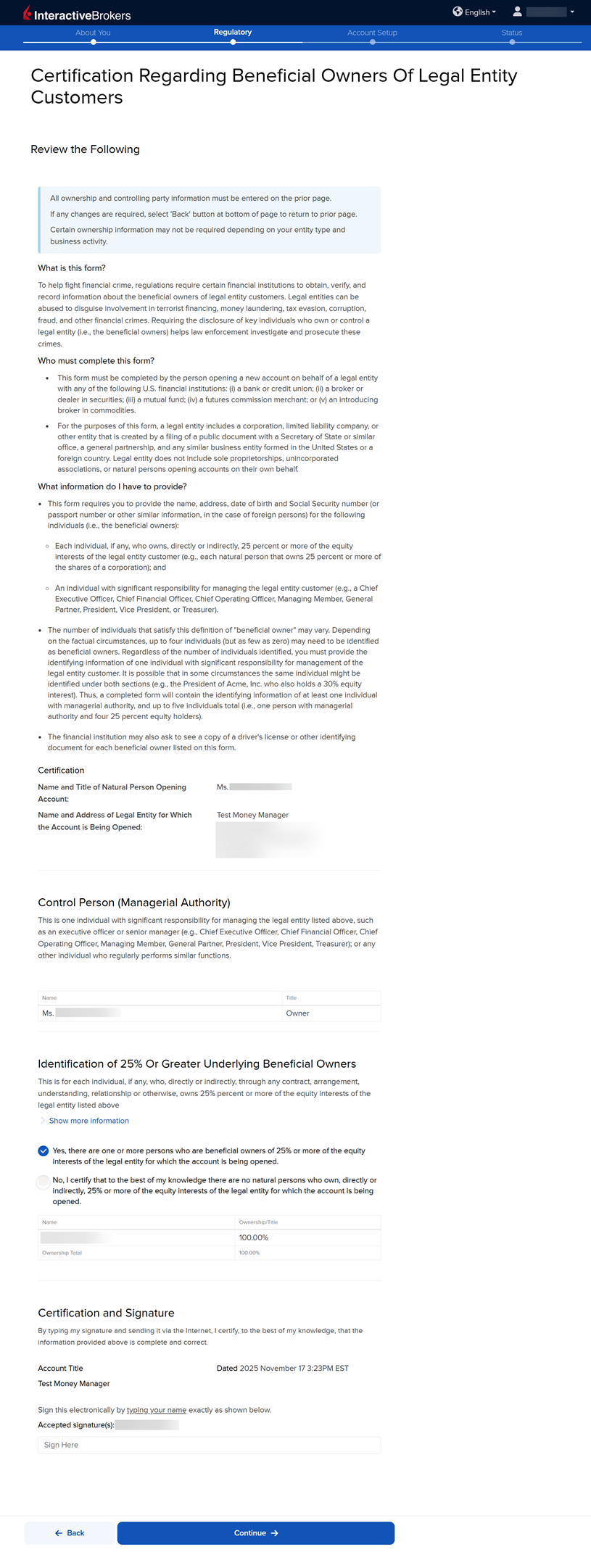
The next page of the application is the Certification Regarding Beneficial Owners Of Legal Entity Customers section. Review the information and provide your signature at the bottom of the page.
-
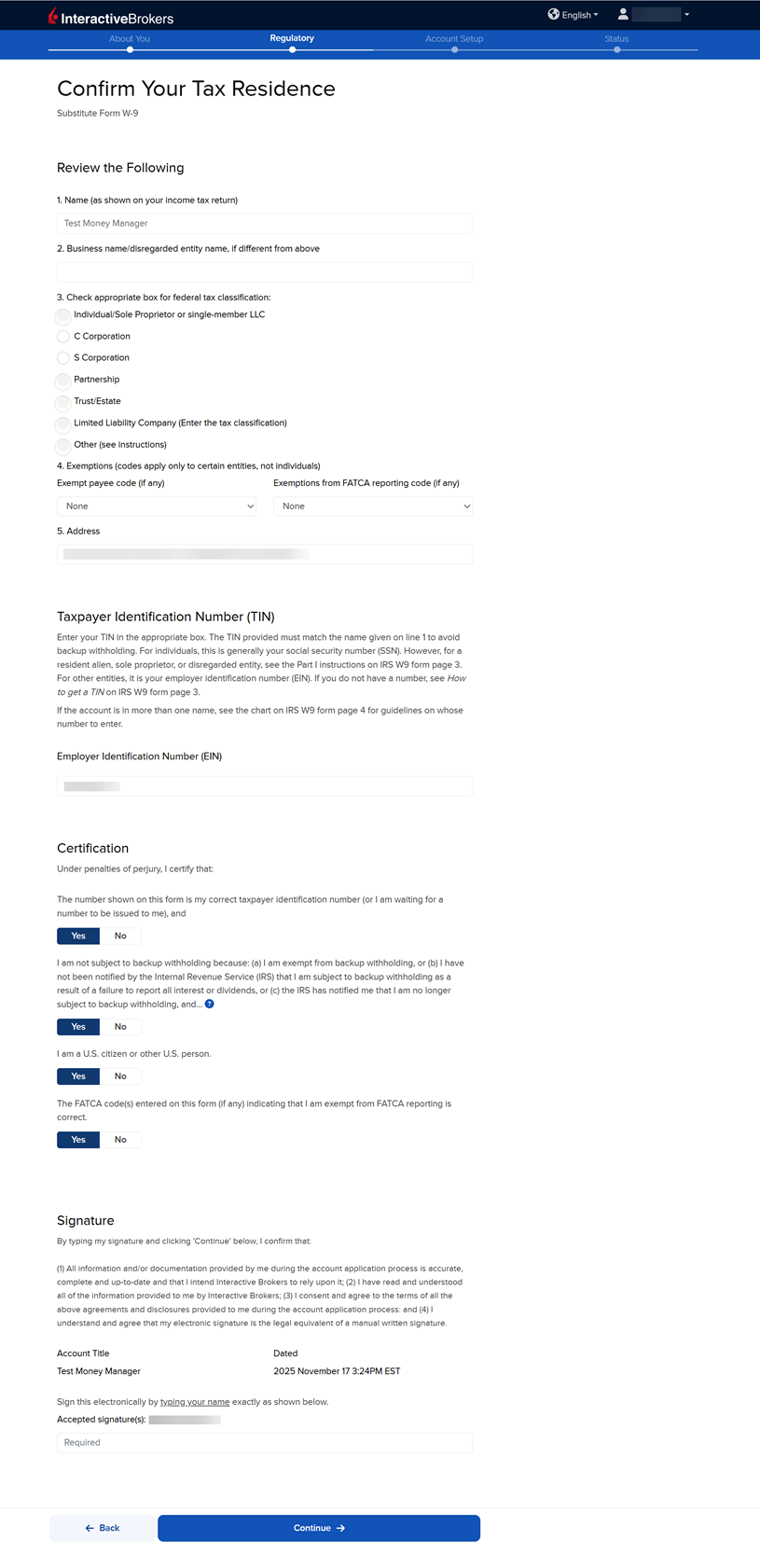
The following page asks you to Confirm Your Tax Residency. Fill this out accordingly and press Continue.
-
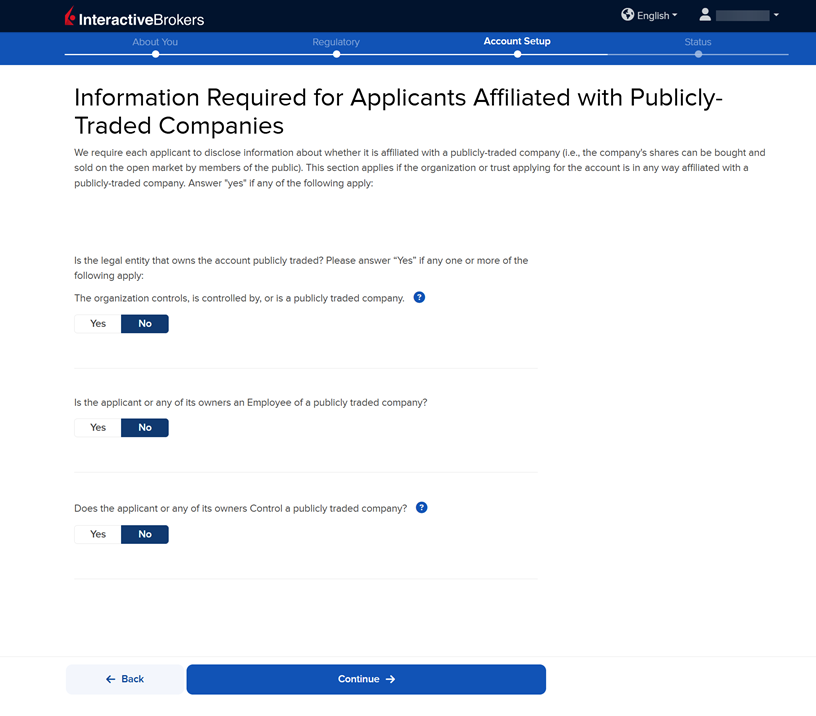
The next page of the application is the Information Required for Applications Affiliated with Publicly-Traded Companies section. Fill this out accordingly and press Continue.
-
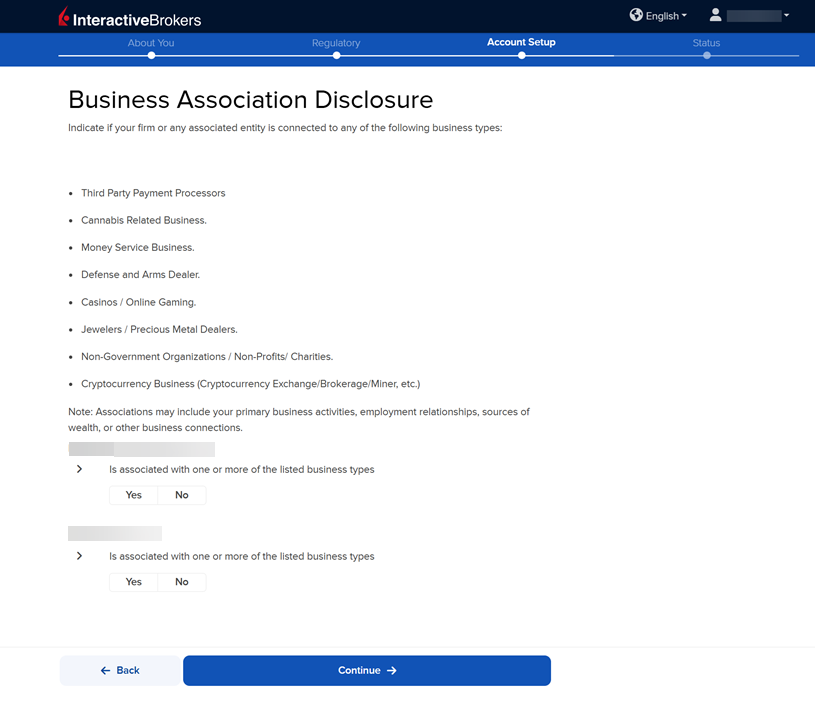
The Business Association Disclosure page will populate on the screen. Answer the following questions and press Continue.
-
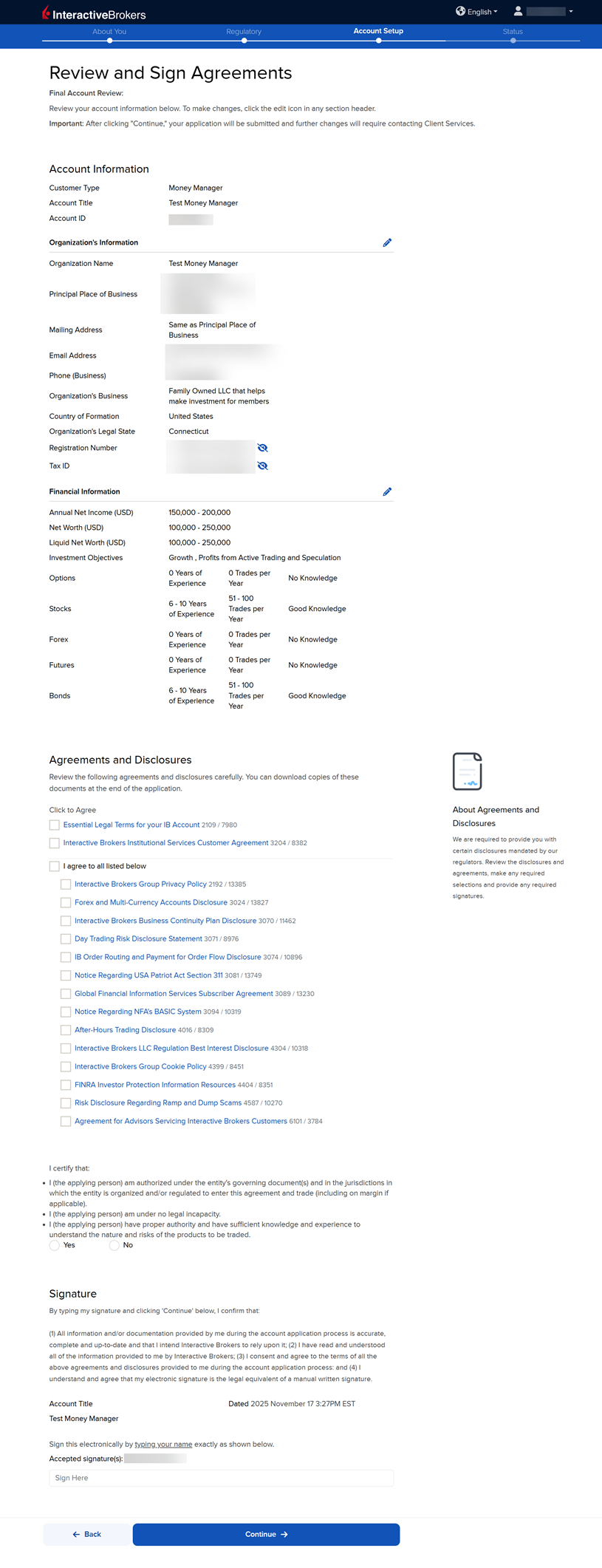
The next page of the application is the Review & Sign Agreements section. Fill this out accordingly and press Continue.
-
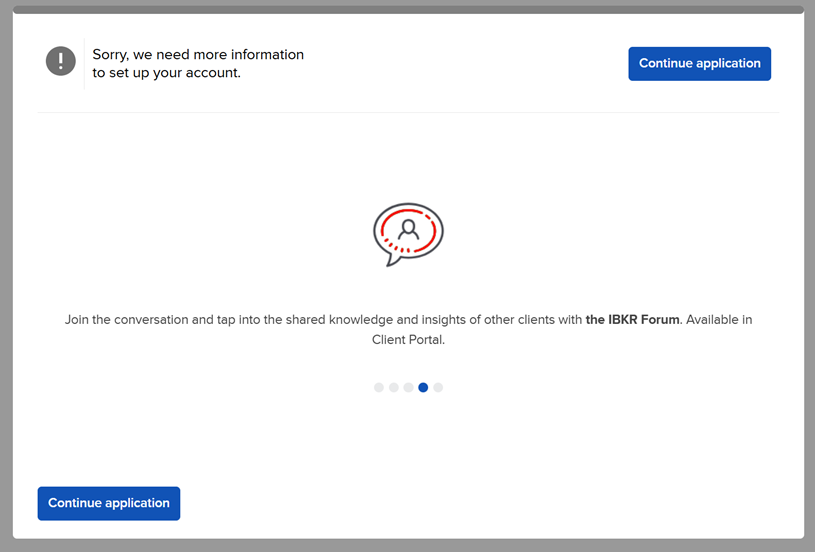
The following pop-up may appear on your screen. Click Continue application.
-
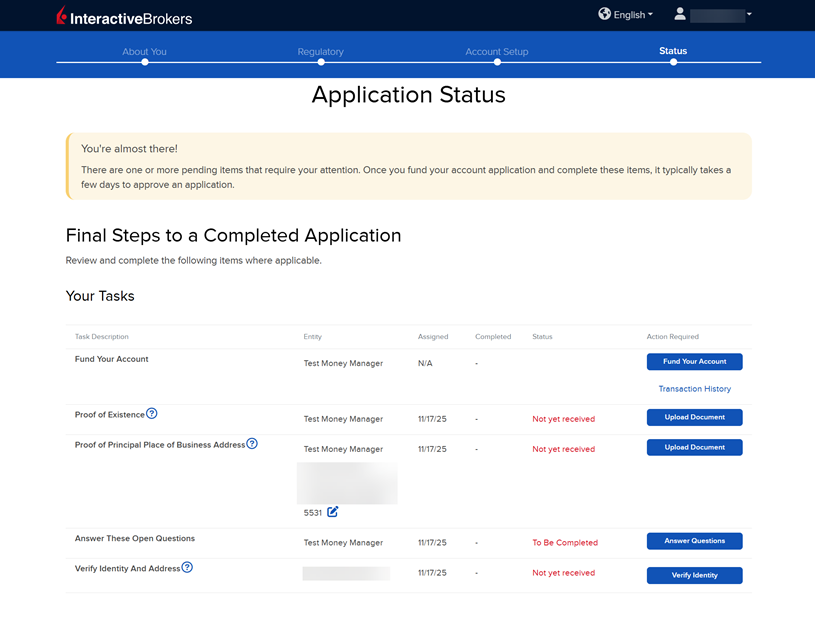
The final page of the application is the Status section. This page will state any additional information or documents needed to complete the application. These tasks are prompted based on the information you previously provided in the application. Any required documents needed for the application will be marked as "REQUIRED" or "Not Yet Received" in red letters. Select the blue buttons to Fund Your Account, Answer Questions, Verify Identity, and Upload Documents.
-
Once all of these steps have been completed, a member from our back office team will review the application and any submitted documents. Once the account has been approved and opened, you will receive an email from Interactive Brokers advising that your account has been activated and you may log in at any time to start trading.
How to Fund Your Account During the Application
Funding your account during the application process is optional. However, doing so will push your application to a priority review. Funding your account may done by transferring cash from a bank account. Please note, funding Money Manager accounts is not required as you will use this account solely to trade on behalf of your clients. If you would like to trade on your own behalf, you will need to open an account under your money manager account. You may fund a money manager account for other reasons such as subscribing and paying for Market Data and/or Research. To fund your account, follow the steps below.
-
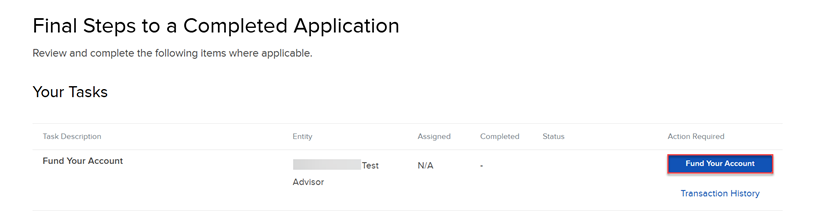
On the final page of the application, click the Fund Your Account button.
-
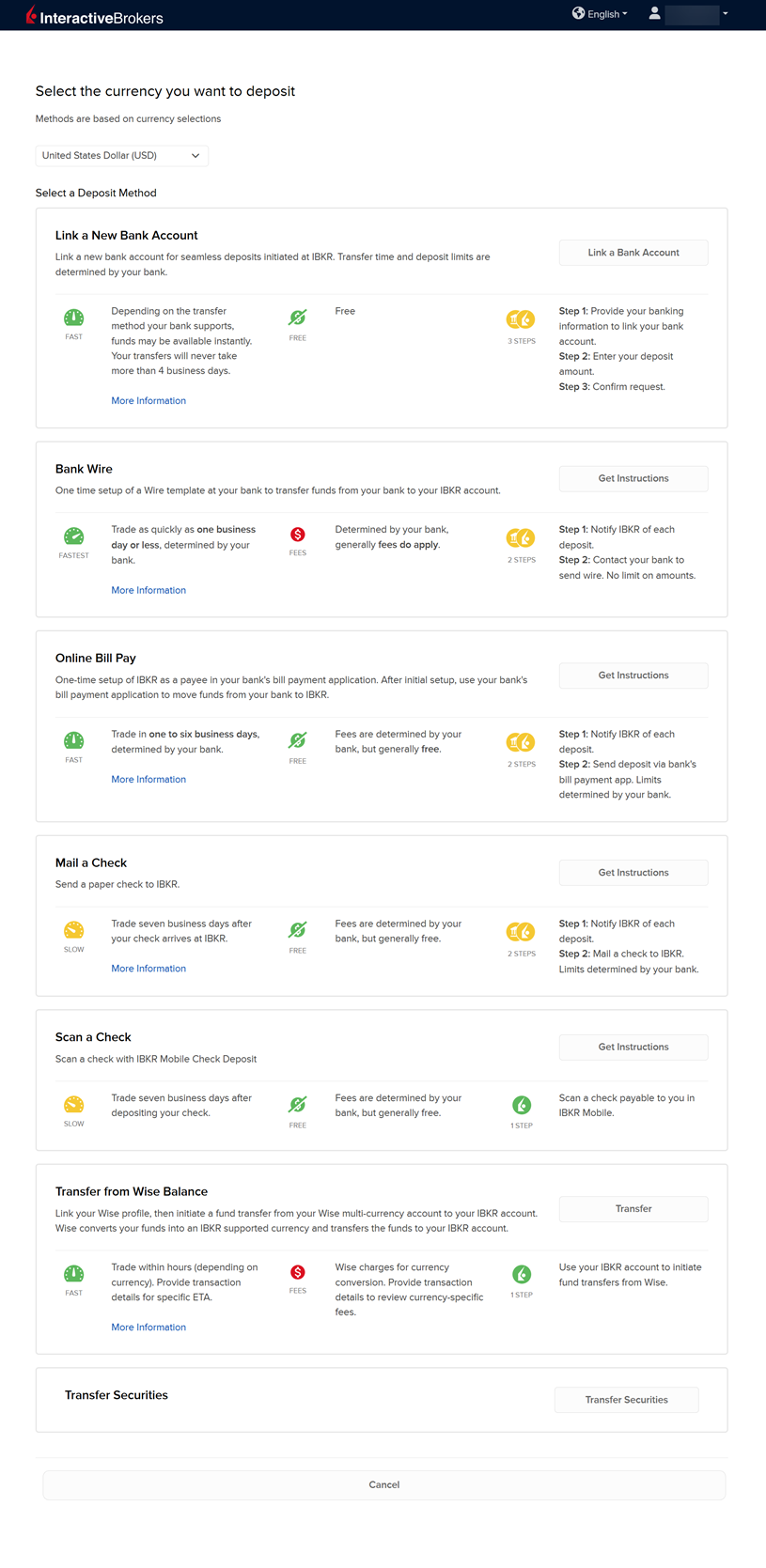
A list of transfer methods will populate on your screen. Click your desired transfer option.
-
Provide your bank details and complete the transfer request.