Individual
An Individual account is described as an account owned and used by a single person. Account holders have access to all functions and may add additional users by using a Power of Attorney. Find out more information by reviewing the Guide to Choosing the Right Account page and the What You Need for the Application page.
To open this type of account, please take the steps outlined below.
-
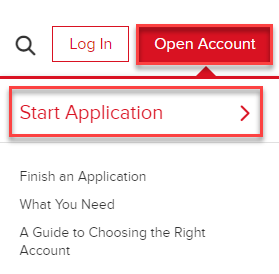
Navigate to ibkr.com and select the Open Account button in the top right corner followed by Start Application.
-
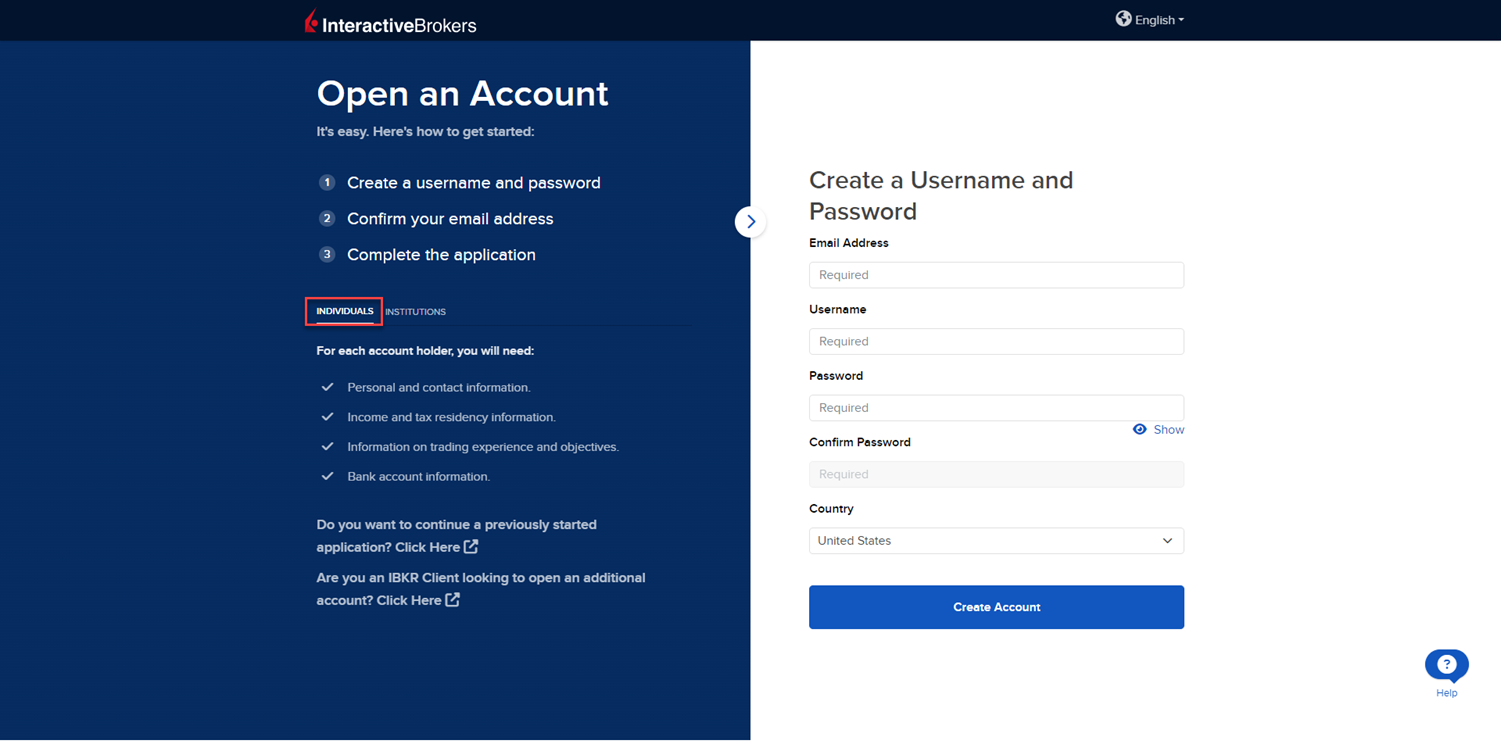
Select the Individual tab on the left side and input an Email Address, Username, Password, and Country for this account.
-
Select Create Account to navigate to the next page.
-
Confirm your email address by selecting the blue Confirm button in the top right corner. Select Individual from the account type drop-down menu.

-
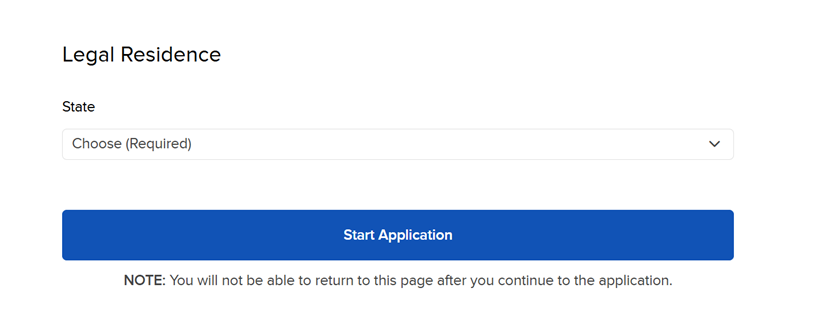
Upon selecting the Individual account type, you will be prompted to enter the State of Legal Residence. Once this has been selected, click Start Application.
-
The first page of the application is the About You section. Fill this out accordingly and press Continue.
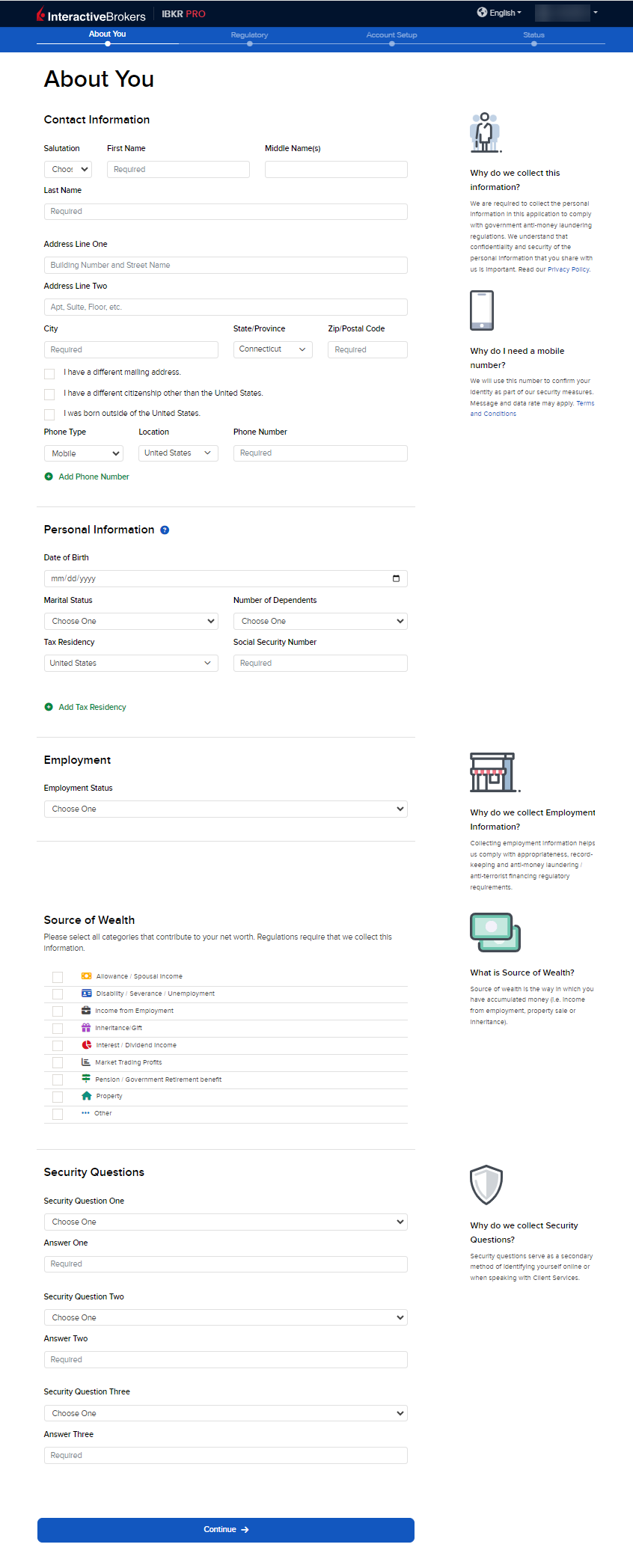
Please note, to the extent required by law, we will take appropriate technical and organizational measures to keep your Personal Information confidential and secure in accordance with our internal procedures covering the storage, disclosure of and access to Personal Information. To review our privacy policy, please click here.
-
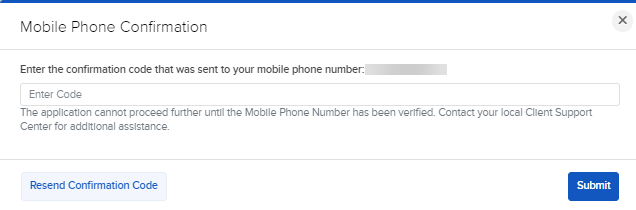
After pressing Continue, you will need to verify your phone number. Enter the confirmation code that was sent to the mobile number you previously input. Press Submit.
-
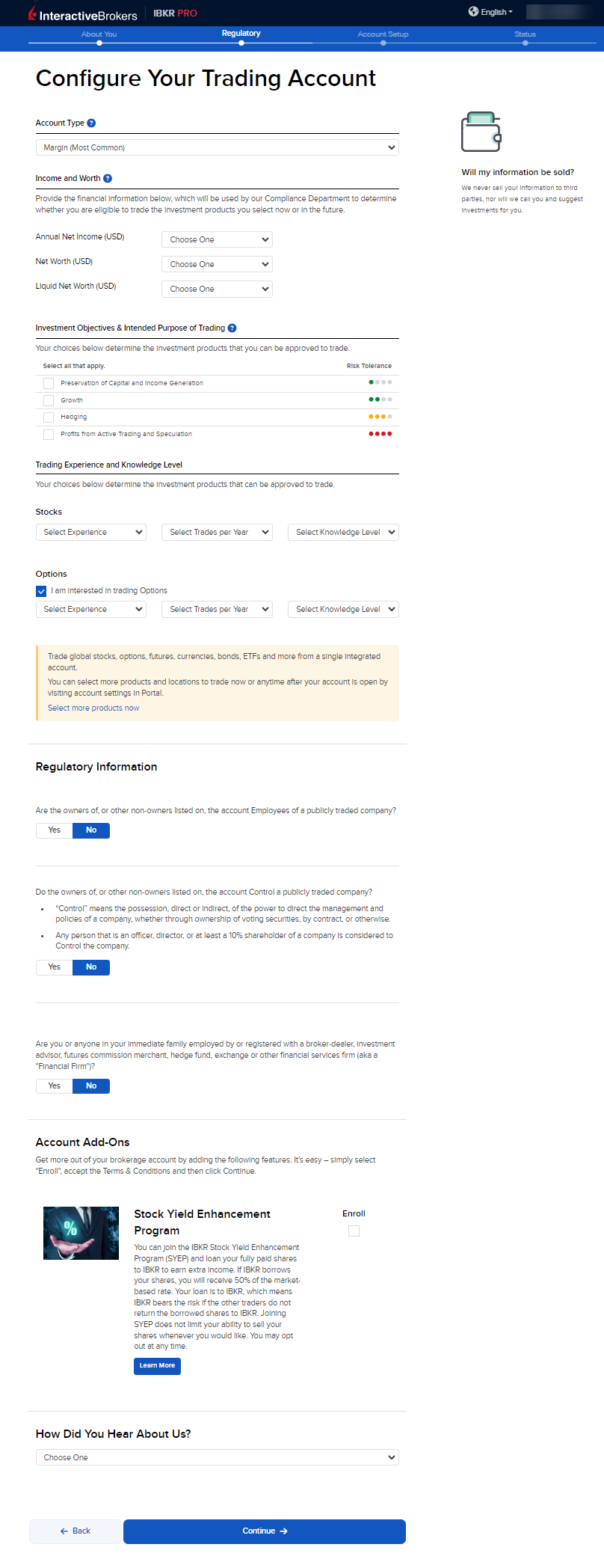
The next page of the application is the Configure Your Trading Account section. Fill this out accordingly and press Continue.
-
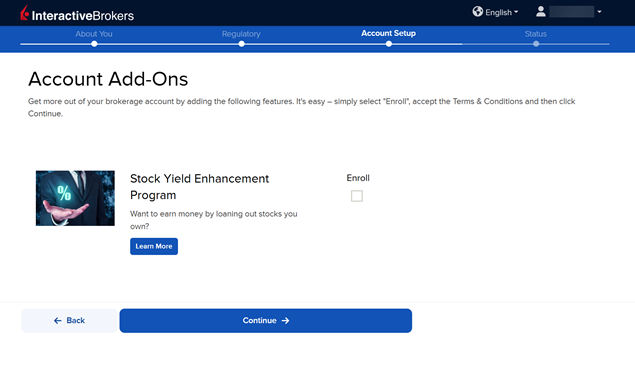
The Account Add-On section will populate on your screen. The Stock Yield Enhancement Program provides extra income on the fully-paid shares of stock held in your account by allowing IBKR to borrow your shares in exchange for collateral (either U.S. Treasuries or cash). IBKR then lends the shares to traders who want to sell them short and are willing to pay a fee to borrow them. To enroll, click the Enroll check-box and press Continue. If you do not want to enroll at this time, leave the check-box blank and click Continue.
-
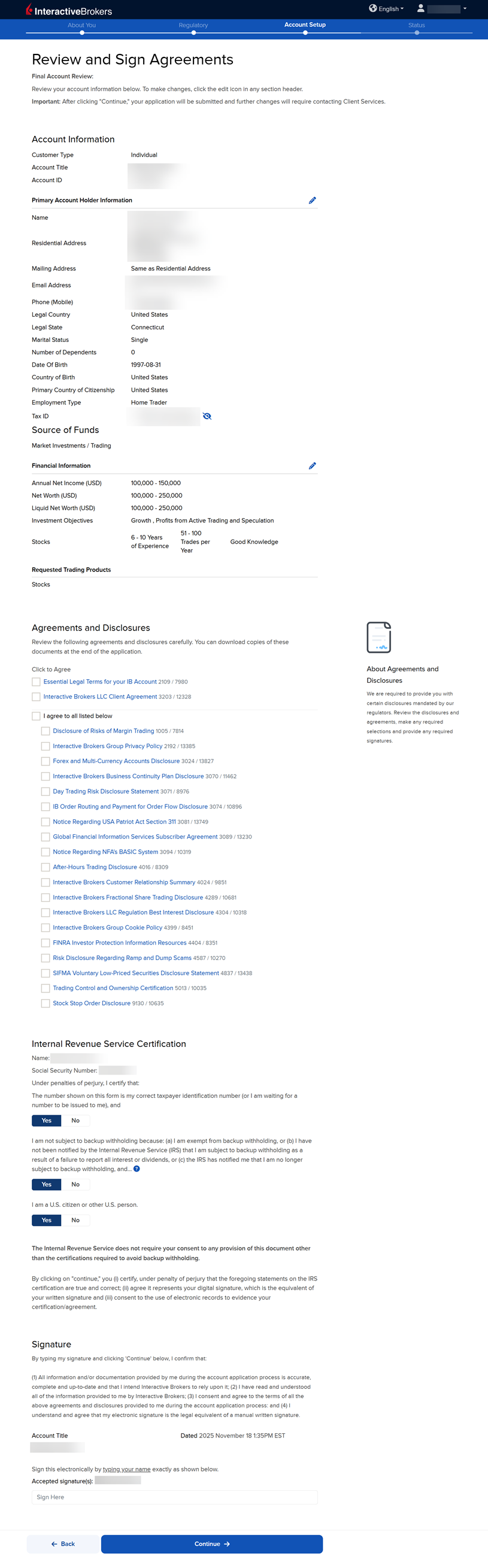
The next page of the application is the Review & Sign Agreements section. Fill this out accordingly, click the check-boxes to sign agreements, provide your signature at the bottom of the page, and press Continue.
-
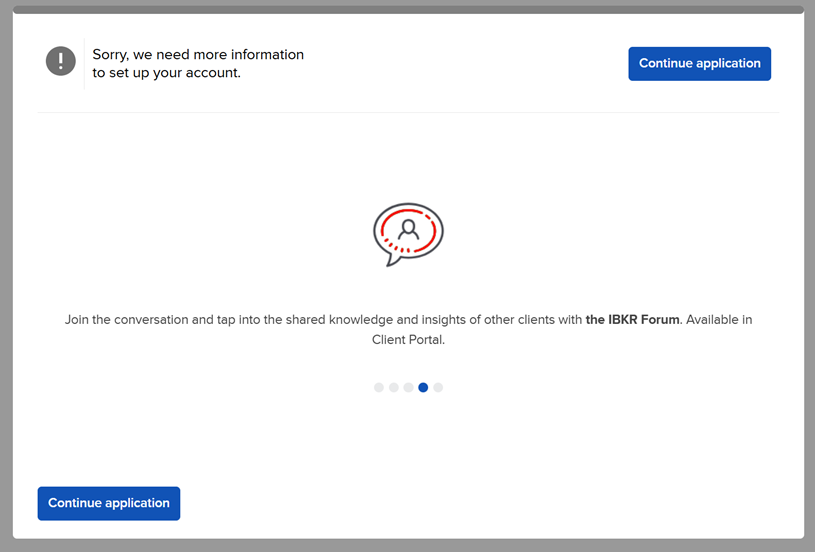
The following pop-up may appear on your screen. Click Continue application.
-
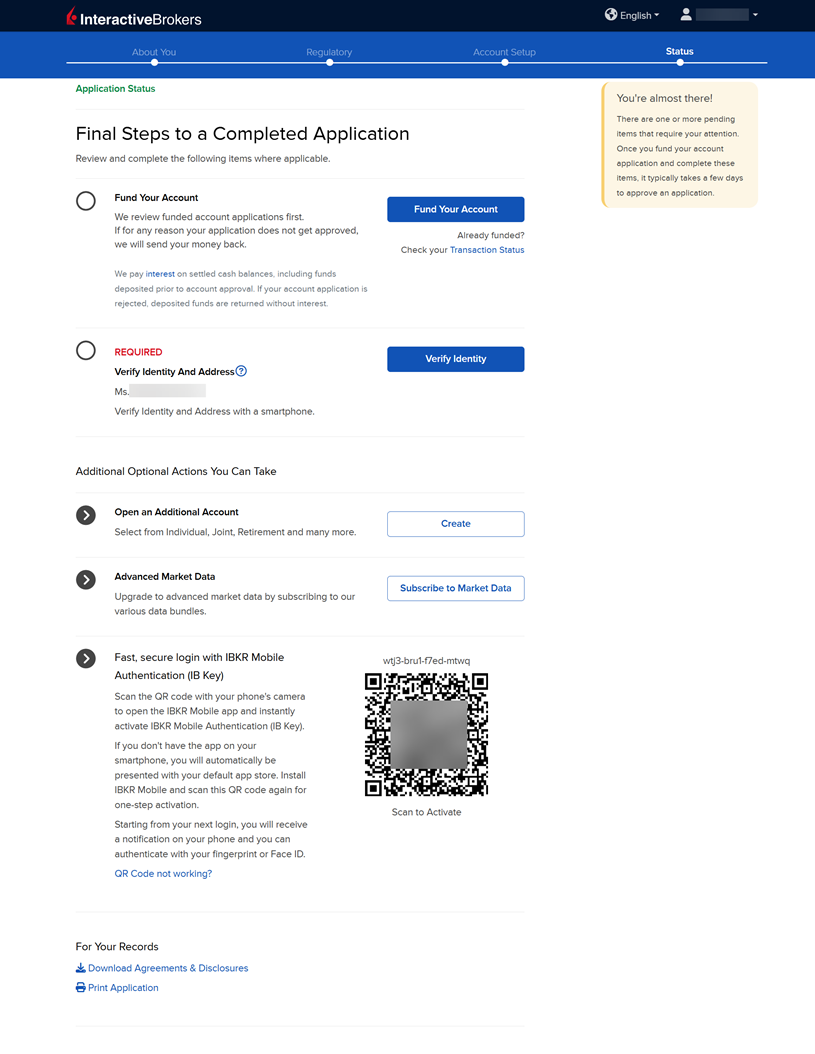
The final page of the application is the Status section. This page will state any additional information or documents needed to complete the application. These tasks are prompted based on the information you previously provided in the application. Any required documents needed for the application will be marked as "REQUIRED" or "Not Yet Received" in red letters. Select the blue buttons to Fund Your Account, Answer Questions, Verify Identity, and Upload Documents.
-
Once all of these steps have been completed, a member of our back office team will review the application and any submitted documents. Once the account has been approved and opened, you will receive an email from Interactive Brokers advising that your account has been activated and you may log in at any time to start trading.
How to Fund Your Account During the Application
Funding your account during the application process is optional. However, doing so will push your application to a priority review. Funding your account may done by transferring cash from a bank account, or by transferring securities from your previous custodian. To do so, follow the steps below.
Please note, securities transfer requests are sent to your current custodian only after your IBKR account is approved and opened. Once approved, contact your current custodian to confirm they received the transfer request.
-
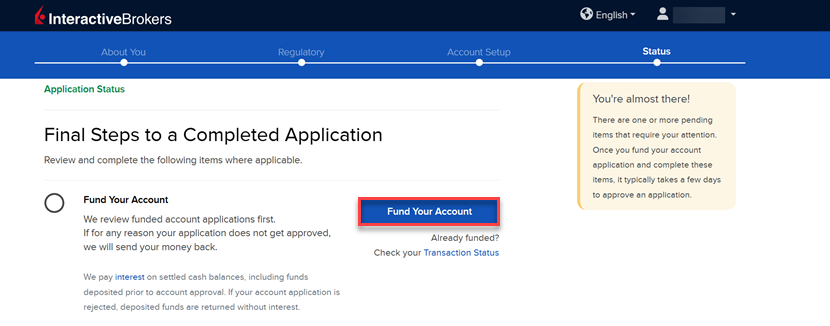
On the final page of the application, click the Fund Your Account button.
-
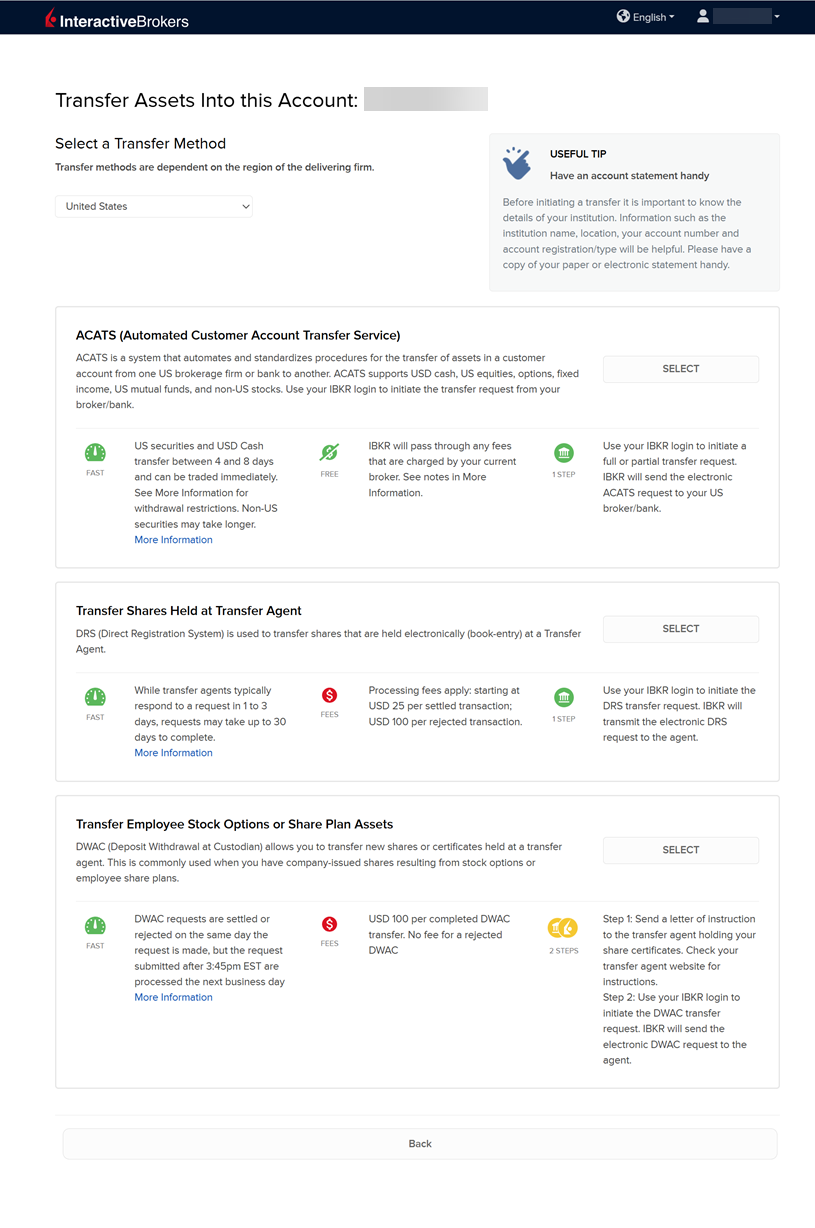
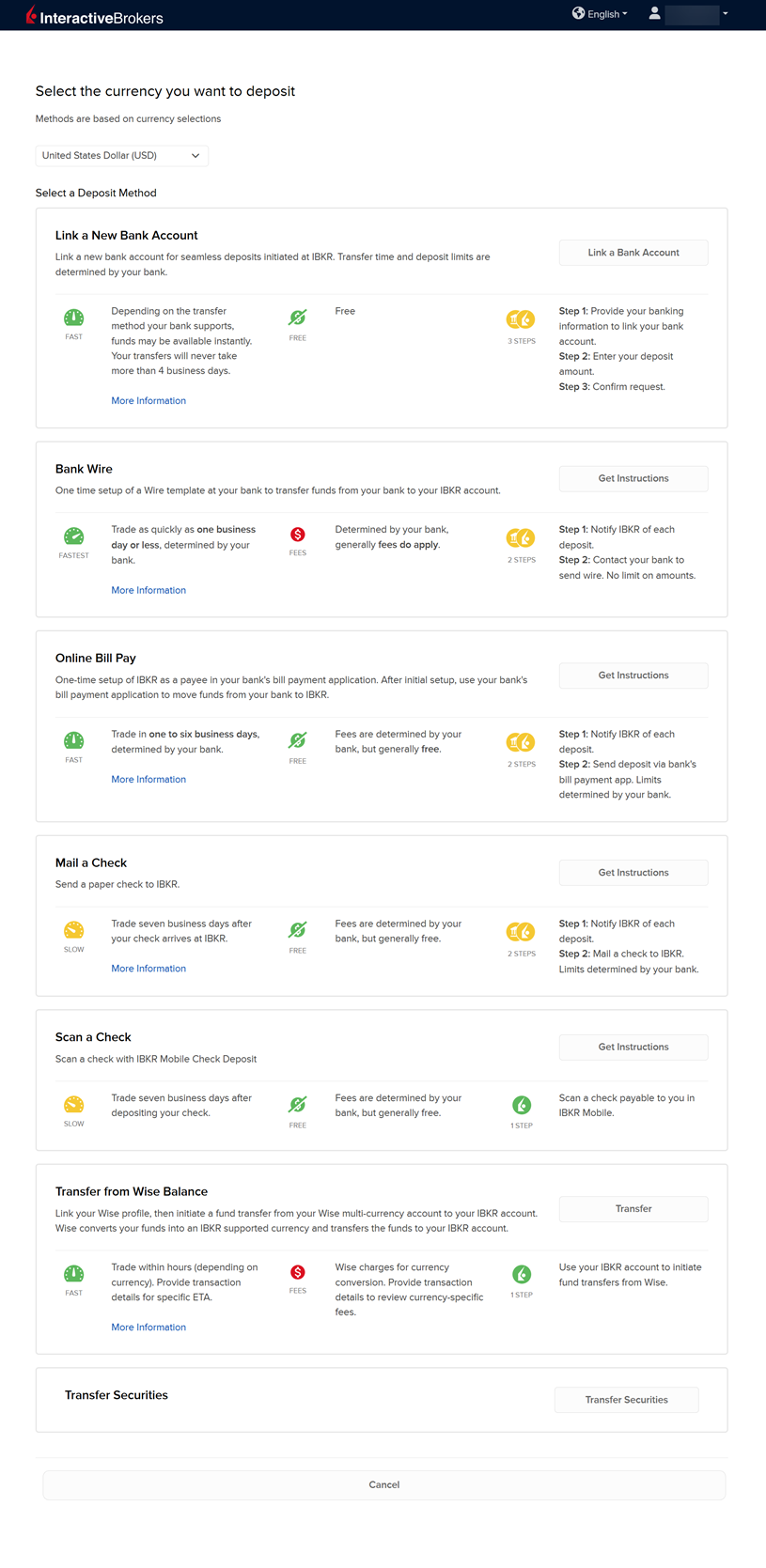
A list of transfer methods will populate on your screen. Click your desired transfer option.
-
Provide your bank details and complete the transfer request.
-
If you are looking to transfer cash and securities from your previous custodian, select the Transfer Securities button at the bottom of the page.
-
A list of transfer security methods will populate on your screen. Click your desired transfer option and provide the required custodian details.