Set Alerts
Instructions
Define price, trade, and margin alerts with trigger notifications sent to your email address. To do so, please take the steps outlined below.
-
Tap the Account menu icon (three horizontal lines) on the top left corner of the app.
-
Select Alerts
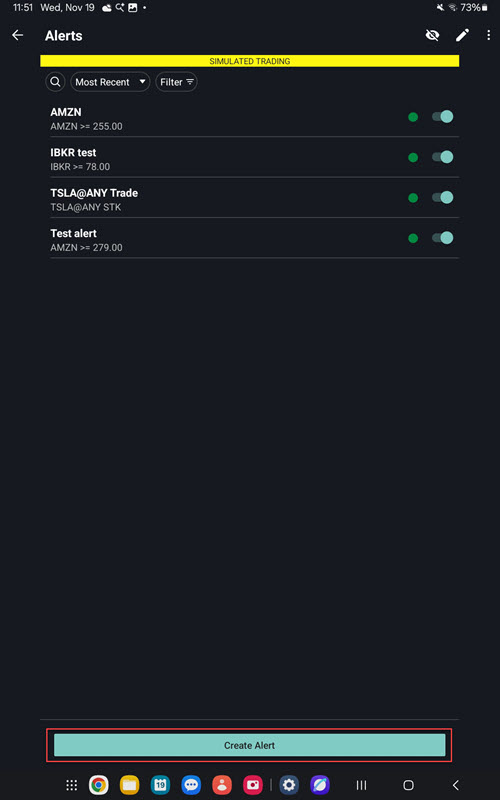
-
Set the Alert Conditions
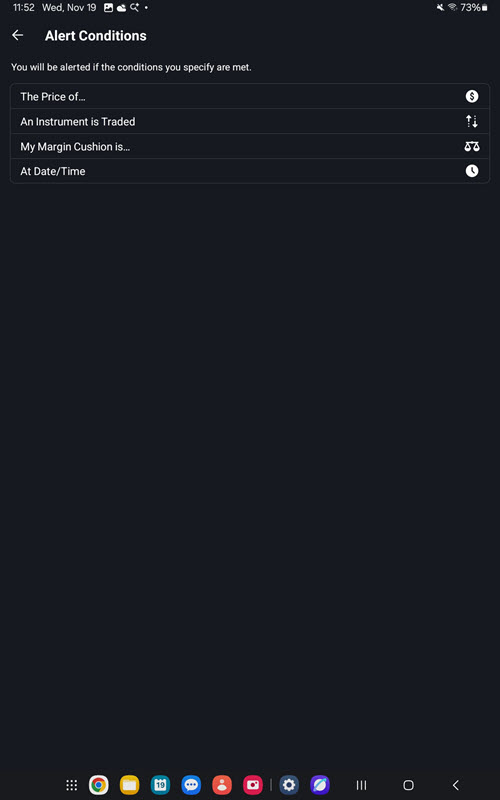
-
Search or select a symbol to add a condition to.
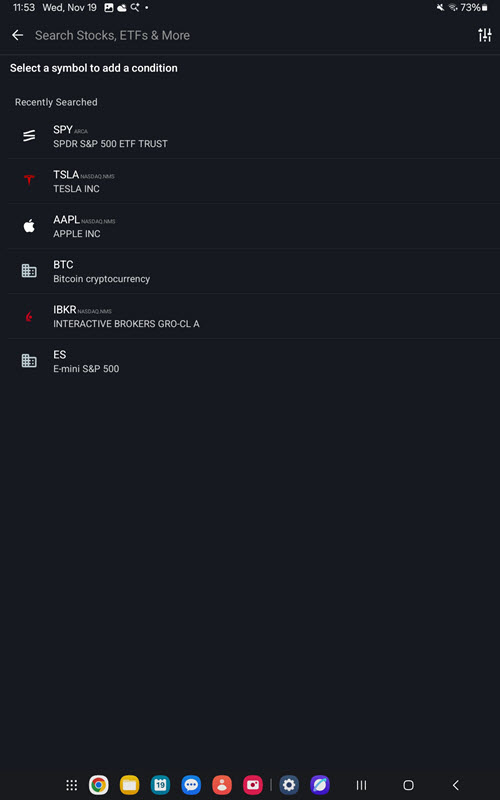
-
Select the product and location you wish to set the alert for.
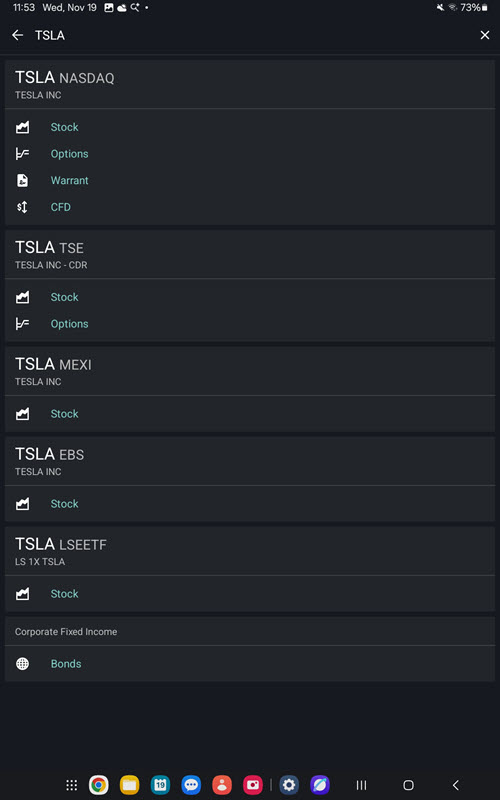
-
Define the Alert Conditions and select Continue.
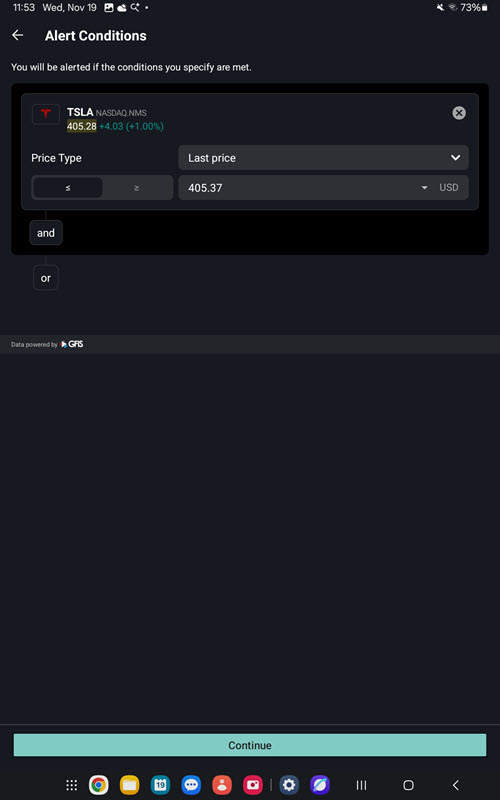
-
Create an alert name and email to confirm the alert and save the alert.
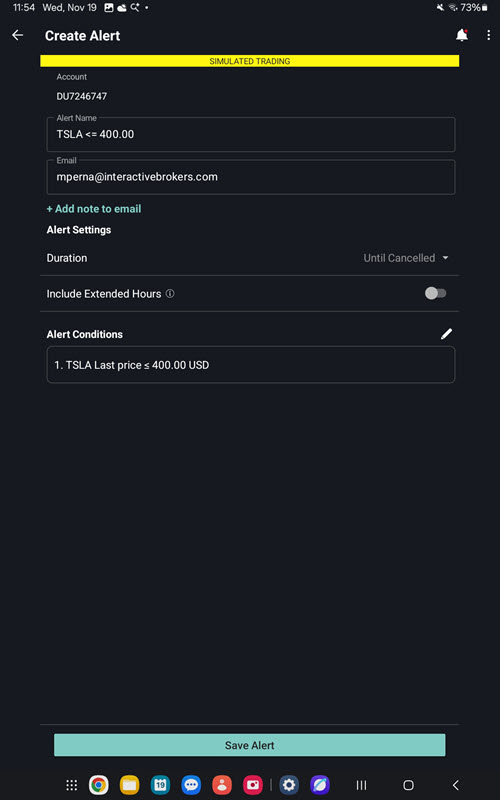
-
-
Use the additional search, filter, and soft capabilities along the top of the Alert List Screen to find alerts you are looking for.
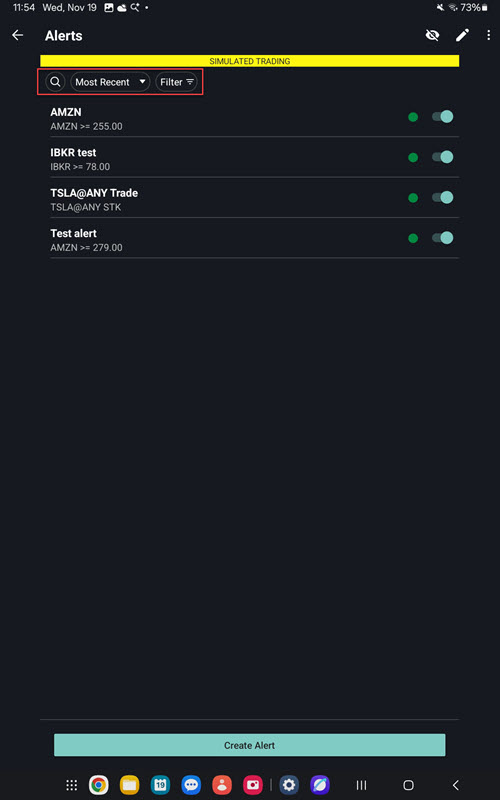
-
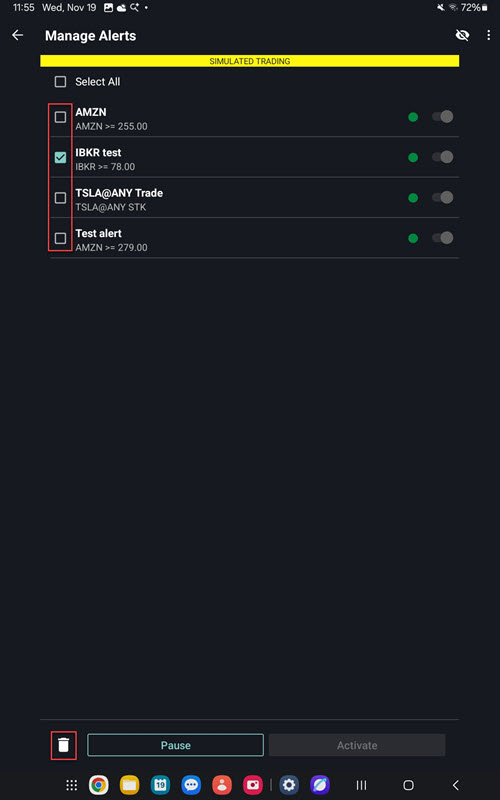
To delete an alert, select the edit pencil icon in the top right corner and click check box's to the left of the alerts you would like to Delete.
Click the trash can icon in the bottom left corner to delete.
To define a Price alert
- Tap the Account menu icon (head and shoulders) in the top left corner of the app and select Alerts.
- Tap Create Alert.
- Enter a descriptive name and tap the green and white "+" to define alert conditions.
- Tap Price and select or search for an instrument.
- Modify alert criteria by tapping the appropriate line and selecting a new value.
- Tap Done. Review alert parameters and if complete, tap Done again to activate the alert.
To set a Trade alert
- Tap the Account menu icon (head and shoulders) in the top left corner of the app and select Alerts.
- Tap Create Alert.
- Enter a descriptive name and tap the green and white "+" to define alert conditions.
- Tap Trade and define alert parameters including underlying, exchange and financial instrument type.
- Specify whether you want to be alerted only for orders submitted from IBKR Mobile, or for any order created in your account that satisfies the alert conditions.
-
Tap Done. Review alert parameters and if complete, tap Done again to activate the alert.
To set a Margin alert
- Tap the Account menu icon (head and shoulders) in the top left corner of the app and select Alerts.
- Tap Create Alert.
- Enter a descriptive name and tap the green and white "+" to define alert conditions.
- Tap Margin Cushion and define boundary settings.
- Tap Done. Review alert parameters and if complete, tap Done again to activate the alert.
Deactivate, Modify or Delete an alert by tapping it from the Alerts list and then tapping the desired action at the bottom of the active alert.
Triggered alerts remain in the Alerts list labeled with a black ‘triggered’ icon. You can delete a triggered alert by selecting the alert and then touching Delete.
Bulk Editing for Alerts
Users can now select/de-select existing alerts for one of 3 bulk actions: Delete (any alert), Pause (active alerts only), or Activate (paused alerts only).
-
Select the edit pencil icon in the top right corner of the alerts page.
-
Select the check box's to the left of the alerts you would like to Delete, Pause, or Activate.
-
Click the action at the bottom of the screen.