Run a Flex Query
Instructions
Once you create a custom Flex Query, you can run it in Portal using one of two methods:
- Quickly Run a Saved Flex Query or Trade Confirmation Flex Query from the Run a Flex Query panel on the Flex Queries screen.
- Run a Custom Activity or Trade Confirmation Flex Query from the Custom Flex Queries panel on the Flex Queries screen.
 Quickly Run a Saved Flex Query
-
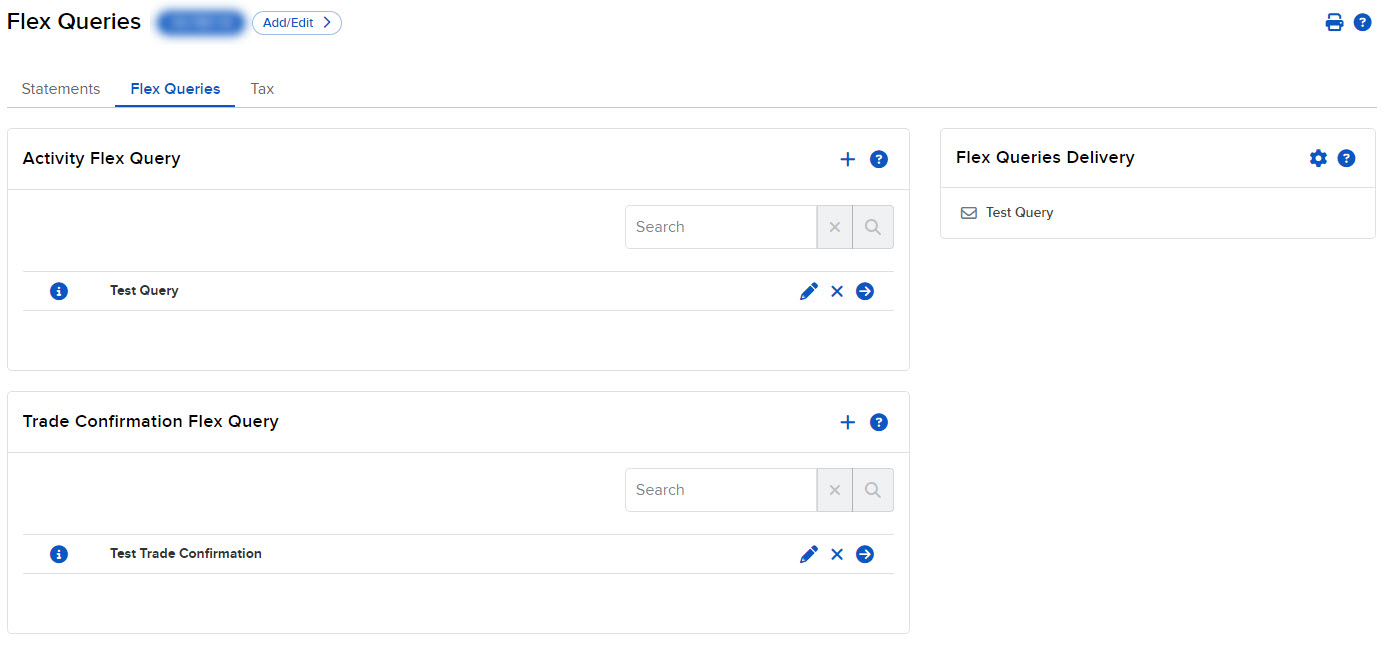
Click Performance & Reports > Flex Queries.
-
-
In the Run a Flex Query panel, select a Flex Query type. Select Activity Flex Query or Trade Confirmation Flex Query.
-
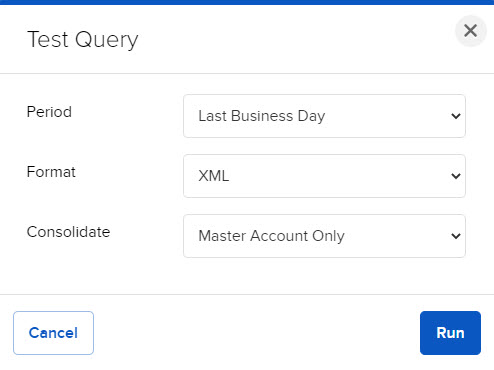
Select the saved Flex Query that you want to run.
-
In the Options drop-down, select how you want the Flex Query to be configured for multiple selected accounts and/or partitions. Consolidated statements combine the data for multiple accounts into a single statement, while ZIP saves separate Flex Queries for selected accounts in a single zipped file.
-
Click Run Flex Query.
-
When prompted, save the Flex Query or zipped file to your computer.
-
You can open your Flex Queries in a program that can read text or XML files.