Create an Activity Flex Query
Instructions
You create Activity Flex Queries on the Custom Flex Queries screen.
-
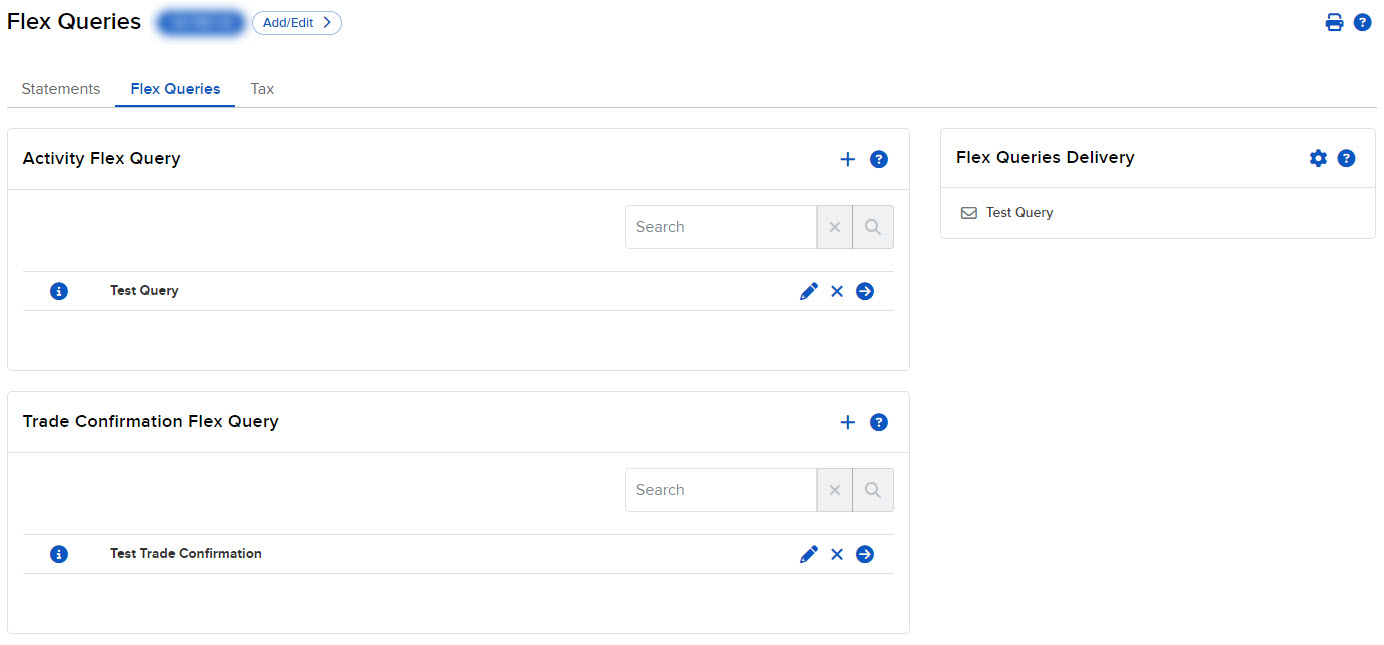
Click Performance & Reports > Flex Queries.
-
Click + icon in the Activity Flex Query Templates section to open the Create an Account Query.
-
Enter the name of the Activity Flex Query.

-
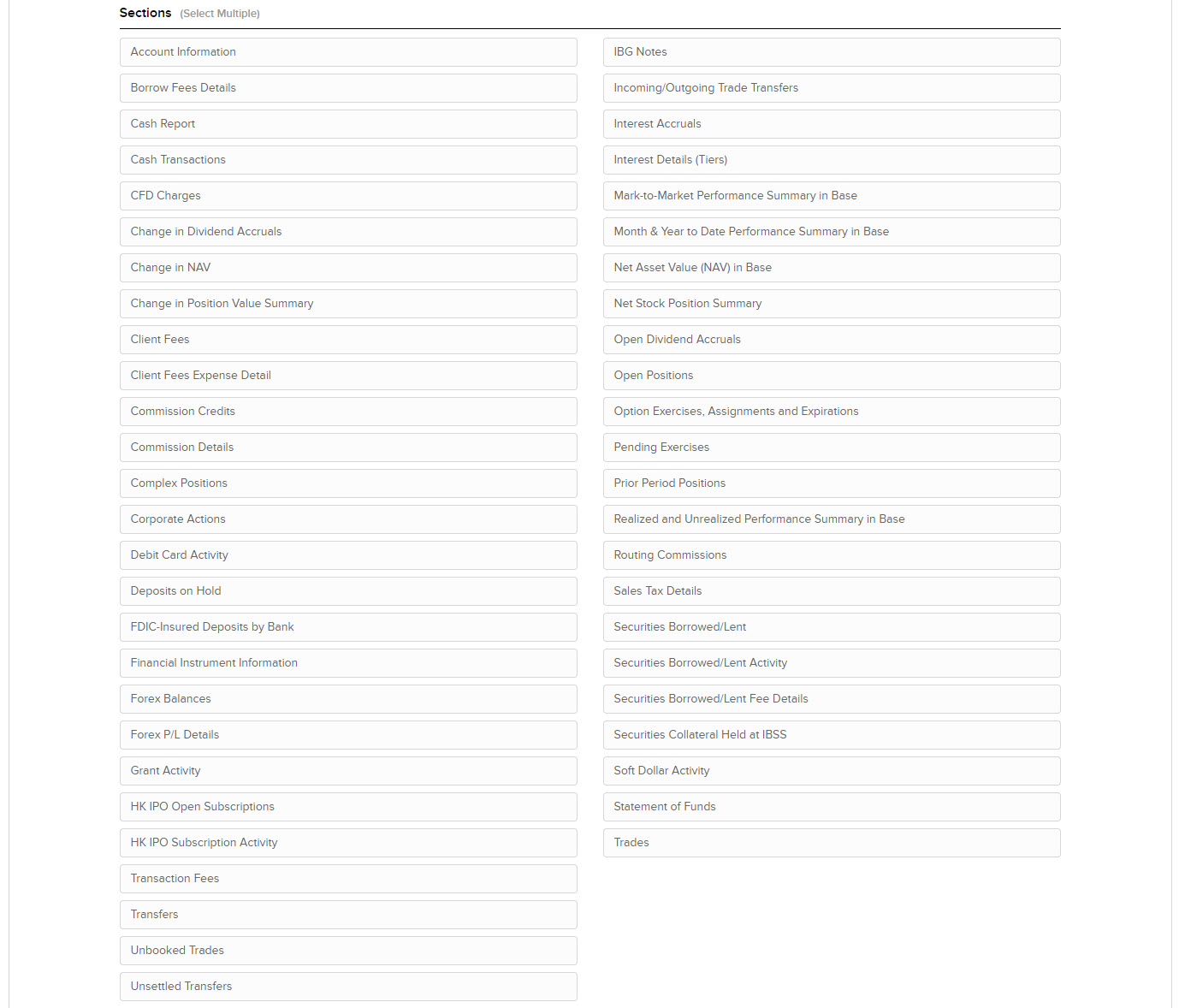
In Sections, click each section that you want to appear in your Flex Query.
-
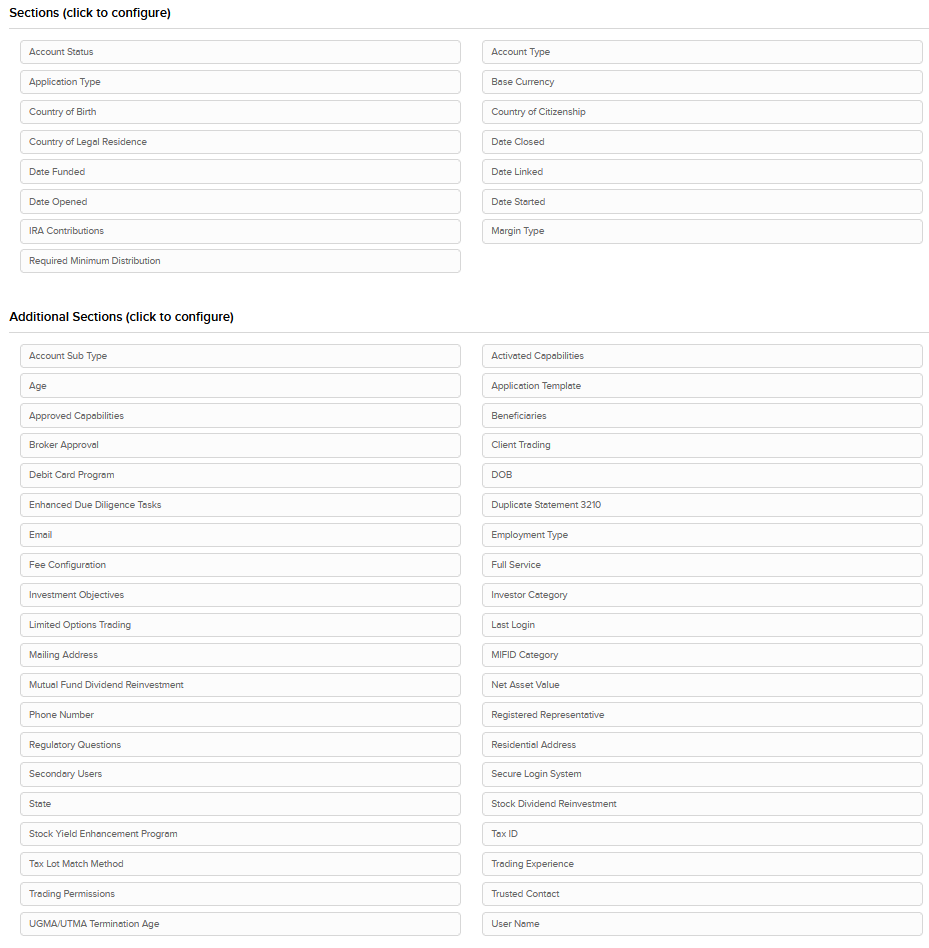
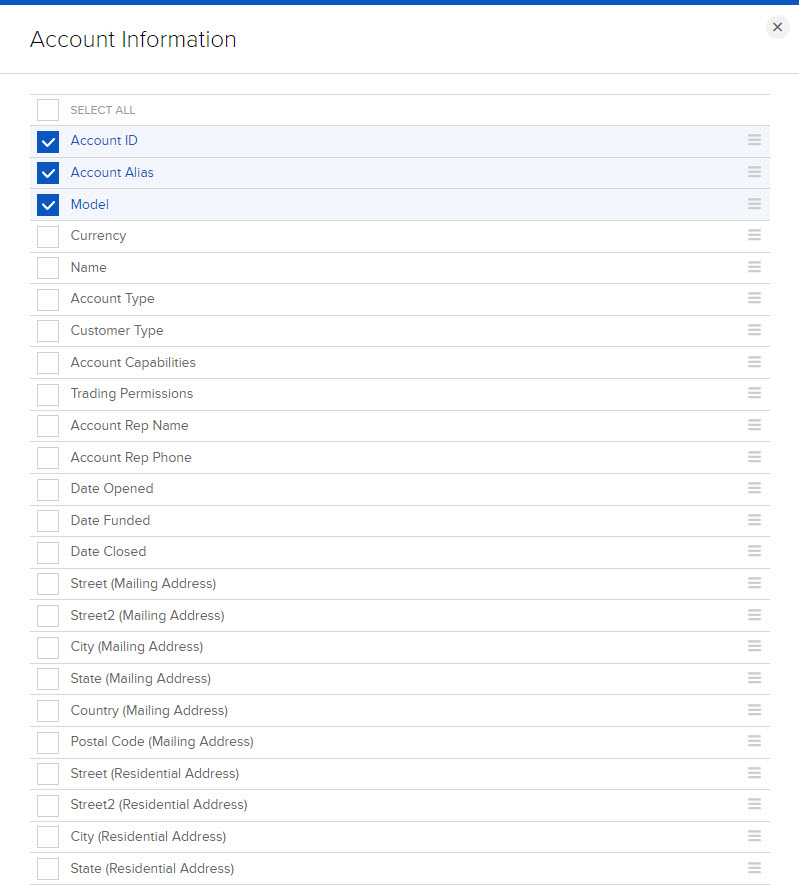
As you select each section, a pop-up opens with all possible fields in the selected section.
-
Click each field that you want to appear in the Flex Query.
-
Change the order in which the fields will appear by dragging each field to a different position by the bars symbol on the right.
-
Click Save.
-
-
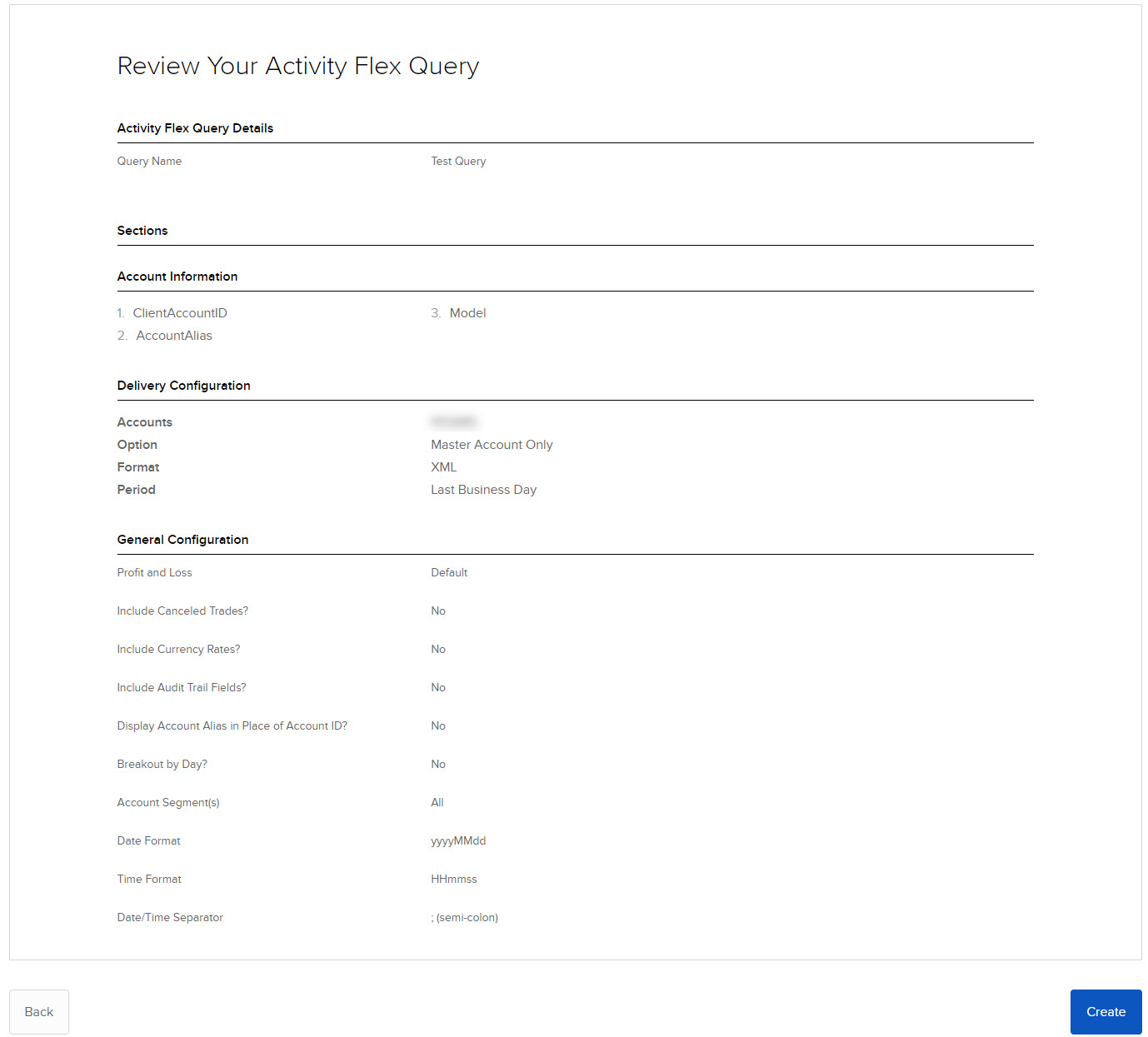
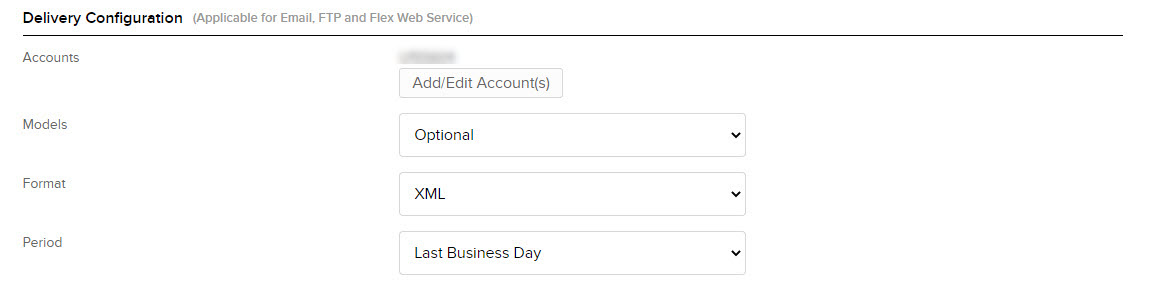
In the Delivery Configuration section, choose how you want the report delivered.
-
Accounts - Click Add/Edit Accounts to bring up the Account Selector
-
Models - Choose from Optional or All
-
Format - Choose from XML, CSV, Text (Pipe), Text (Tab)
-
Period - Choose from Last Business Day, Last Business Week, Last Month, Last Quarter, Last 30 Calendar Days, Last 365 Calendar Days, Last N Calendar Days, Month to Date, Quarter to Date or Year to Date
-
-
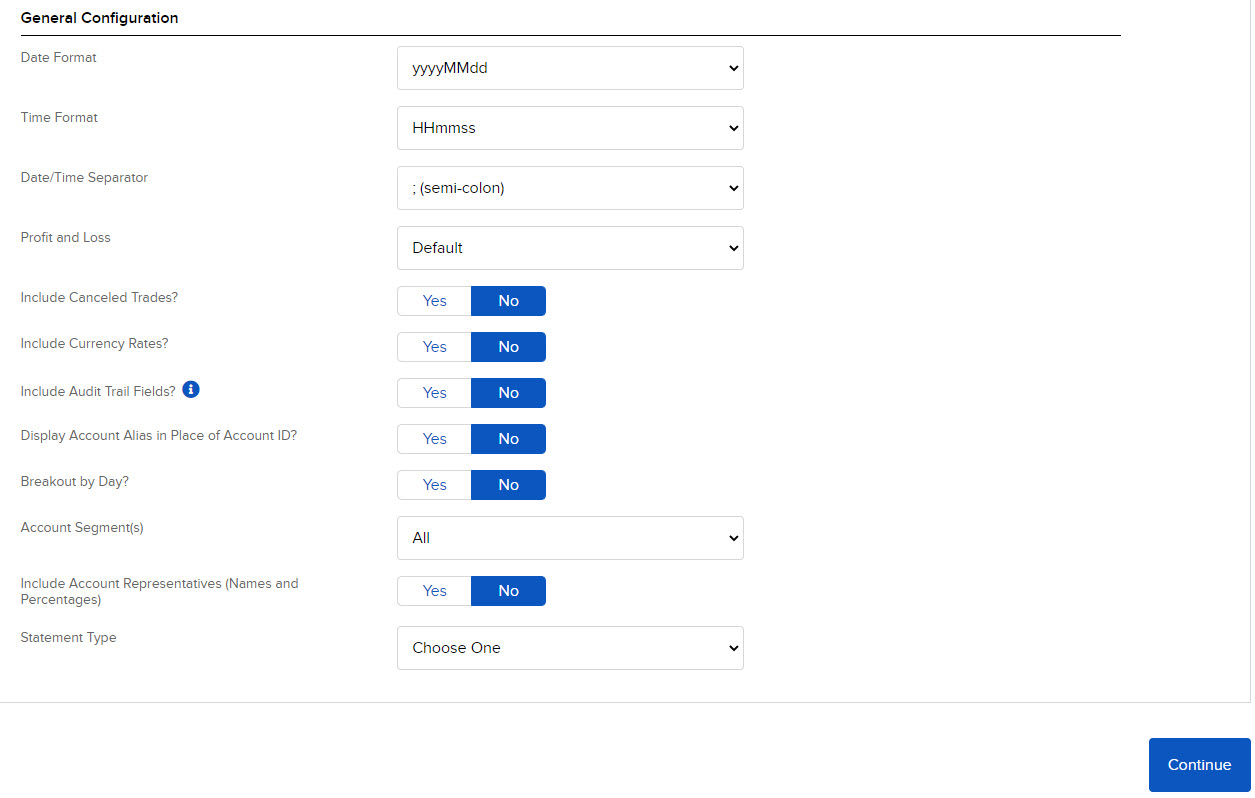
Choose other options for your report in the General Configuration section.
-
Click Continue to review your Activity Flex Query configuration. Click Create to create the report or Back to go the previous screen to make any changes.