Build 10.25: Tax Loss Harvest Tool, Reimagined News & Research
Tax Loss Harvesting
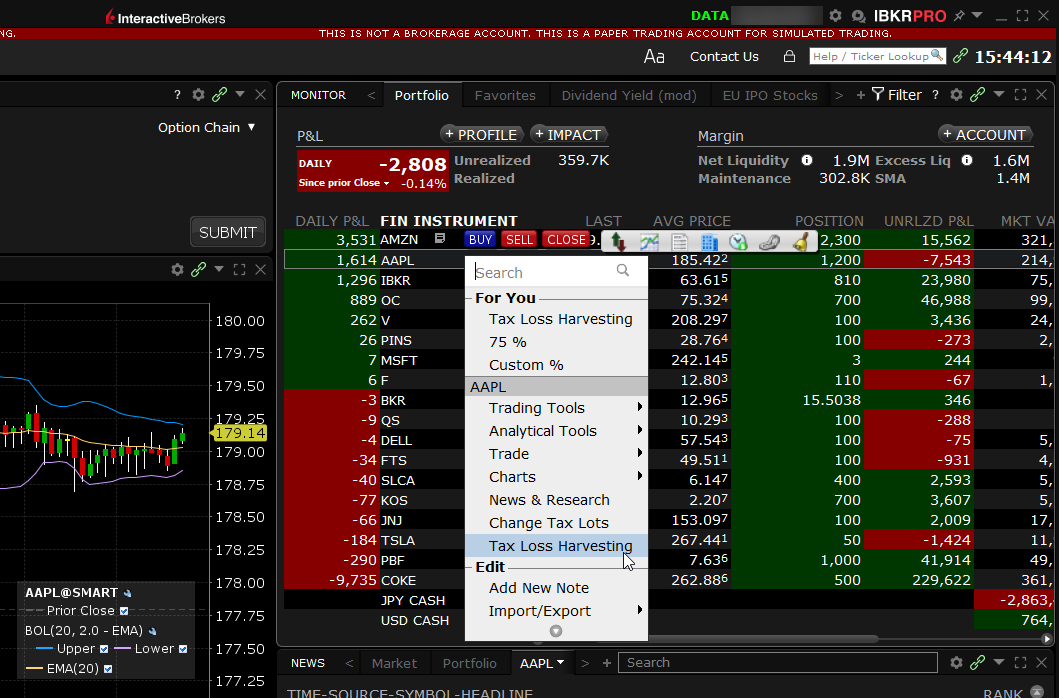
Previously available only for Advisors, the Tax Loss Harvest tool can help you realize the tax benefits of both long- and short-term capital losses more easily. To open the tool, right-click a position and select Tax Loss Harvest. Positions with a potential tax loss will show a negative Unrealized P&L.
1. Set transaction criteria:
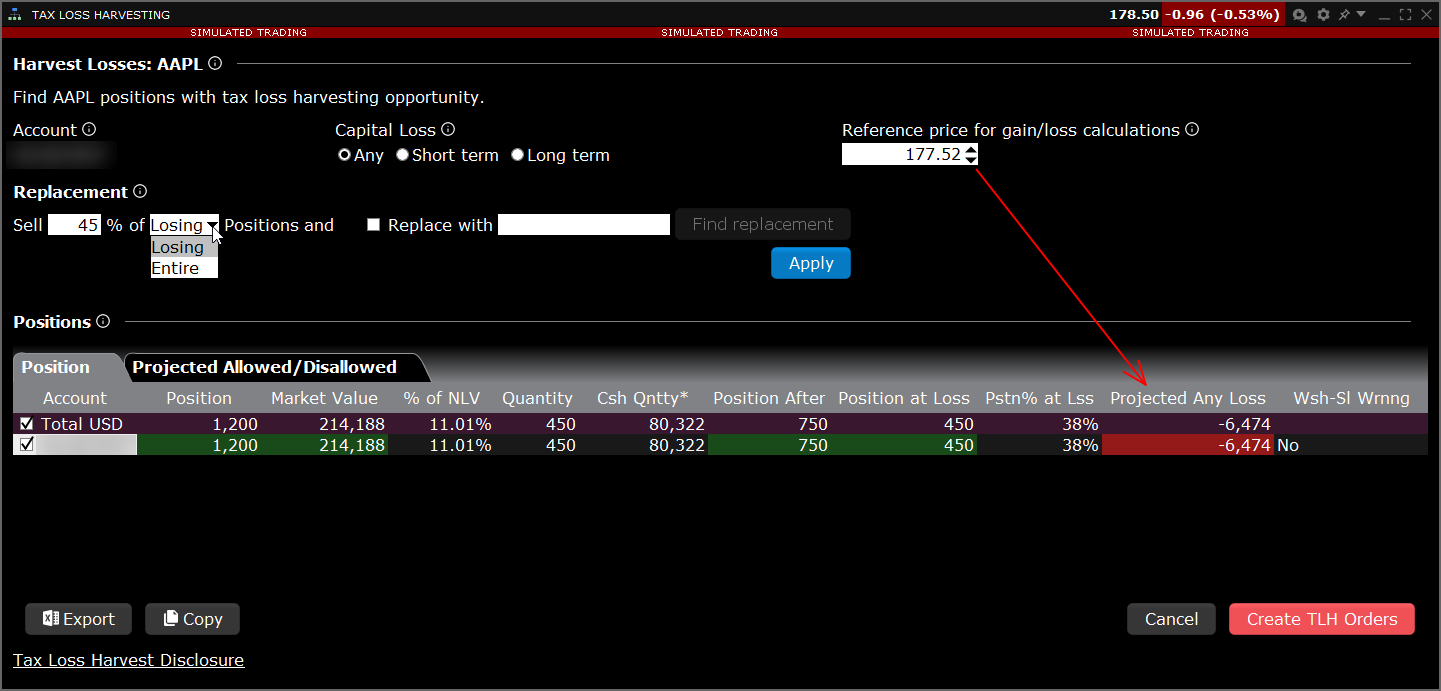
Capital Loss: Specify short term only, long term only, or any capital loss.
Reference price: This is the price that will be used to calculate the tax loss. You can see the projected loss in the "Projected Any/Short/Long Loss column. Note that this value is for calculation display only, and does not set the limit price for the Tax Loss Harvest orders or guarantee the final trade price.
Replacement: Use this section to set up transactions to sell all or some of the current position and potentially swap for a different asset.
-
Sell % of: Enter the percent of the losing (for tax purposes) or entire position you want to sell.
-
Replace with: If desired, check the box and enter a replacement instrument. Or, use Find Replacement to open the Most Active US Stock Scanner to find a replacement stock.
2. Apply changes by clicking Apply,
3. Review order information and when ready, Create TLH Orders.
If you set up a replacement swap, you won't see the swap transaction until you decide to Create TLH Orders.
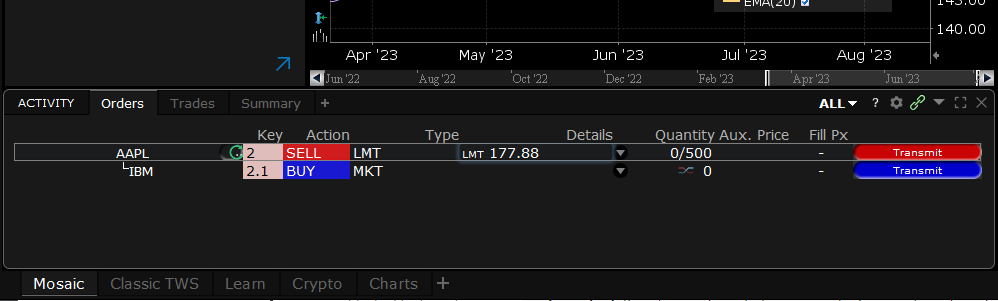
See your Tax Loss Harvest order in the Orders section of the Mosaic Activity panel. Modify Limit Price and other parameters as needed and submit the order(s).
News & Research
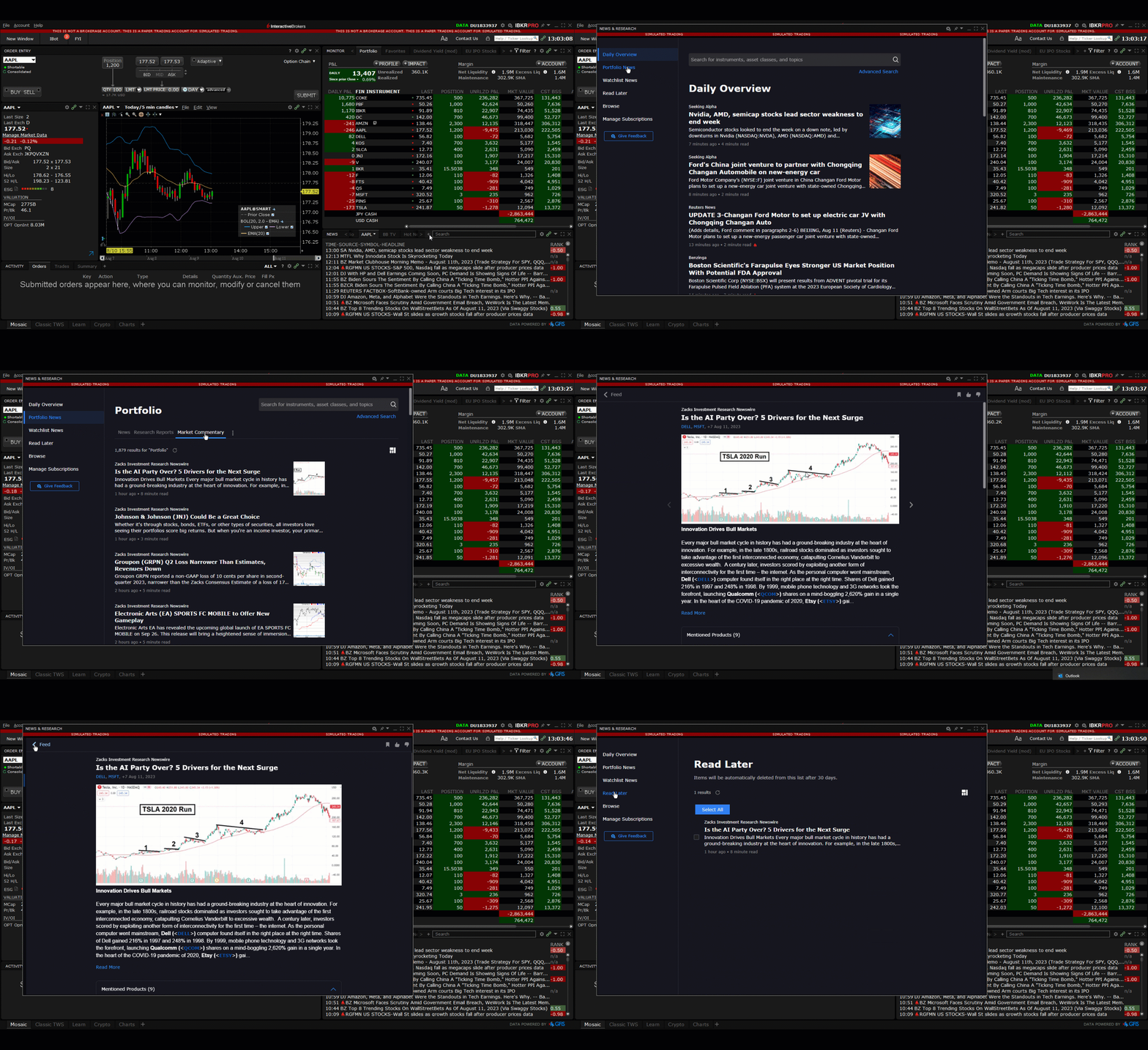
A completely reimagined News & Research interface has been released across all IBKR trading platforms. This new interface allows you to create custom feed views of the news you want to read, in the layout style that you prefer.
-
Custom views let you browse magazine-style, or view headlines for focused skimming. To toggle between views, use the Layout icon on the far right.
-
Use Advanced Search to find news by Provider, Importance, Source, Asset Class, Article Length (read time), type of media, language, date published and more!
-
Use Browse criteria to filter news by asset class and topic preference.
-
Tabbed filters in Portfolio News and Watchlist News feeds let you see just the types of news format you prefer, like traditional breaking news, institutional research, or opinions and commentary.
To access this new layout, from the News panel click the "+" sign and select News & Research.