Build 10.22: Trading Central Updates, Expanded Product Support for Price Change, Custom Indexes for Advisors, Morningstar Ratings in Fundamentals Explorer, Advanced Charts
Trading Central and Discover Tool Updates
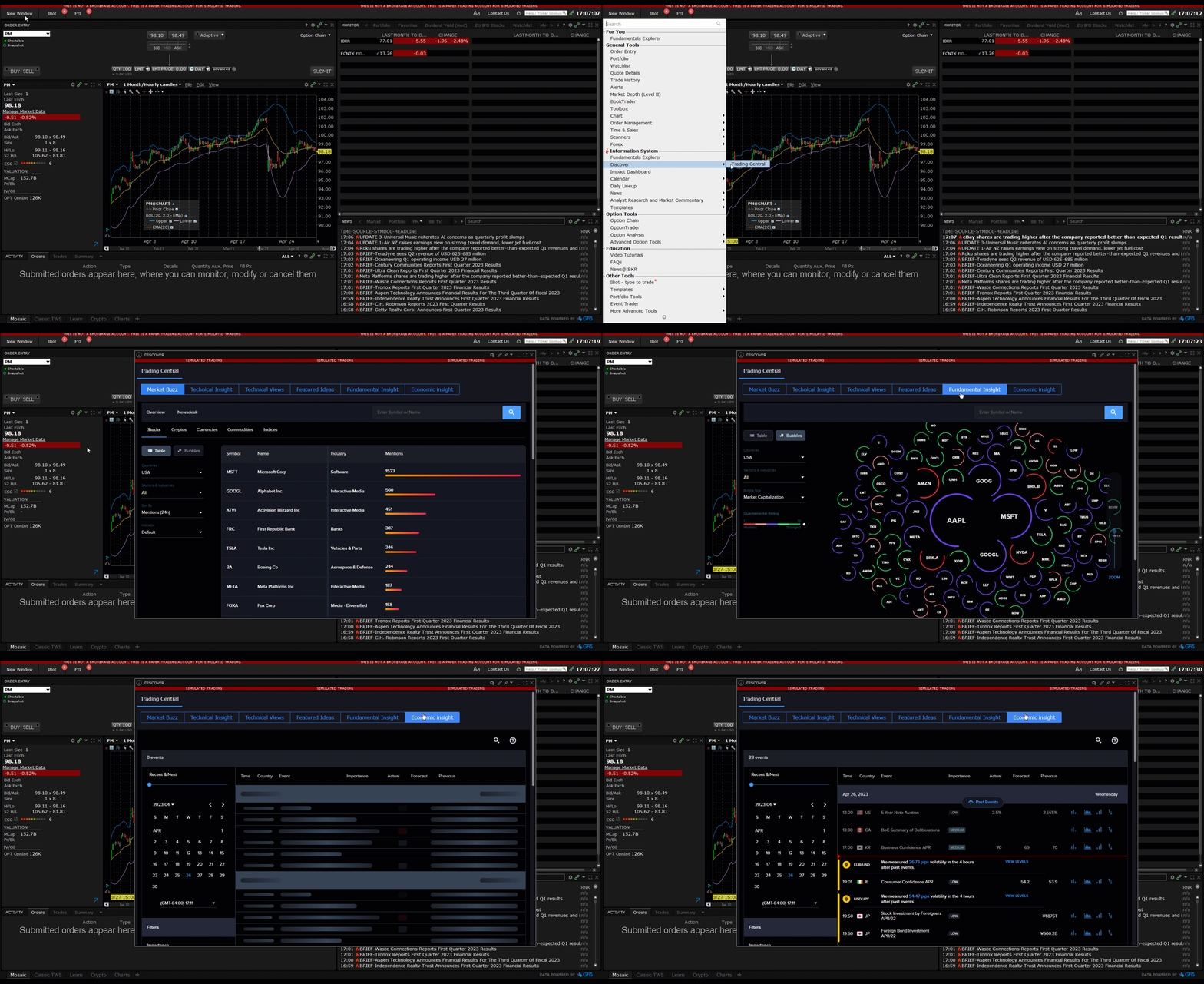
We’ve replaced the Trading Central "Value" and "Value Analyzer" tabs with a new tab called Fundamental Insight in both Fundamentals Explorer and the Discover tool.
Fundamental Insight analyzes the vast volume of complex financial data and converts it to actionable insights conveyed to traders through colorful, easy to interpret graphics. Fundamental Insight makes it easier for traders to apply fundamentals principles to their investing decisions.
We have also added the Economic Insight tab to Trading Central in the Discover tool. Economic Insight provides an Economic Calendar that can be used to monitor and act on market-moving events.
Expanded Product Support in Price Change Columns
To help improve the trading experience for users who trade funds, we now support Mutual Funds data in six of the TWS columns that previously only included stock and ETFs data. Additionally, these same columns are now available in IBKR Mobile. Add these columns to Watchlists, Scanners, and other tools that support adding columns. Columns that now support fund data include:
Prior Year Close: The closing price of the last trading day of the prior year. This value is adjusted for corporate actions
Year to Date Change: The difference between the current Last price, and the last closing price of the previous year.
Year to Date Change %: The difference between the current Last price, and the last closing price of the previous year, shown as a percentage.
Prior Month Close: The closing price of the last trading day of the previous month. Value is adjusted for corporate actions.
Month to Date Change: The difference between the current last price, and the closing price of the last day of the previous month.
Month to Date Change %: The difference between the current last price, and the closing price of the last day of the previous month, shown as a percentage.
Find these data columns in the Prices section of the “Insert” or “Add” columns feature.
Build Customizable Stock Portfolios Modeled on Index ETFs - Advisors Only
Our Custom Indexing tool allows advisors to quickly build portfolios modeled after Index ETFs, and easily customize them to accommodate client investment goals. Unlike ETFs, clients own fractional shares of each component stock, so advisors can adjust weightings and exclude stocks or sectors in accordance with client needs.
To create a Customized Index model:
-
Open the Advisor Setup tool from within Mosaic (button on top menu) or the Classic Layout.
-
Select the Customized Indices tab, and then Create Customized Index model. Enter a name for your new model.
-
From the displayed list of index ETFs, highlight the desired benchmark. You can See Details of the ETF, and then Select Fund to populate the model.
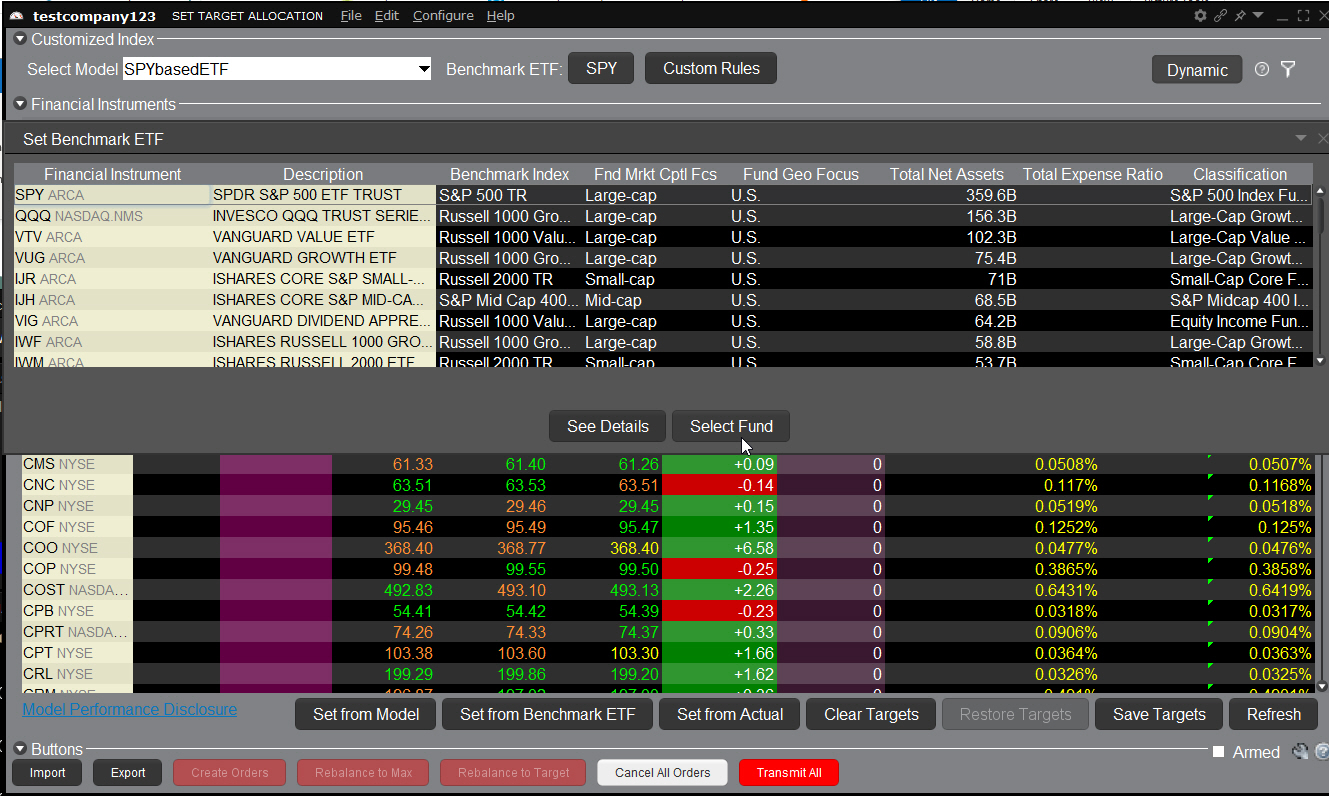
Once the index composition has been imported to your new Model Portfolio, use "Custom Rules" to automatically modify by setting a new cash target, excluding symbols, creating an ESG-based "exclude" list, and setting other custom criteria including new weights.
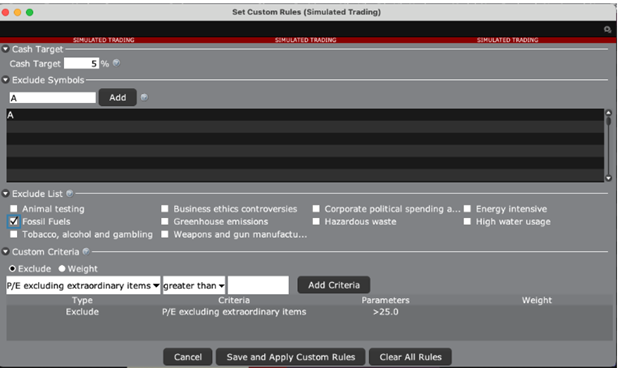
Once you've saved and applied your custom rules, simply invest clients in the new model as you do for other Model Portfolios. Find out more about using Model Portfolios in the TWS Users' Guide.
To create a Customized Index model:
-
Open the Advisor Setup tool from within either Mosaic (button on top menu) or the Classic Layout.
-
Select the Customized Indices tab, and then Create Customized Index model. Enter a name for your new model.
-
From the displayed list of index ETFs, highlight an ETF and either View Details, or Select Fund to populate the model.
-
Apply custom rules exclude positions as needed. Apply and save.
-
Invest clients in the model.
Morningstar Analyst Ratings Data
We've recently added Morningstar proprietary Ratings and Analyst Commentary for Funds/ETFs & Equities to Fundamentals Explorer. See an overview in the Morningstar summary tile when you open Fundamentals Explorer.
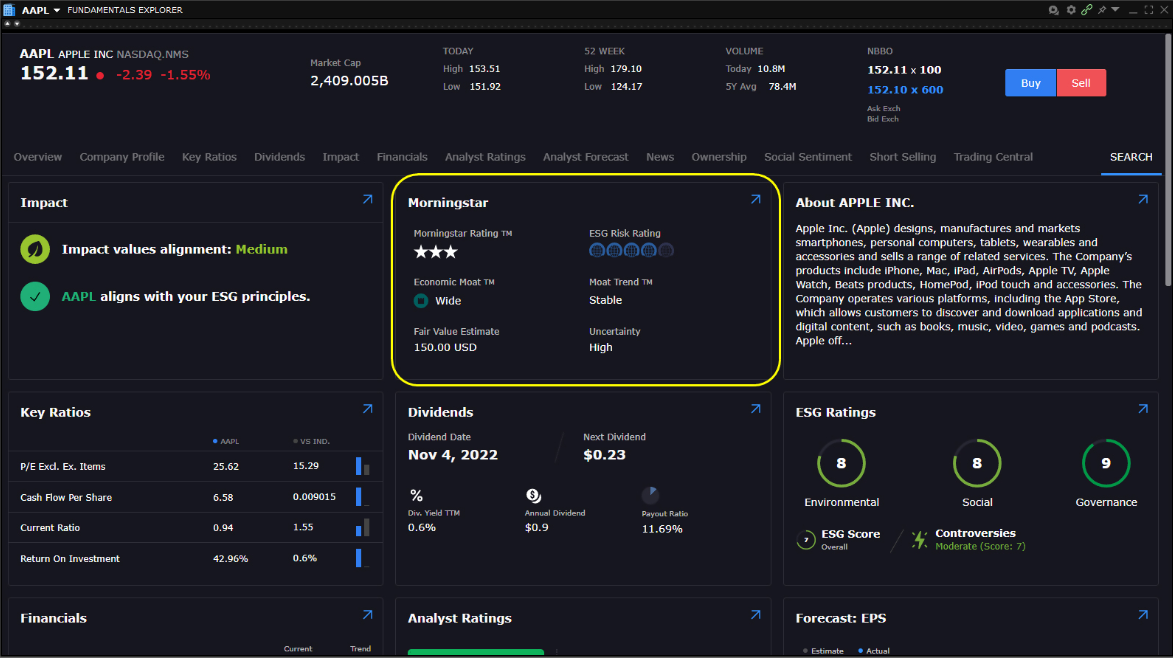
Use the arrow in the upper right corner of the summary tile to open the full Morningstar page.
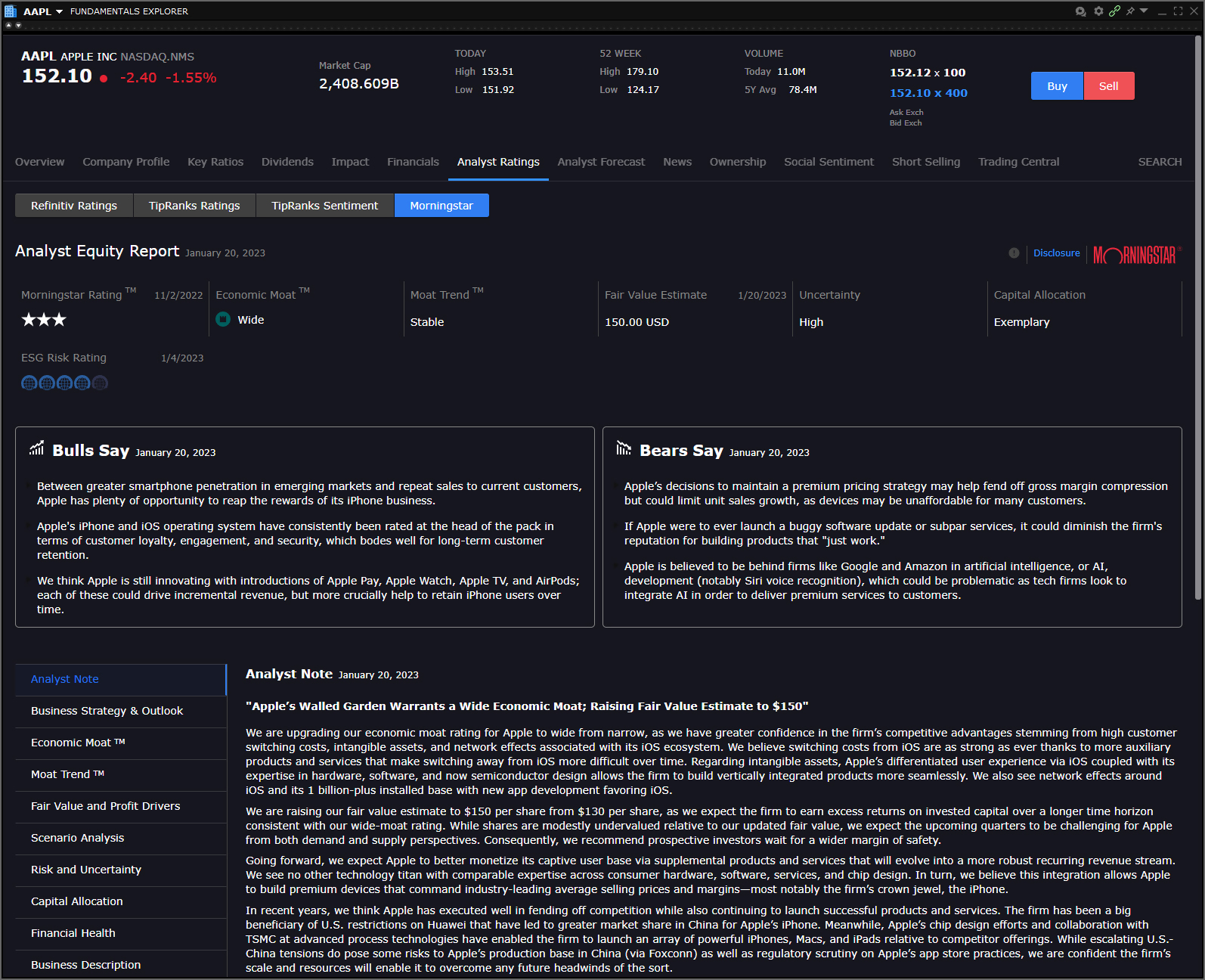
Data points provided by Morningstar include both qualitative coverage which is contributed by an actual analyst, and quantitative coverage which is calculated programmatically and without the input of an actual analyst. To see this data, from the New Window dropdown select Fundamentals Explorer. The summary tile is in the center of the top row. Click the blue arrow to open the full page.
Equities data includes:
- Morningstar Rating: From 1 to 5 stars, where 1 star indicates an overvalued stock trading at a premium, relative to its fair value estimate, and 5 stars indicates an under-valued stock trading at a discount relative to its fair value estimate.
- Economic Moat: Wide, Narrow or none. The moat reflects a company's potential long term economic advantage. If a company has a moat, it would be more likely to be able to beat out and fend off its competition and earn high returns for many years. A wide moat indicates that the company's advantages are strong enough to earn high returns for 20 years or more.
- Moat Trend: Positive, Stable or Negative. Positive indicates that analysts believe sources of competitive advantage are growing strong. Negative indicates that analysts see signs of deterioration.
- Fair Value Estimate: Evaluated by Morningstar analysts who focus on determining the value of the business, its risks, and whether the stock price accurately reflects the two.
- Fair Value Uncertainty Rating: Low (Analyst is confident in stock's Fair Value Estimate), Medium, High, Very High, Extreme (Stocks are hard to value due to a wide range of potential outcomes).
- Capital Allocation: Exemplary, Standard, Poor, Not Rated. An exemplary rating is for companies that have continually shown excellent corporate stewardship practices including investment strategy, financial leverage, dividend and share buyback policies, execution, compensation, related party transactions and account practice.
- ESG Rating: Provided by Sustainalytics, a Morningstar company. Shows the degree to which a company's economic value-at-risk is driven by ESG (environment, social and governance) factors.
Funds data includes:
- Analyst Rating: Forward-looking analyst's assessment of a fund's ability to outperform its peers or a relevant benchmark – on a risk-adjust basis – over a full market cycle.
- Process: High, Above Average, Average, Below Average, Low. How managers execute their investment strategy.
- People: High, Above Average, Average, Below Average, Low. Looks at the people who manage funds. Assessed on length of tenure, whether they are a qualified analyst, how relevant their investment experience is and how diligent their succession planning is.
- Parent: High, Above Average, Average, Below Average, Low. The asset manager that offers the fund.
- Morningstar Rating: Gold, Silver, Bronze, Neutral, Negative. For active investment products, gold, silver, and bronze reflects the Manager Research Group's expectation that an active investment product will be able to deliver positive alpha net of fees relative to the standard benchmark index assigned to the Morningstar category. For passive products, these same categories e reflects the Manager Research Group's expectation that an investment product will be able to deliver a higher alpha net of fees than the lesser of the relevant Morningstar category median or 0.
- Sustainability Rating: Provided by Sustainalytics, a Morningstar company. Low (1), Below Average (2), Average (3), Above Average (4), High (5). Gives a snapshot assessment of how well ESG risk is managed at a fund level, relative to its peer group.
- Category: Differentiates funds according to investment approach/objectives and principal investment features. Breaks portfolios into peer groups based on their holdings.
- Category Index:
For more details, select a data point from the list in the bottom left side of the page, and read details in the right panel. Download the PDF Full Report at the bottom of the data list to see additional commentary, charts and graphs, and term definitions.
New Advanced Charts
Advanced Charts offer a robust charting system with sophisticated but easy-to-use drawing and annotation tools, customizable trendlines, and unique studies and indicators. Use Advanced Charts as a standalone window, or make TradingView the default chart type in your Mosaic layout.

Use the snapshot feature to save a version of your chart with specific trendlines, indicators and more.
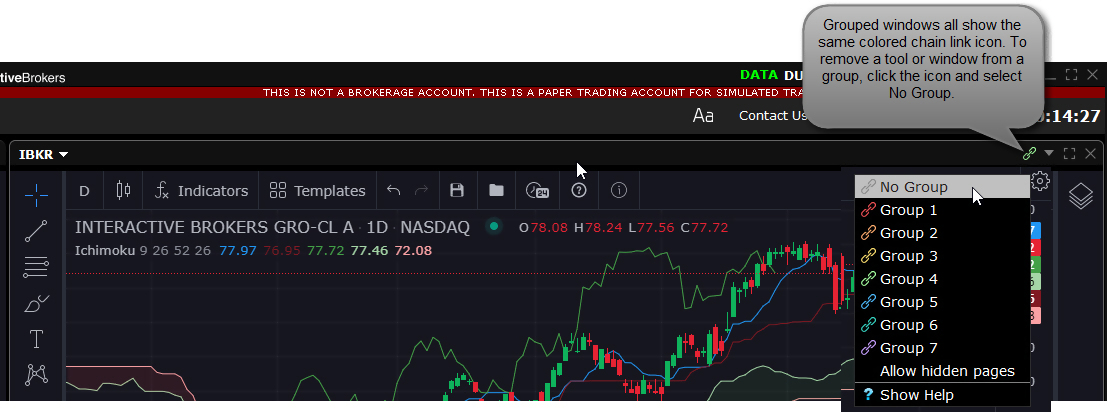
To view multiple charts using the same underlying but different time periods and studies, create a new layout, add multiple Advanced Chart windows, and turn off windows grouping. Now add the underlying and other content to each chart. To open Advanced Charts, from the New Window drop-down select Chart and then Advanced Charts.
COMING SOON: The ability to create orders from within a chart.