Version 3.6 – ChartTrading Buttons, Futures Trading Layout, Watchlist Financial Instrument Pinned Column, Alerts Revamp
ChartTrading Buttons
We have added Chart Trading (Instant Trading) integration to IBKR Desktop, allowing users to place, modify, and manage orders directly from the embedded TradingView chart. Users can enable Buy/Sell buttons for quick order entry and optionally activate One-Click Trading to submit orders without confirmation. Additionally, order placement and modification on the chart no longer block the user interface, providing a smoother trading experience. To use this new feature, please take the steps outlined below.
-
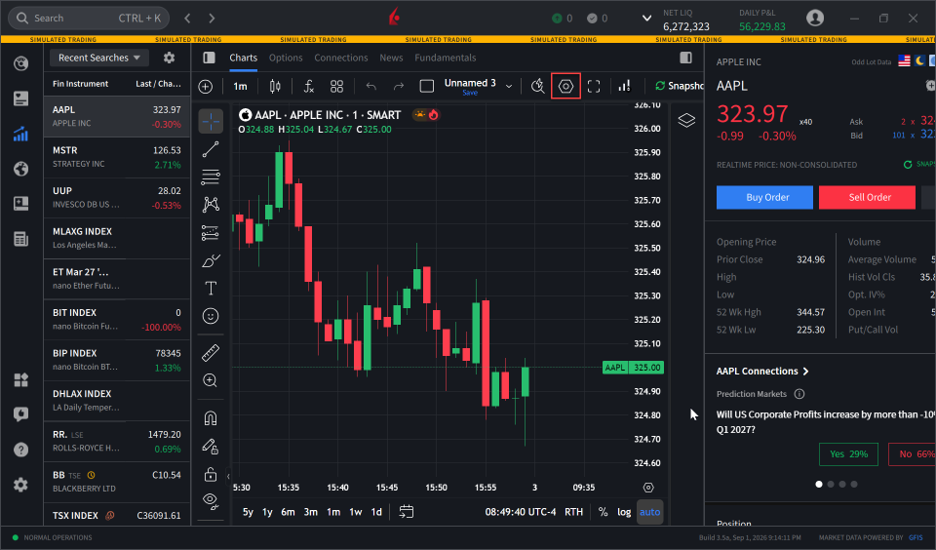
Navigate to the Quote menu icon and select the hexagon icon in the top right corner of the chart.
-
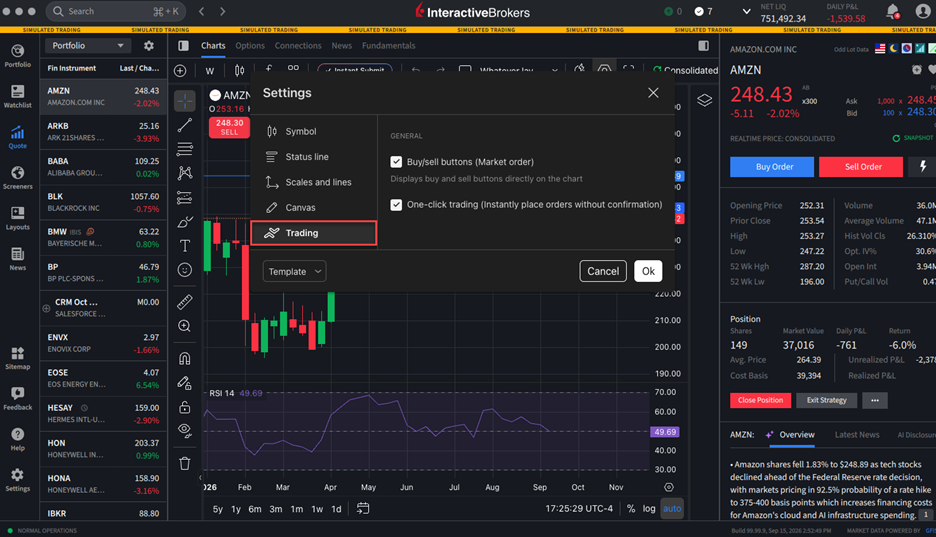
Click the Trading button and select Buy/Sell buttons. This setting will display buy and sell buttons directly on the chart.
Optionally, click the One-click trading button if you would like to instantly place orders via the chart without confirmation.
-
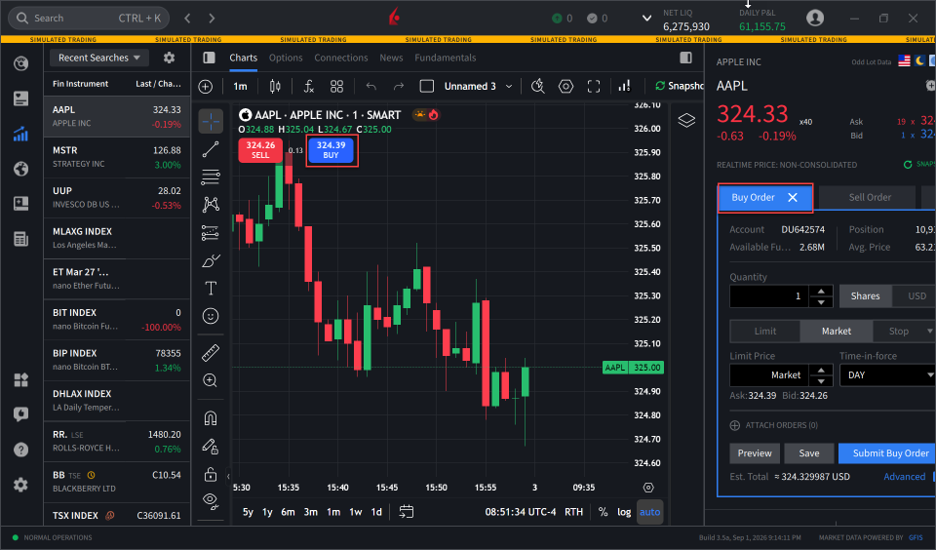
Once selected, the Buy and Sell button will populate in the top right corner of the chart.
-
Click these buttons and the order ticket on the right-hand side will populate accordingly. Enter the additional order parameters and select Submit Buy Order or Submit Sell Order to place this trade.
Note: When One-Click Trading is enabled, the right-side order panel will not open. Orders are submitted immediately upon selection.
Futures Trading Layout
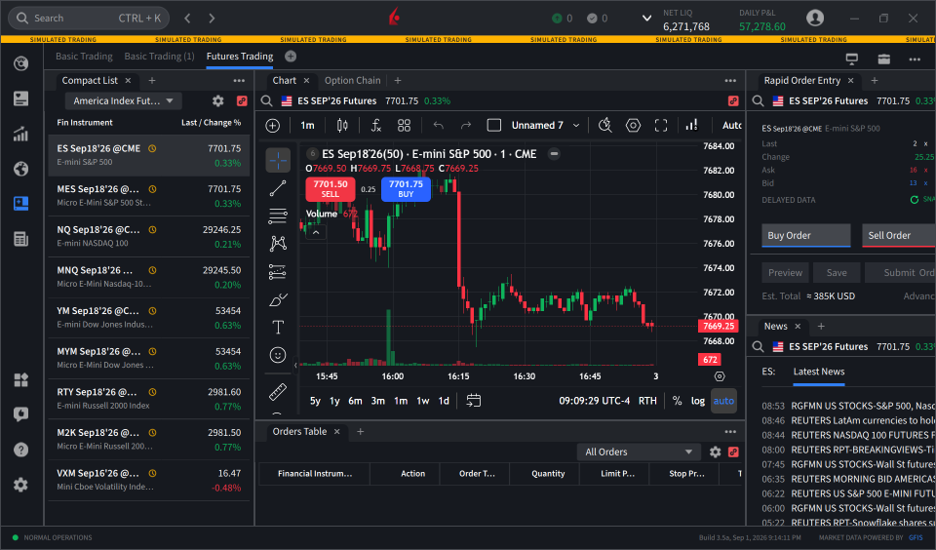
We have added a new Futures Trading Layout to provide a dedicated workspace for futures traders. This layout consolidates key trading tools into a single, streamlined view, including a compact futures watchlist, charting, order entry, orders management, and news. By centralizing these components, traders can more efficiently monitor markets, analyze opportunities, and manage positions from one location. To use this new layout, please take the steps outlined below.
-
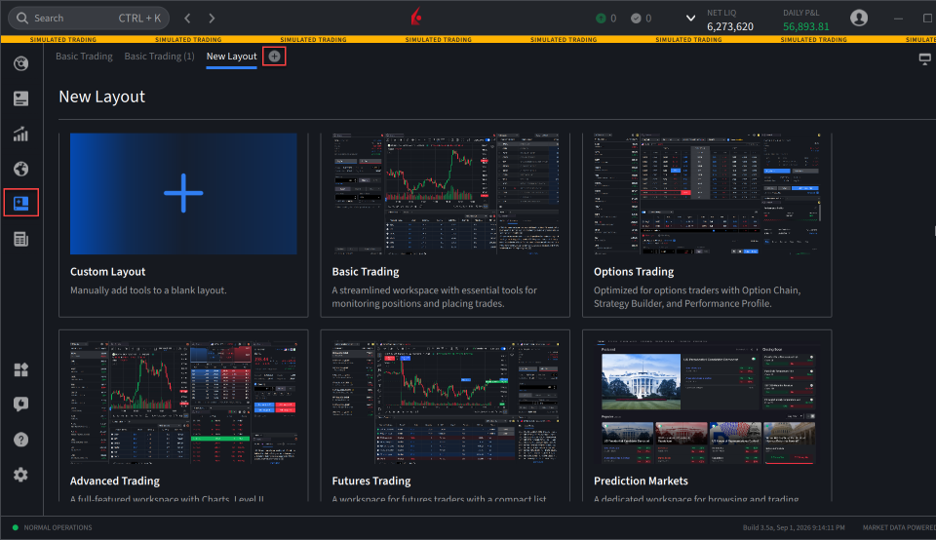
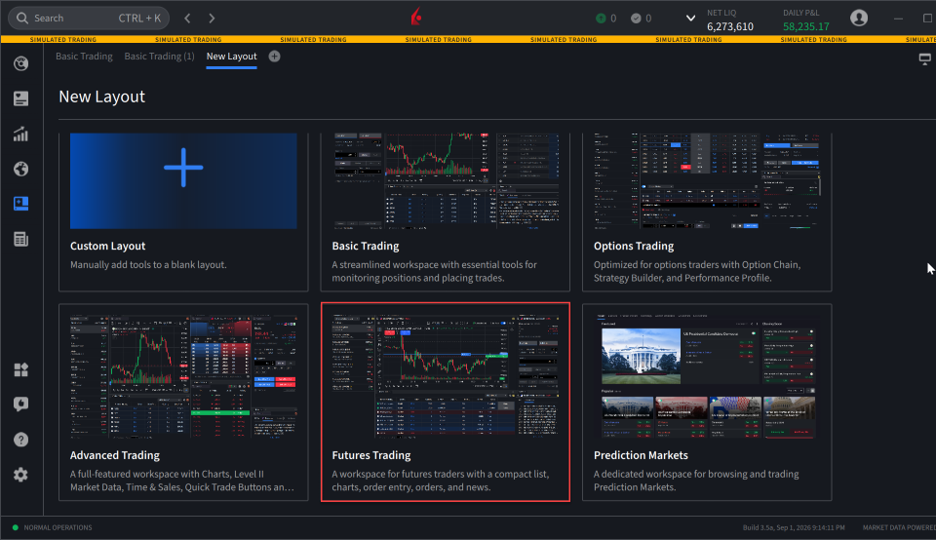
Navigate to the Layouts menu icon and select the plus icon in the top right corner.
-
Select the Futures Trading layout.
-
The Futures Trading Layout will populate on your screen.
Watchlist Financial Instrument Pinned Column
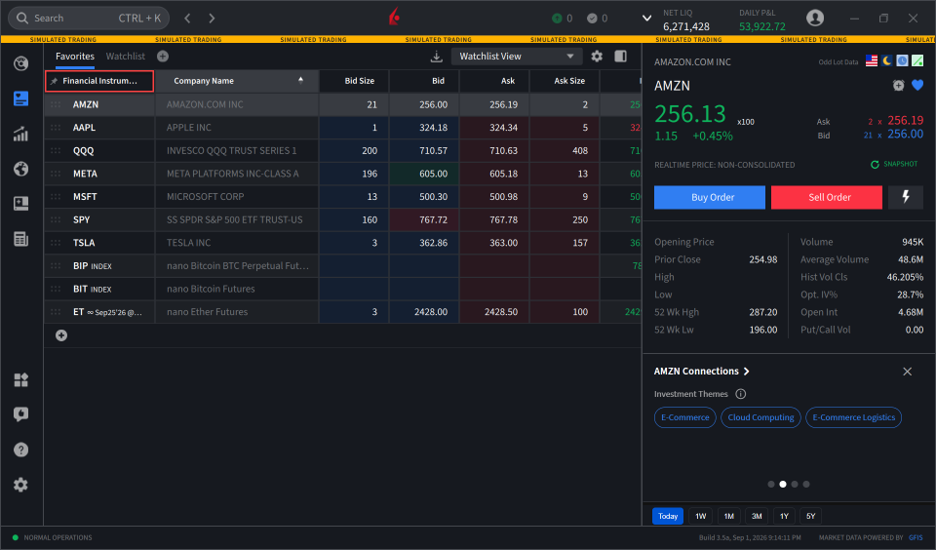
The Financial Instrument column in the Watchlist is now pinned by default, ensuring it remains visible when scrolling horizontally through watchlist data. This enhancement helps users maintain context and quickly identify the contract they are viewing, improving navigation and usability in larger watchlists.
Alerts Revamp
We have improved the Alert Experience in the Notification Center to make it faster to access and more powerful to use. Here's what's new:
-
Account Metric Alerts: Alert types now support Account Metrics such as Daily P&L and Margin Cushion, in addition to existing instrument-based conditions like Price, Change %, and Volume.
-
24 Hour Alerts: Set alerts that monitor around the clock.
-
Per-alert Email Delivery: Set your email delivery preference on a per-alert basis for finer control over how and when you are notified.
-
Quicker Access: View Alerts and FYI Delivery Preferences have been moved into the left pane of the Notification Center.
To create a new alert
-
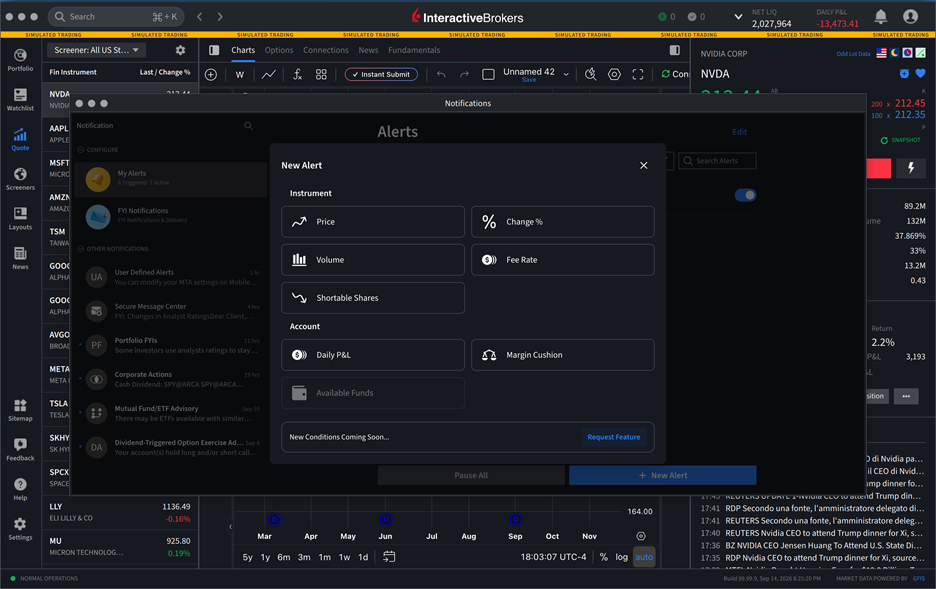
Open the Notification Center and select My Alerts in the left pane, then click +New Alert.
-
Choose an alert condition. Under Instrument, you can set alerts on Price Conditions, Change %, Volume, Fee Rate, or Shortable Shares. Under Account, you can now set alerts on Daily P&L and Margin Cushion.
-
Configure your alert parameters, enable 24 Hour Alerts if desired, and set your preferred email delivery option for that alert.
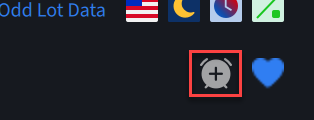
Tip: You can also create a price alert in seconds by clicking the alarm icon in the quote details of any contract.
Coming Soon:
-
Push Notifications for Alerts
-
Cross-Platform Alert Syncing
-
Multi-Condition Support
-
Additional Account Alert Conditions