Version 1.3 - Protective Collar Option Strategy, Heatmap, Screeners Enhancements, Options Spreads in Charts, Simplified Account Balances, Currency Futures + Future Options Look-up
Protective Collar Option Strategy
Protective Collar options trading strategies have been added to the Options Wizard. This options trading strategy provides a way for clients to protect an existing position from losses below a certain amount at the cost of capping upside. To utilize this tool, please take the steps outlined below.
-
Navigate to Quote and select the Underlying asset from the left-hand side.
If you do not have an open position for the underlying, you must first buy 100 shares of the stock.
-
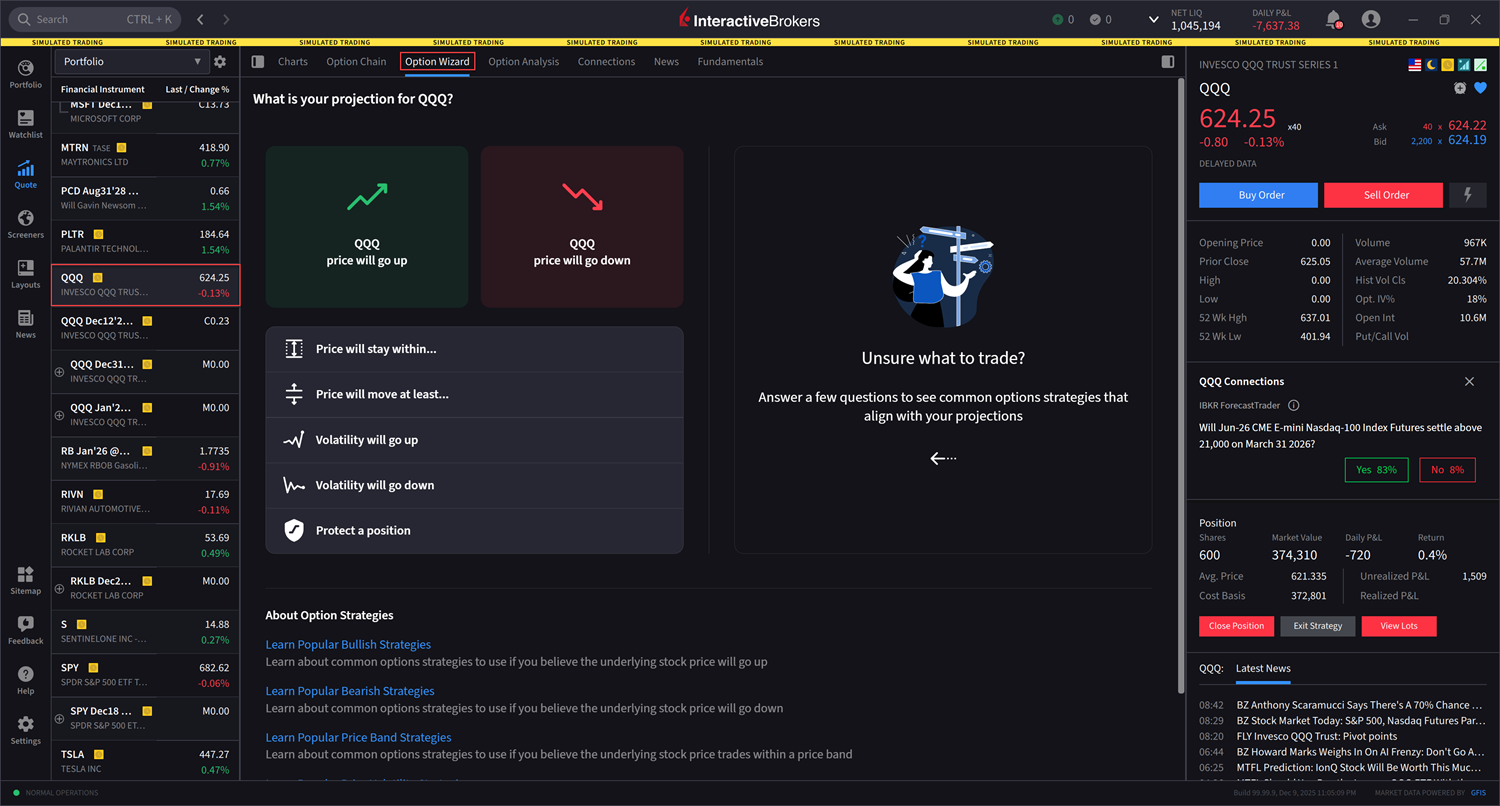
Click the Option Wizard tab.
-
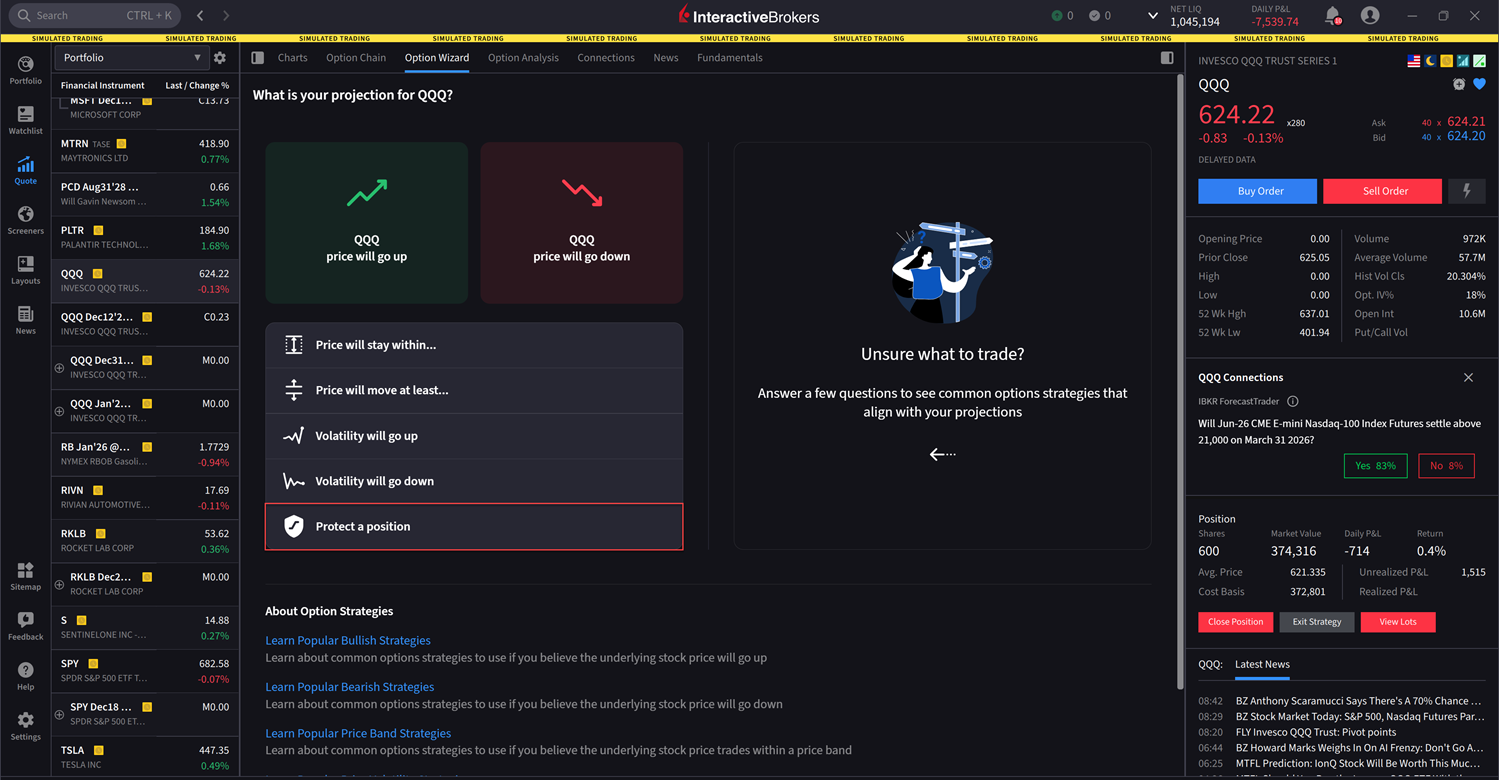
Click Protect a Position.
-
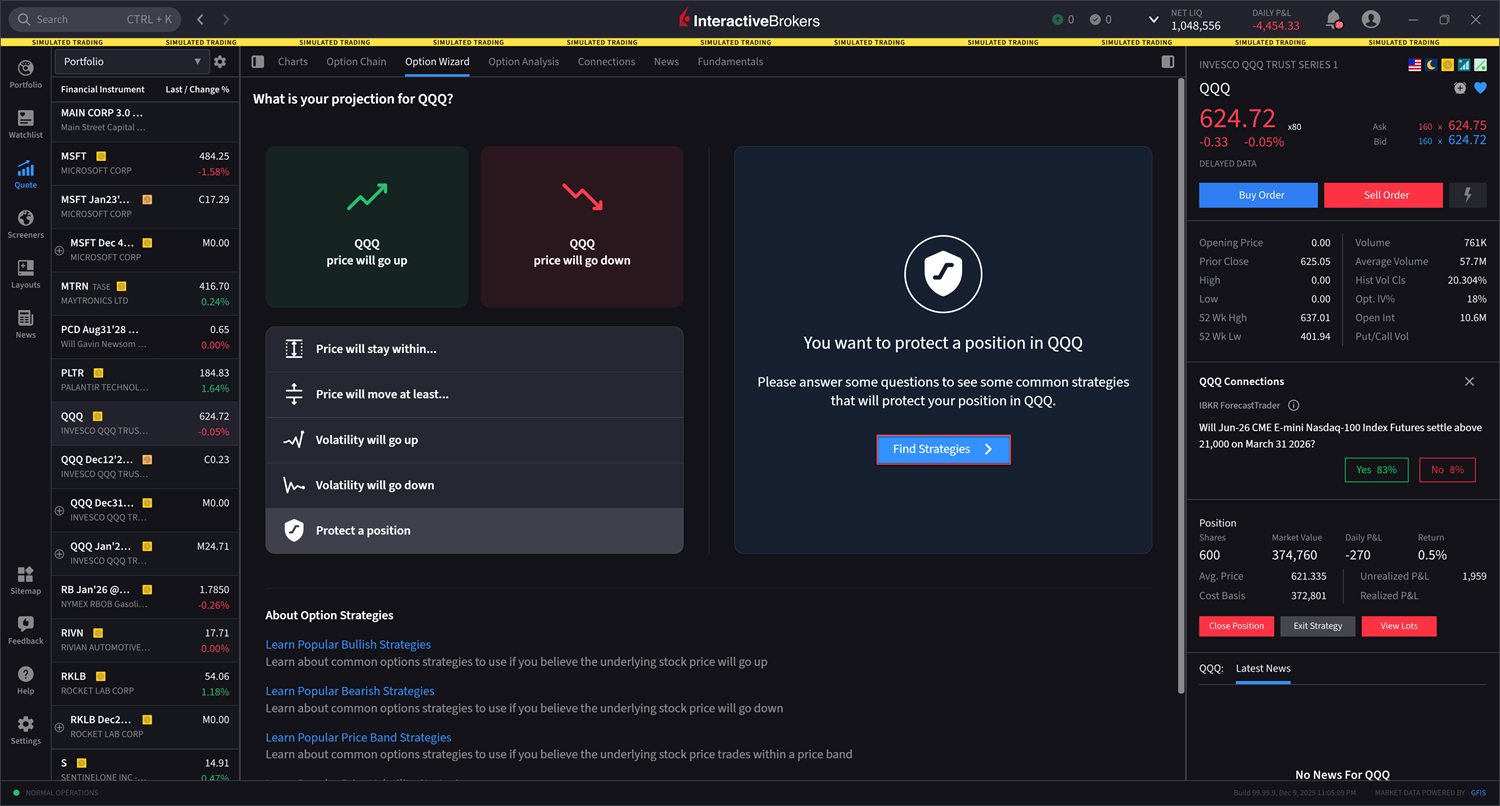
Click Find Strategies
-
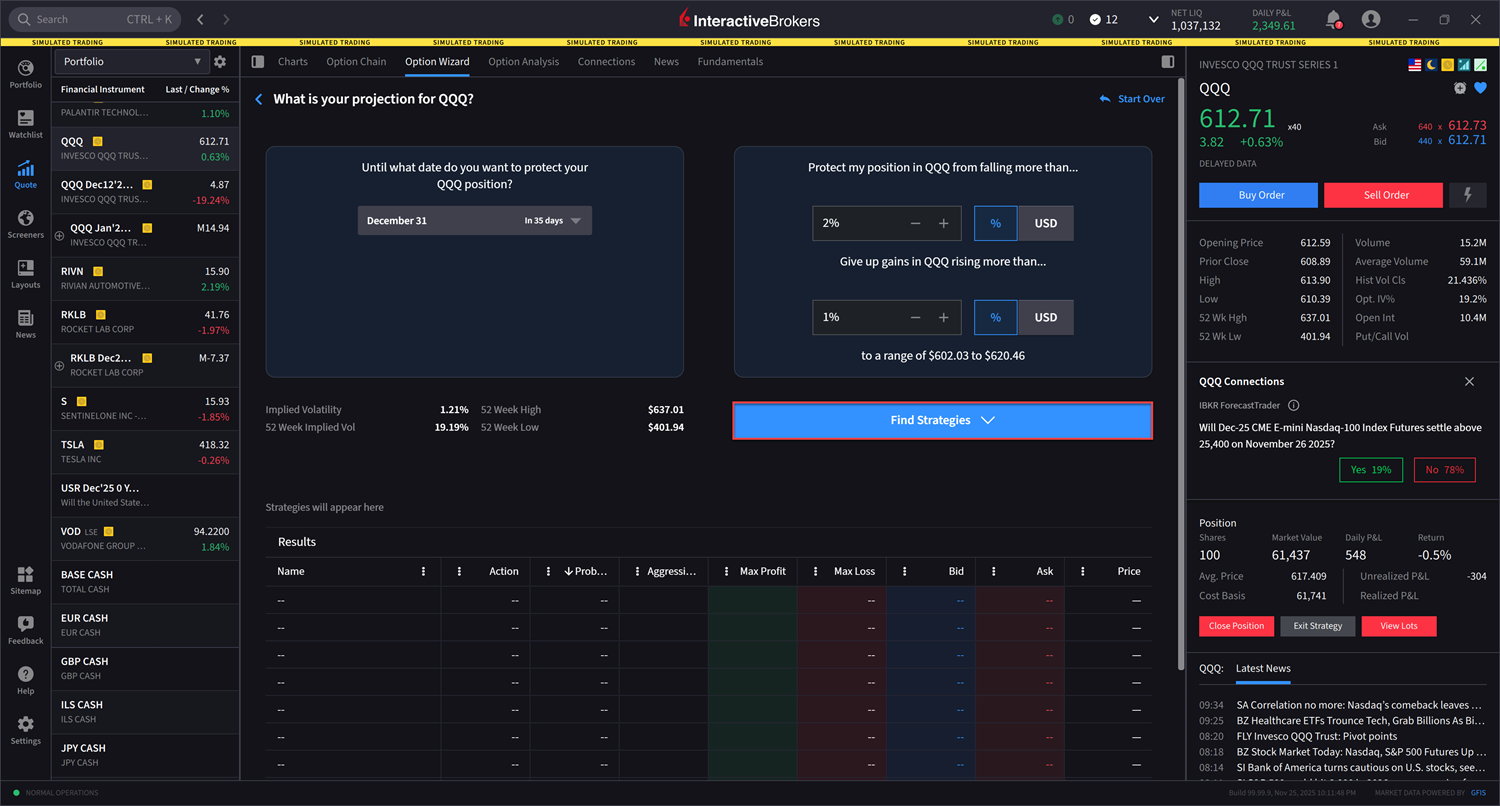
Select the Maturity Date followed by a percentage or dollar amount for Protect my position in from falling more than... and Give up gains in QQQ rising more than...
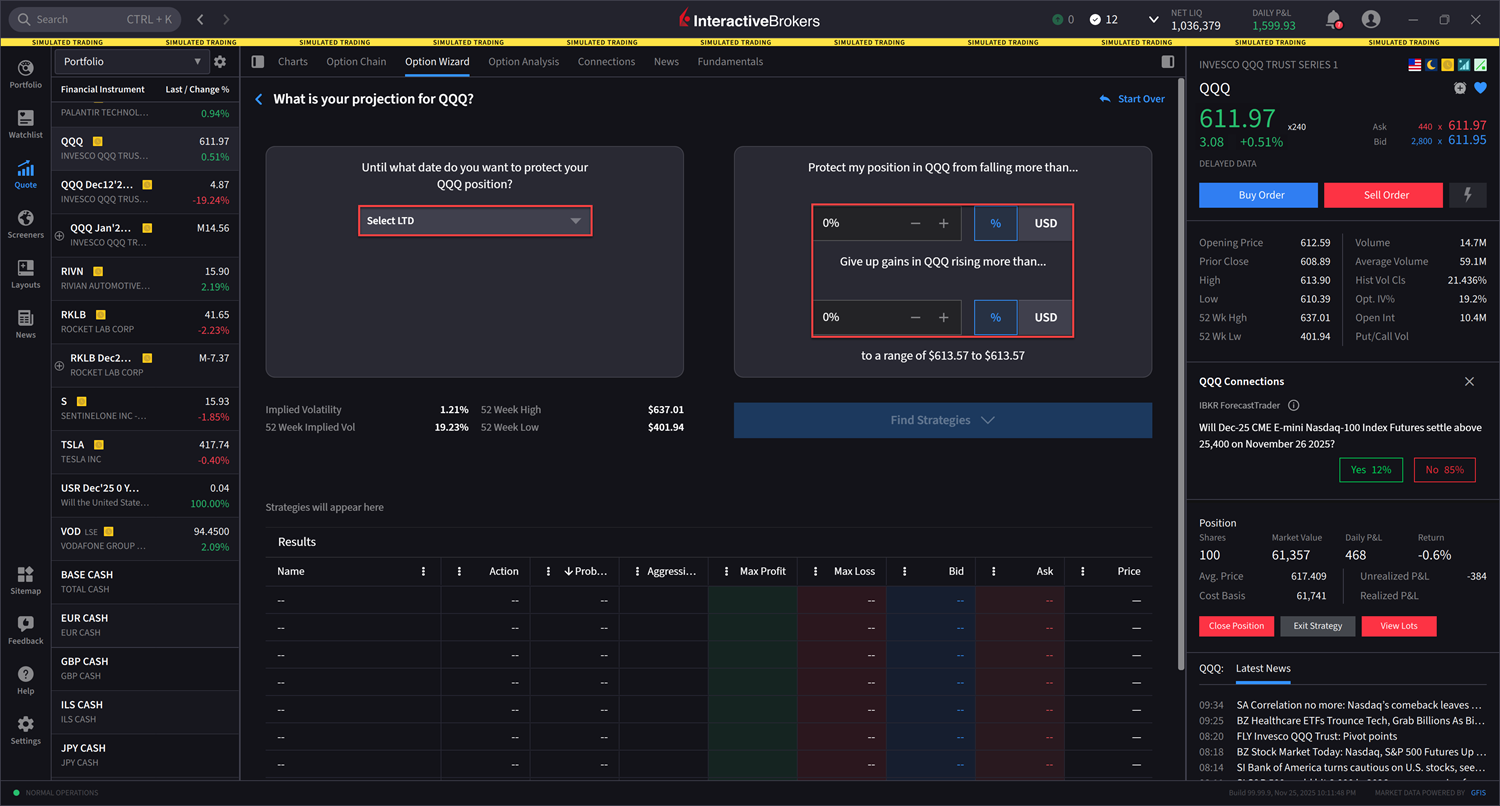
-
Click Find Strategies.
-
A list of strategies which leverage an existing Stock position will populate in the Results panel. Select one of the Protective Collar option strategies that best suits your trading strategy.
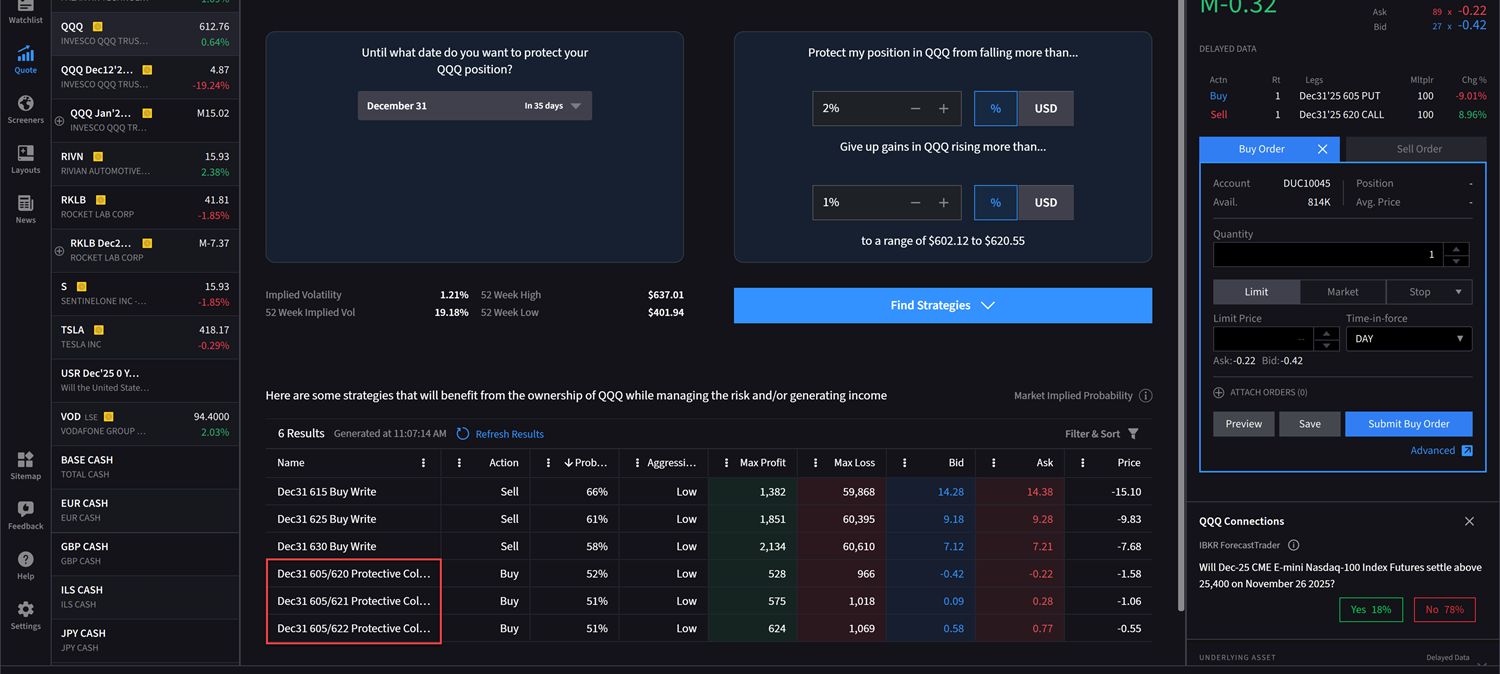
-
Once you select the strategy, the order ticket on the right-hand side will pre-fill with the desired order. Enter the additional order parameters and click Submit Buy Order to transmit.
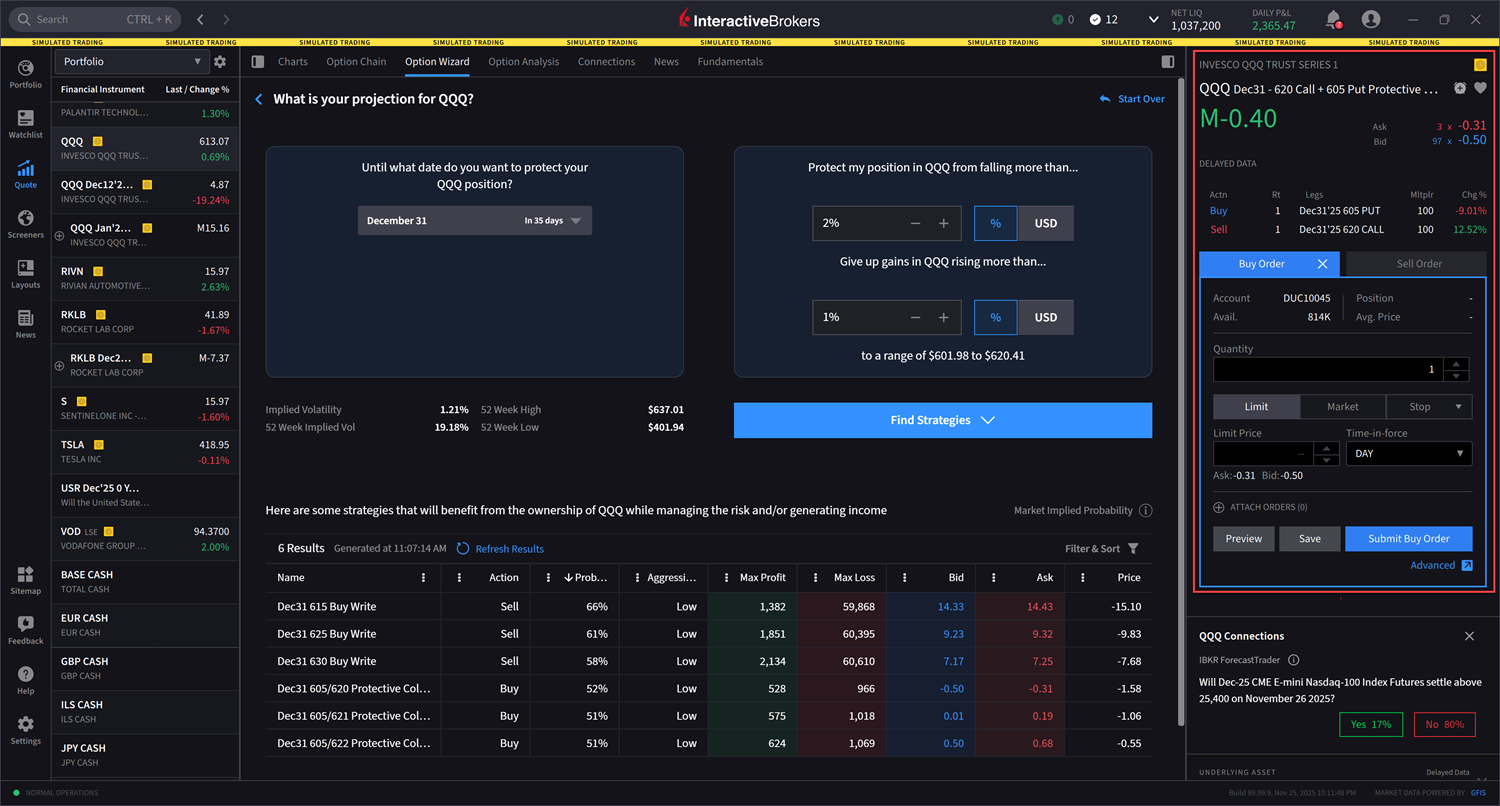
Heatmap
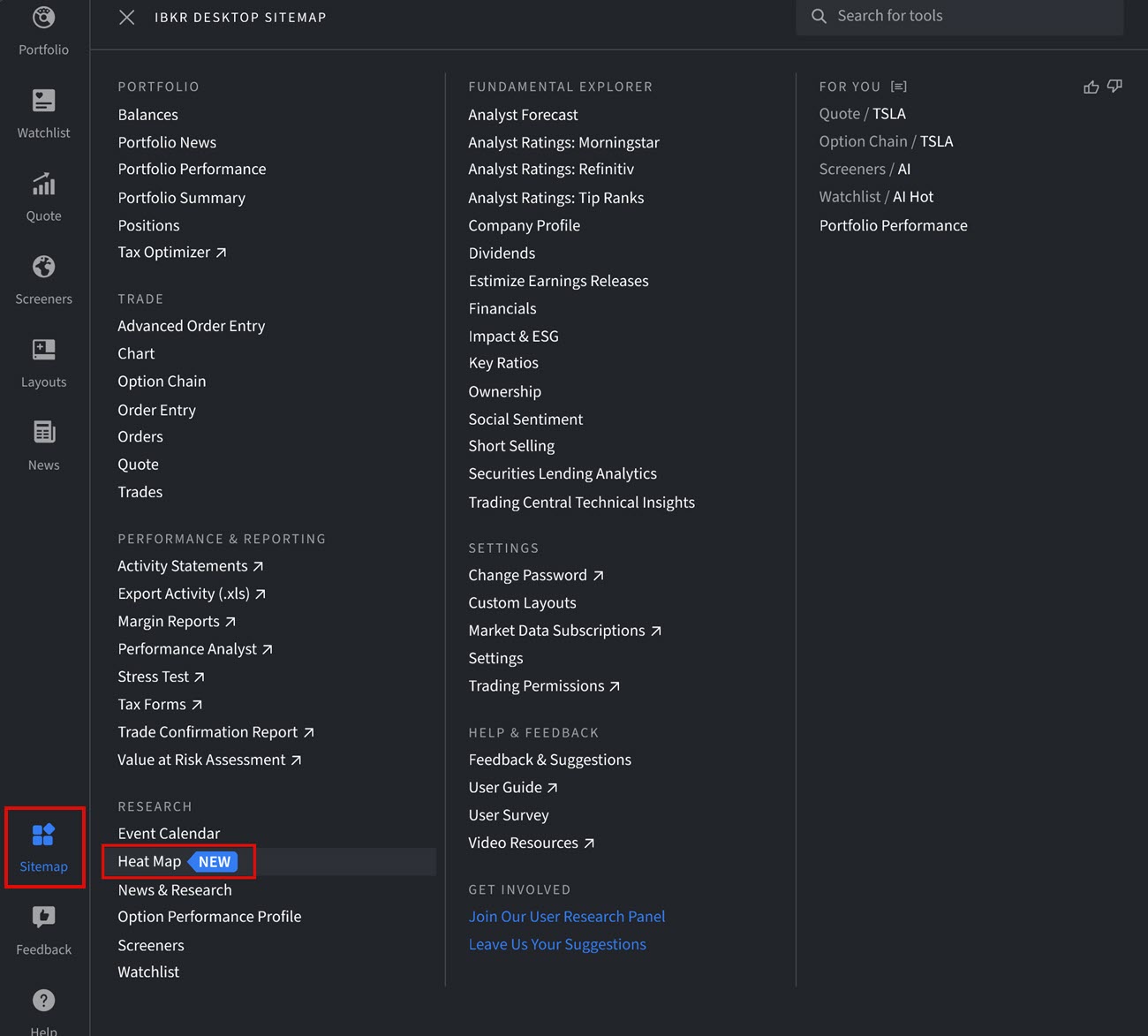
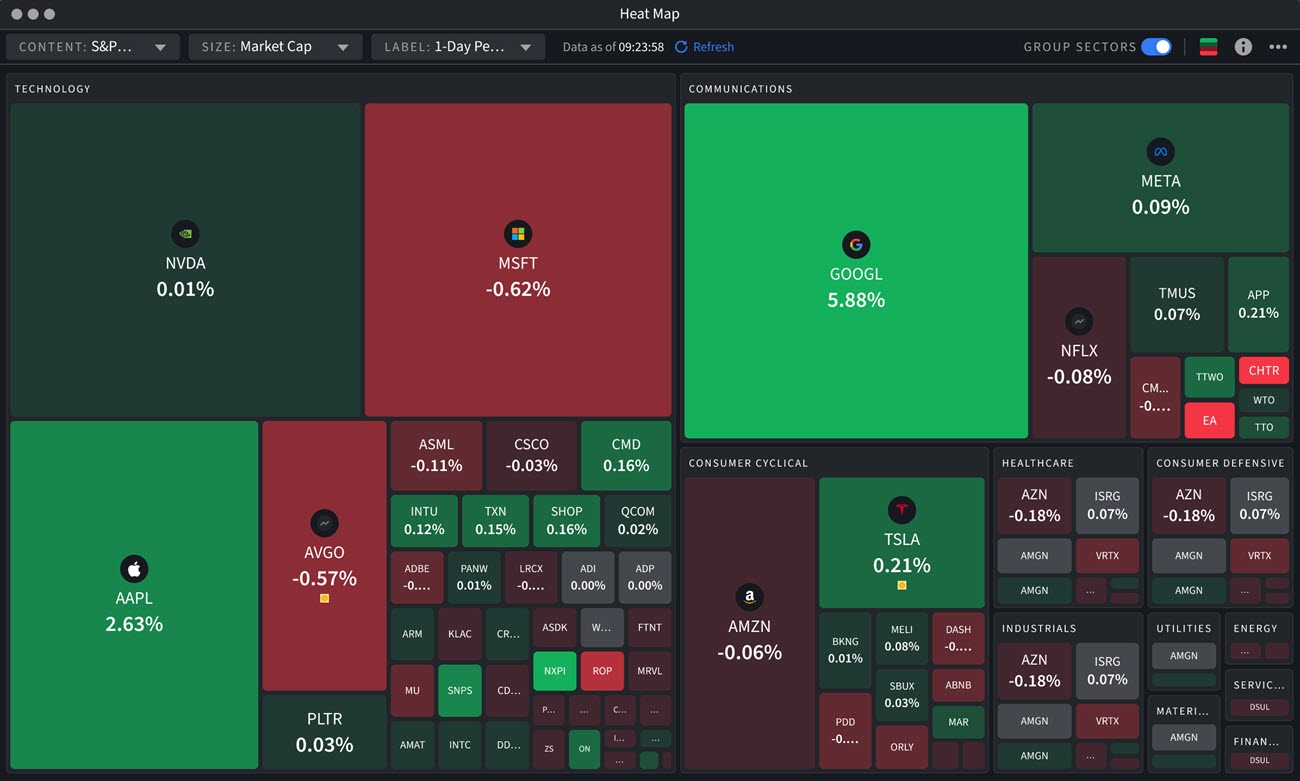
We have added a Heatmap in the Sitemap section which shows a visual representation of financial market performance with customizable sizing and labeling options for enhanced market analysis. To utilize this tool, please take the steps outlined below.
-
Navigate to the Sitemap menu button > Select Heat Map.
-
The Heat Map will populate on your screen.
Screeners Enhancements
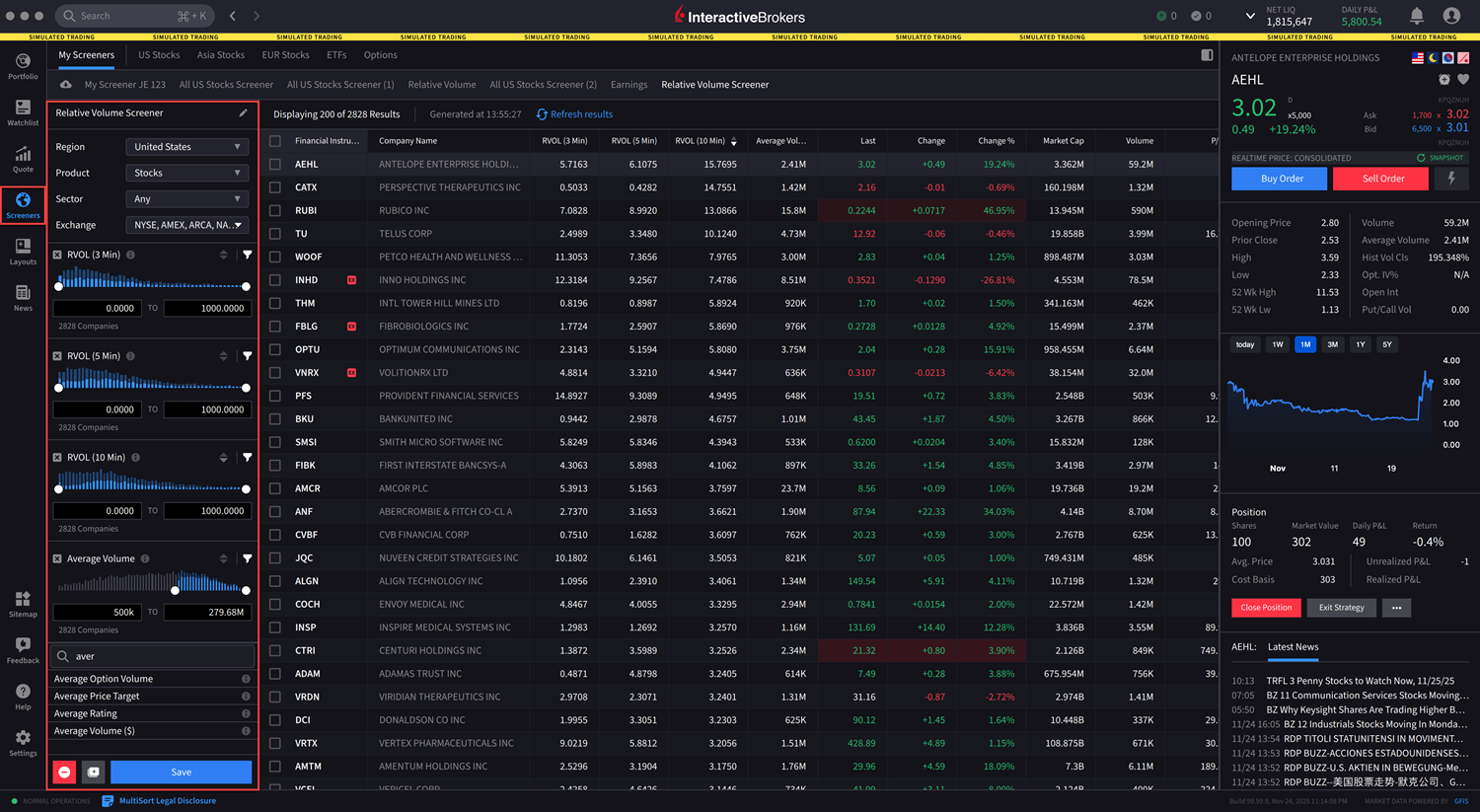
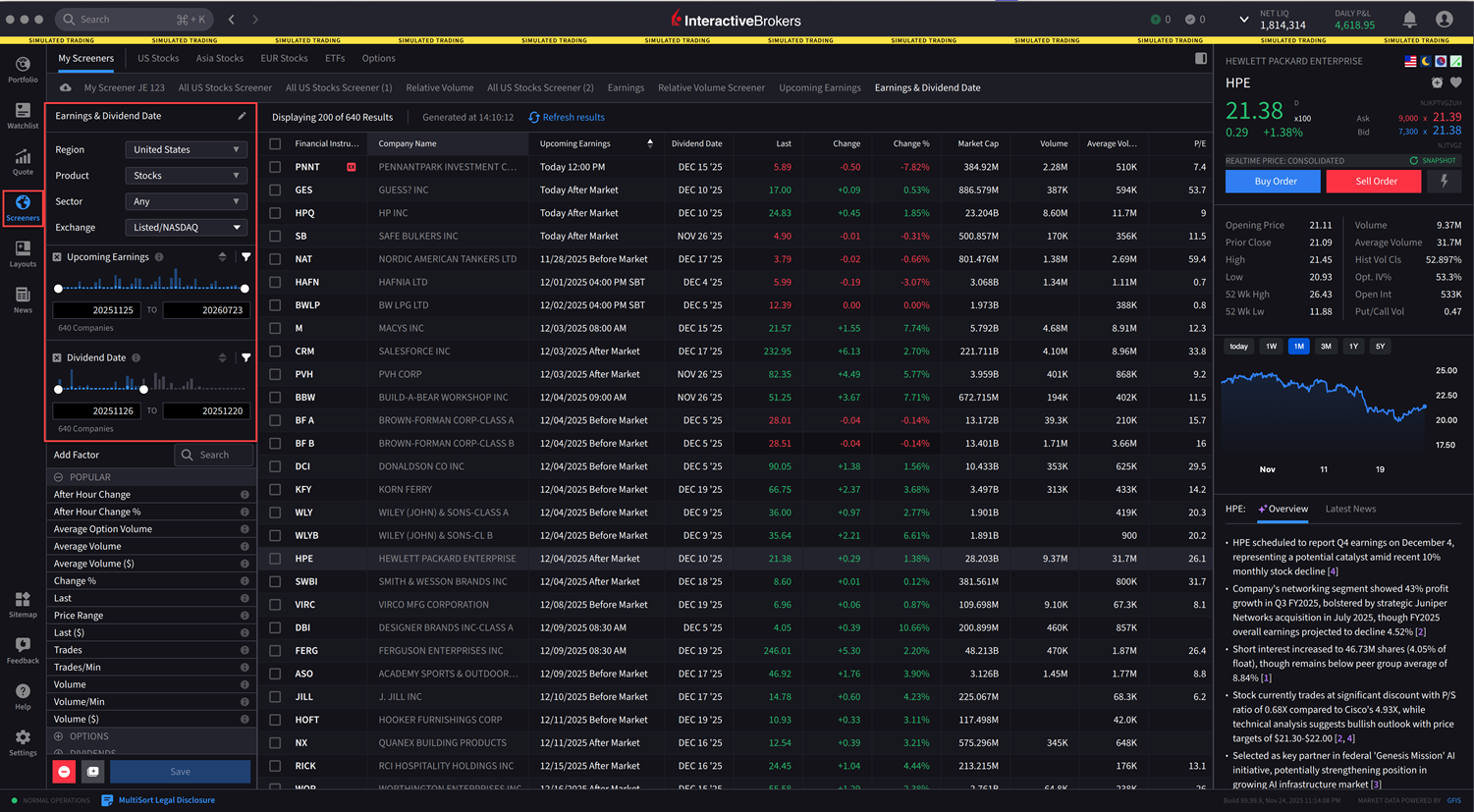
The following additional Screener filters have been added:
-
Relative Volume (or RVOL) 3, 5, or 10 minutes
-
Upcoming Earnings + Dividend Date
Options Spreads in Charts
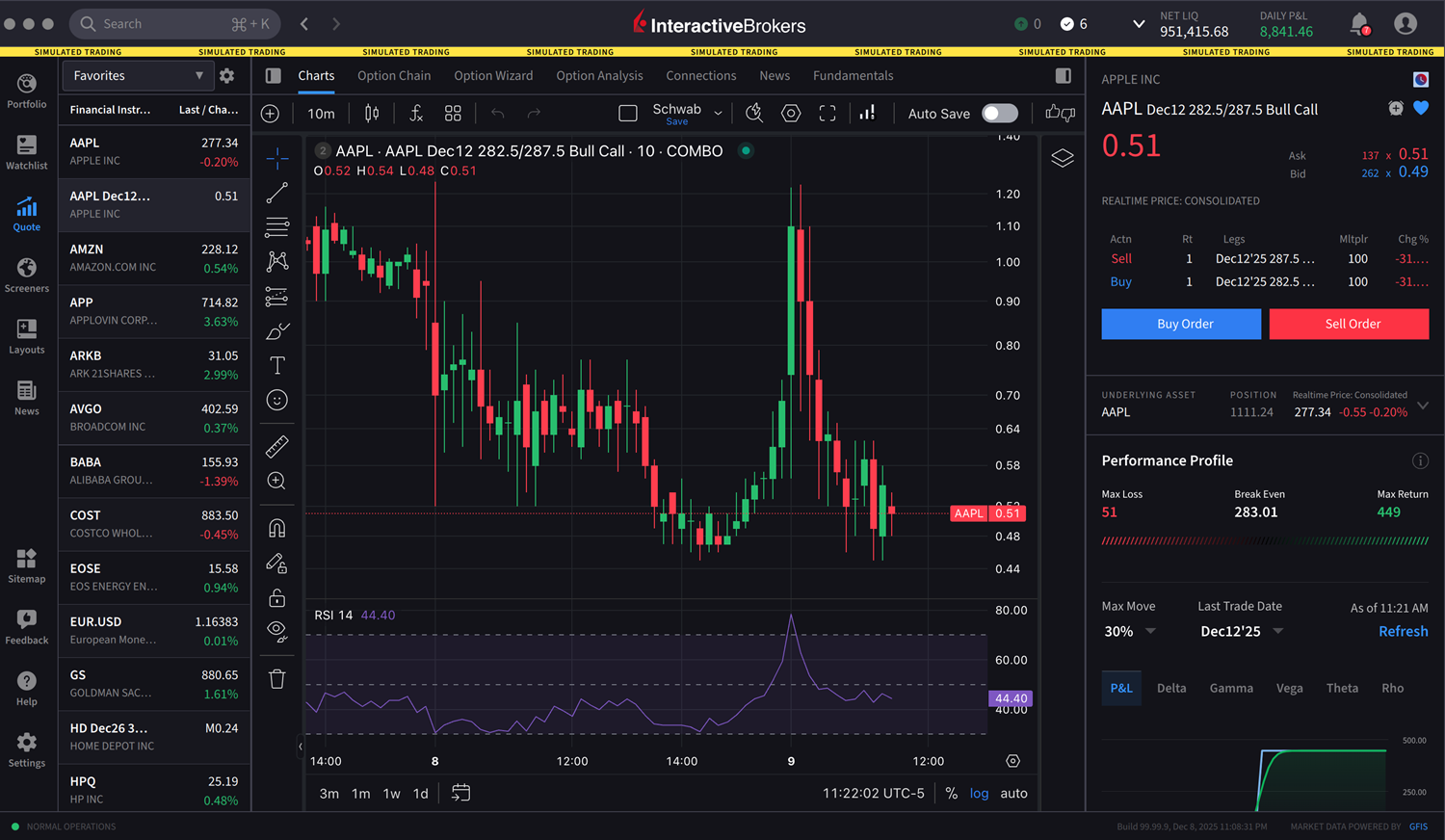
We now support Option Spreads in IBKR Desktop Charts. To do so, please take the steps outlined below.
-
Navigate to Quote and select the Spread from the left-hand side.
Please note, the Charts tab will need to be selected in order to view the Spread charts.
Simplified Account Balances
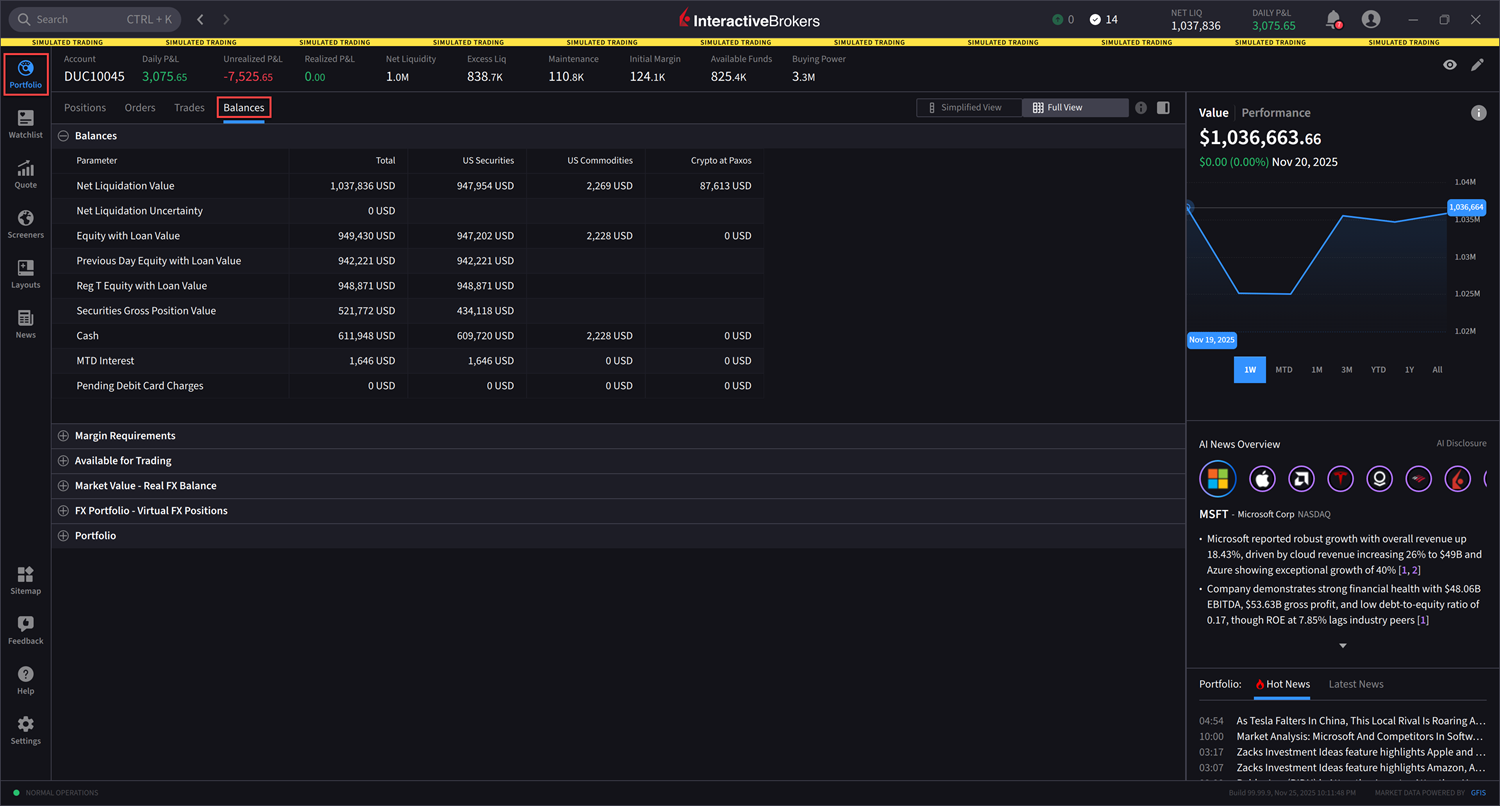
The Account Balances section now displays only the segments that apply to your specific account and trading activity. We removed the securities and commodities sections to help you quickly find your account balance information.
Currency Futures + Future Options Look-up
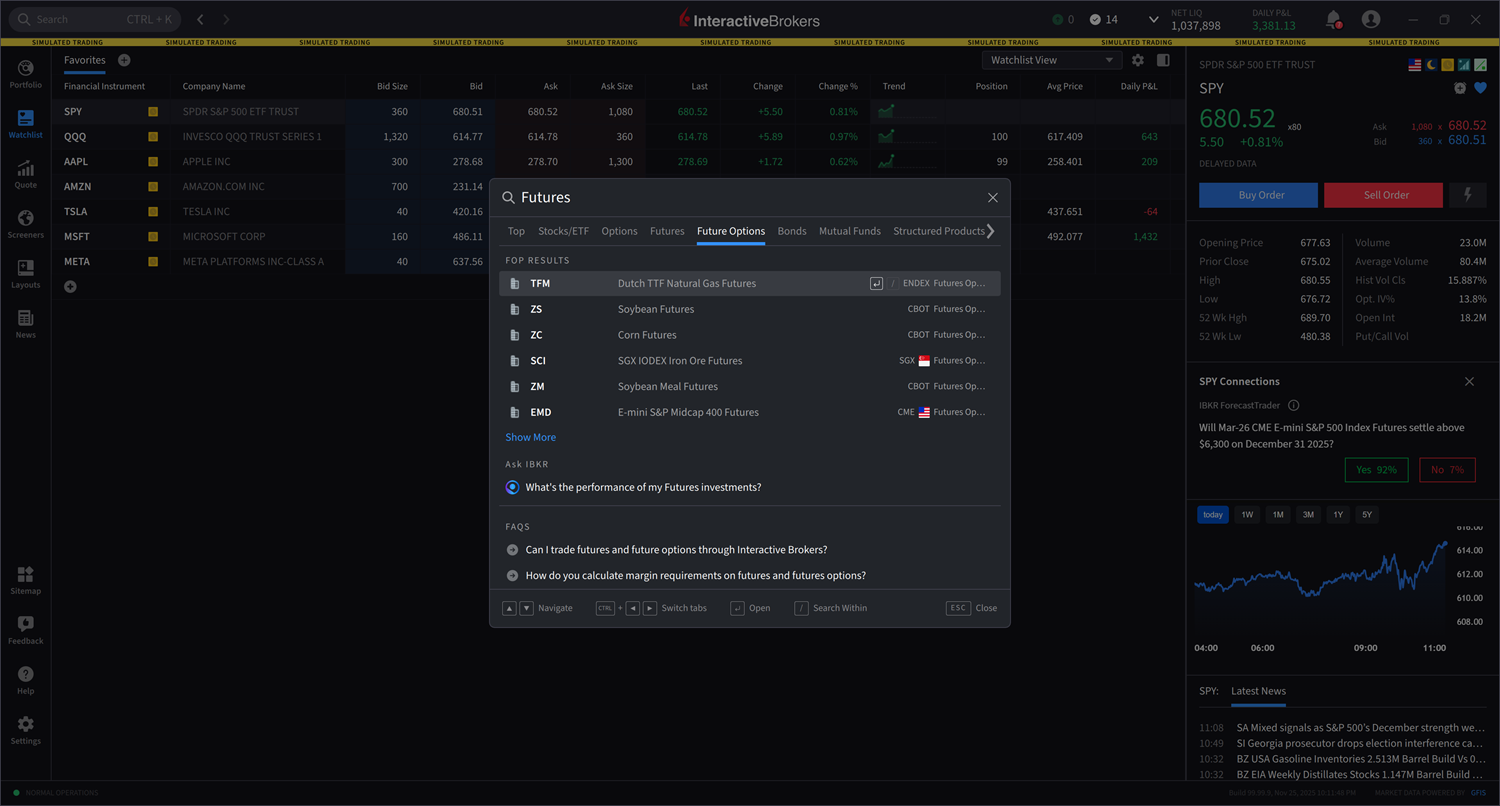
The search feature now supports currency futures and futures options lookups.