IBKR Mobile for iOS 2025 Release Notes
 Version 10.02 - December 2025: Protective Collar Option Strategy
Protective Collar options trading strategies are available in the Options Wizard. This options trading strategy provides a way for clients to protect an existing position from losses below a certain amount at the cost of capping upside. To utilize this tool, please take the steps outlined below.
-
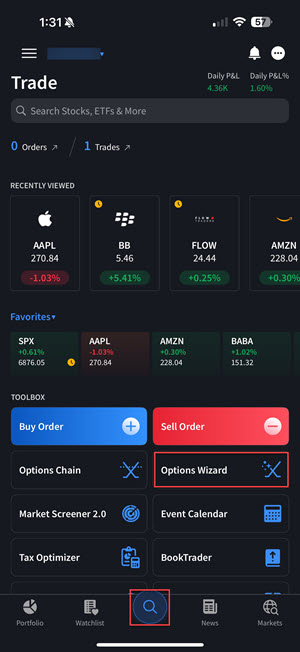
Navigate to the Trade button and select Option Wizard.
-
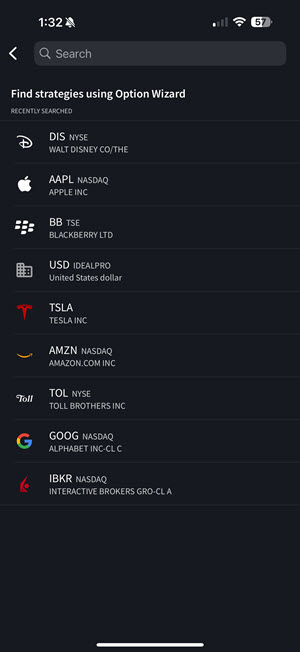
Click the underlying position for the Protective Collar Option Strategy.
-
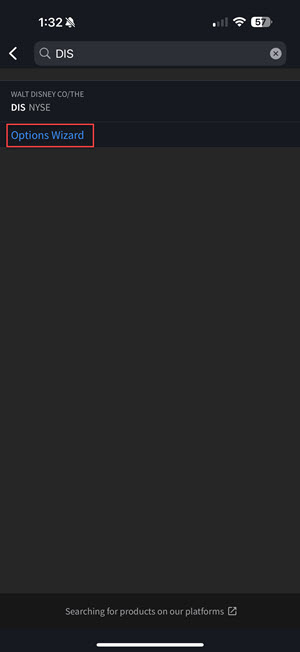
Click Option Wizard listed under your underlying position.
-
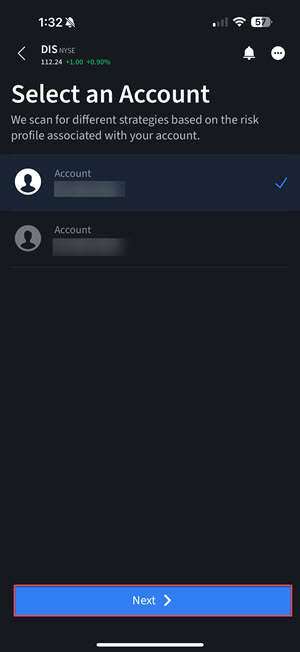
If you have a multi-client account structure, click the account you would like to place the options trade for and select Next.
-
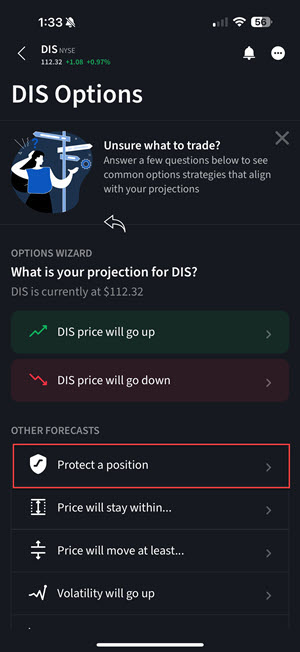
Click Protect a Position.
-
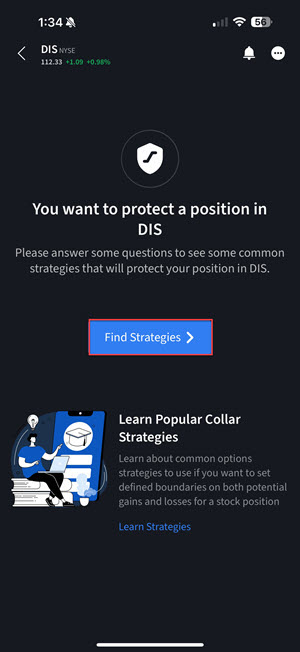
Click Find Strategies.
-
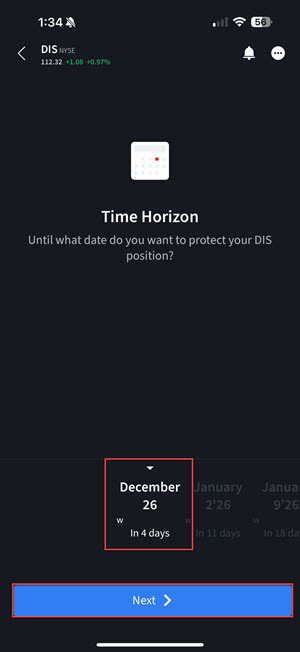
Click the desired Maturity Date and select Next.
-
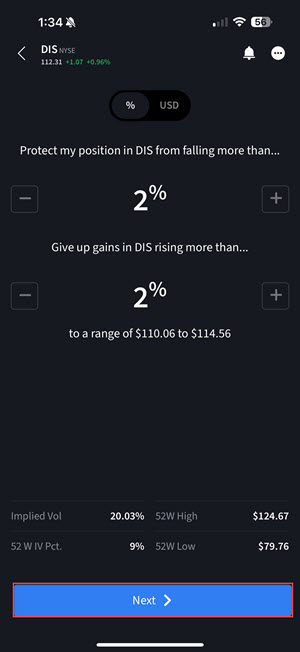
Click the + or - signs next to Protect my position in from falling more than... and Give up gains in QQQ rising more than.... Click Next once the information is entered.
-
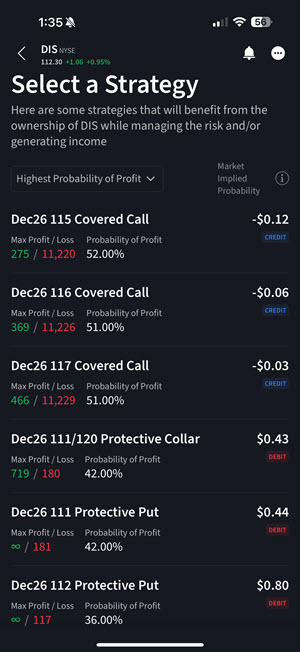
A list of strategies which leverage an existing Stock position will populate in the Results panel. Select one of the Protective Collar option strategies that best suits your trading strategy.
-
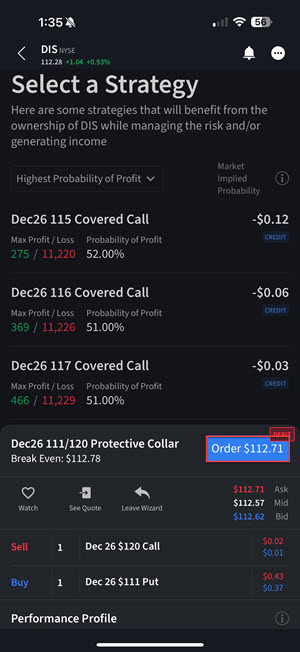
Once you select the strategy, the leg details will pre-populate at the bottom of the screen. Click the Order button to enter the additional order parameters.
-
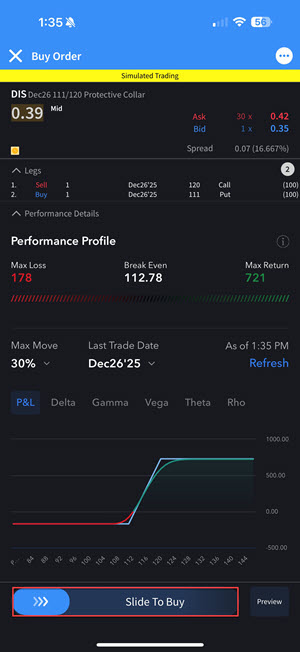
Review your order and slide the bar at the bottom of the screen to submit.
Version 9.27.1 - October 2025: Close Specific Lots
We now allow traders to multi-select any tax lot(s) they would like to place a closing order for directly within the View Lots window. To use this tool, please take the steps outlined below.
-
Tap the financial instrument from the Portfolio to display mini Quote Details.
-
Tap again to view the full Quote Details screen.
-
At the bottom of the page, swipe the Portfolio section up to populate.
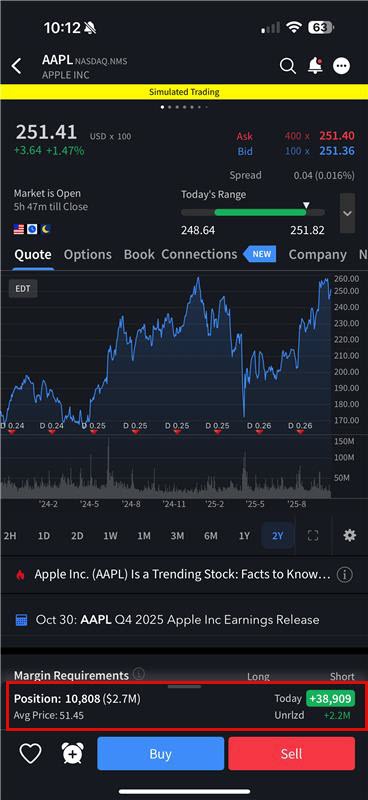
-
Click View Lots.
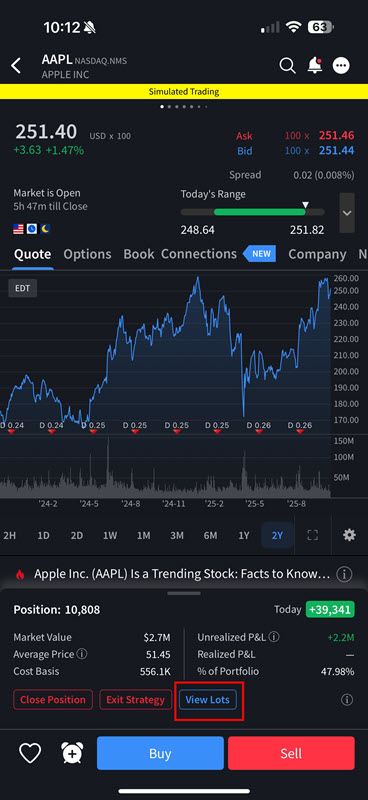
Alternatively, select the Sell/Buy button followed by Select Lots under Position.
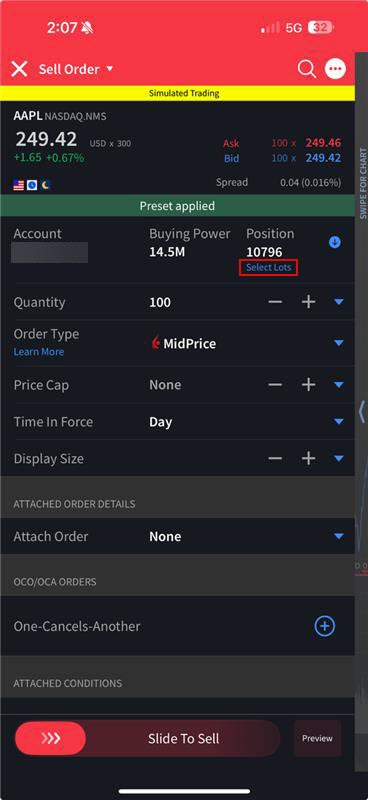
-
The Lots screen will populate. Click Close Specific Lots to multi-select any tax lot(s) to place a closing order for.
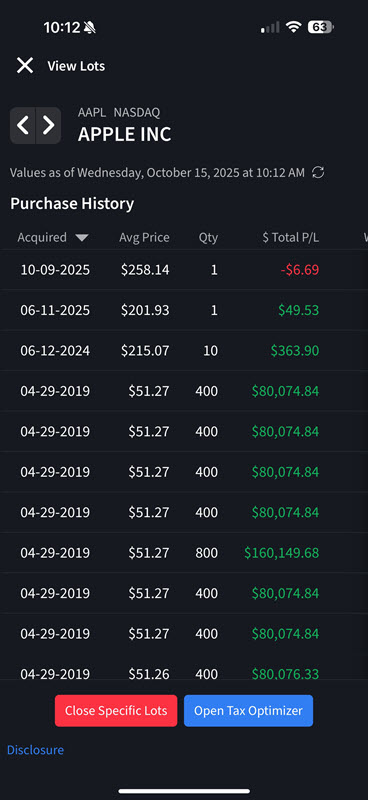
-
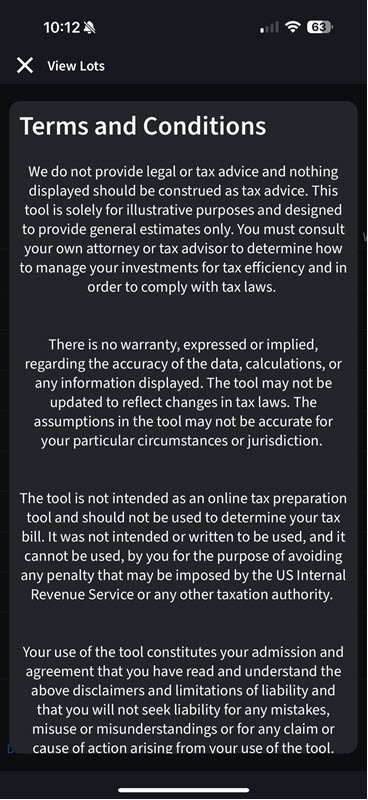
The Terms and Conditions will populate on your screen. After reading, select Agree.
-
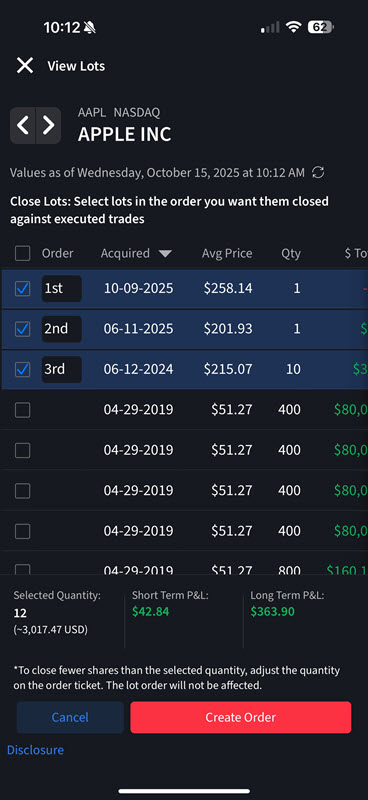
Select the check box's to the left of the Lots you would like to close.
-
Select Create Order to close these orders.
-
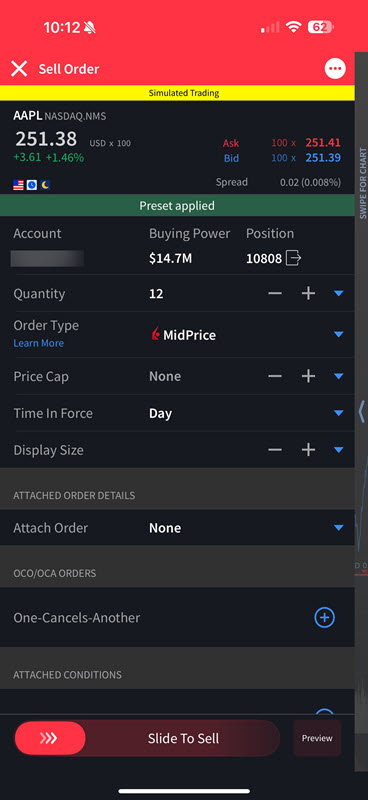
The order will populate in the Order Entry Panel.
-
Update the order parameters as desired and Slide To Sell or select Preview to preview the order prior to submitting.
Version 9.25 - July 2025: Connections, Investment Themes, Bulk Editing for Alerts
Connections
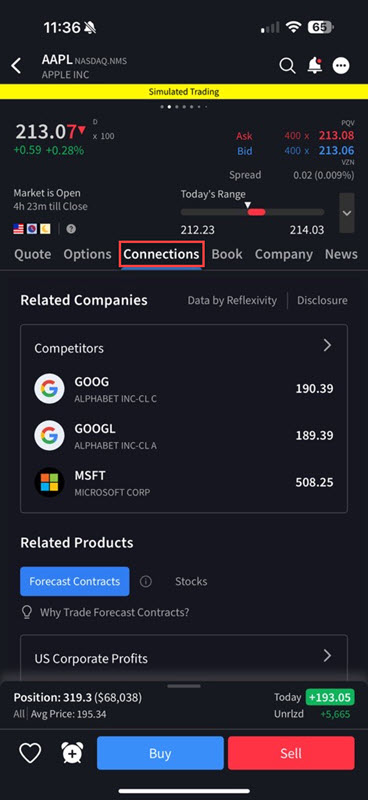
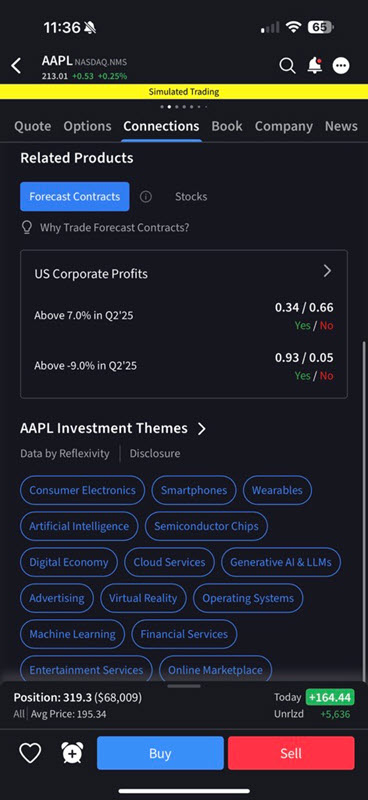
Explore a new way to discover opportunity. The Connections tab surfaces stocks, ETFs, futures, and other instruments closely tied to what you’re viewing. Whether you're looking for related instruments or tradeable strategies, the Connections tab brings relevant connections to the forefront—right when you need them.
To utilize this tool:
-
Tap a stock from any tool (Portfolio, Watchlist, Scanner, etc) to display mini Quote Details.
-
Tap again to view the full Quote Details screen.
-
Select the Connections tab from the top of your screen.
-
View Related Companies, Related Products, Themes, Forecast Contracts, and Funds.
-
Tap any of these tiles to view additional information.
Investment Themes
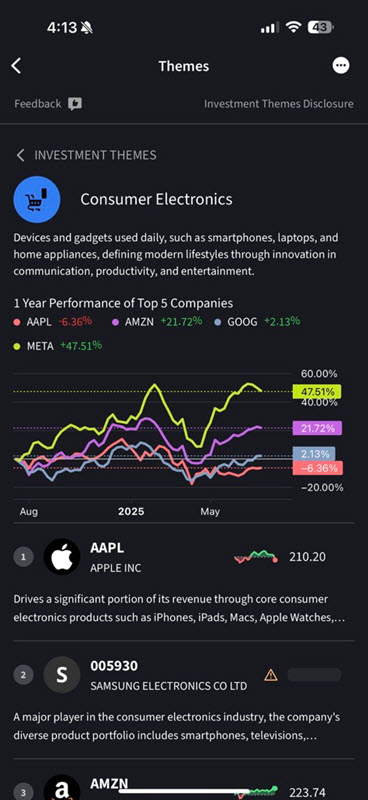
The new Investment Theme feature allows you to explore companies and details connected to a specific theme. You may then explore connections to the companies themselves.
To access this tool, take the following steps:
-
Tap any S&P 1500 stock from any tool (Portfolio, Watchlist, Scanner, etc) to display mini Quote Details.
-
Tap again to view the full Quote Details screen.
-
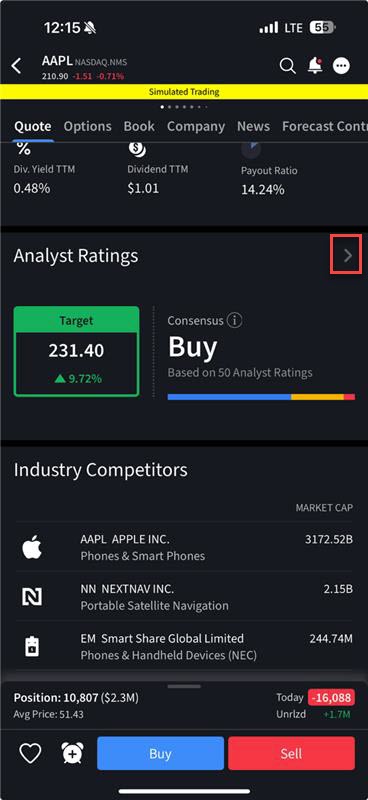
Scroll down on the Quote screen and click the arrow icon on any of the 'Fundamental' widgets (like Dividends or Analyst Ratings).
-
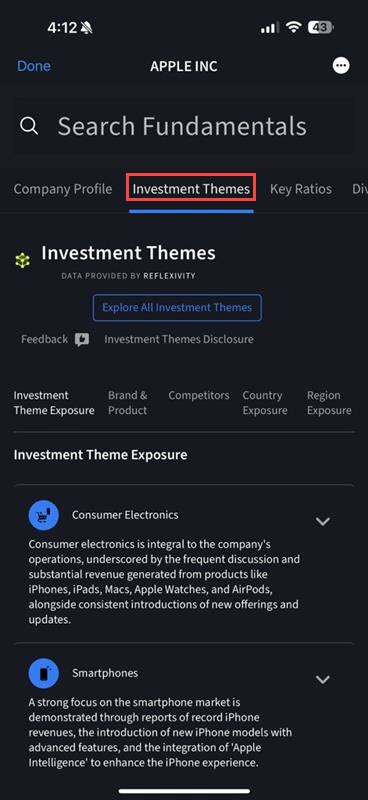
This will take you to our Fundamental Explorer tool, and if the company you have selected has Investment Themes coverage (any S&P 1500 stock), you will see a Investment Themes tab and can select it.
-
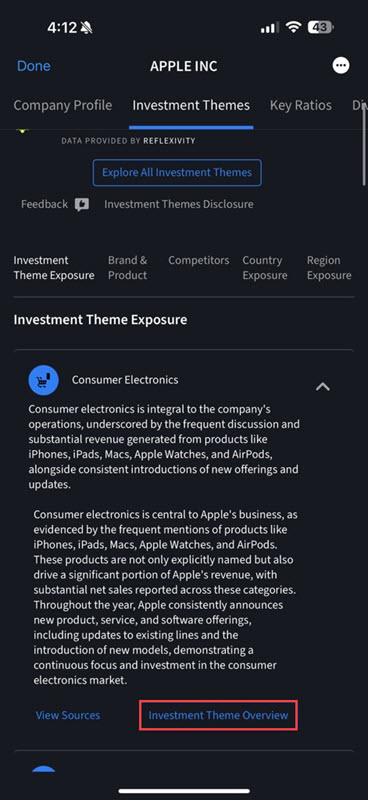
You can then explore Investment Themes and other connections to the selected company, and even dive down in to a specific Theme by tapping Investment Theme Overview.
Bulk Editing for Alerts
Users can now select/de-select existing alerts for one of 3 bulk actions: Delete (any alert), Pause (active alerts only), or Activate (paused alerts only).
To do so, please take the steps outlined below.
-
Select the Menu icon in the top left corner followed by Alerts.
-
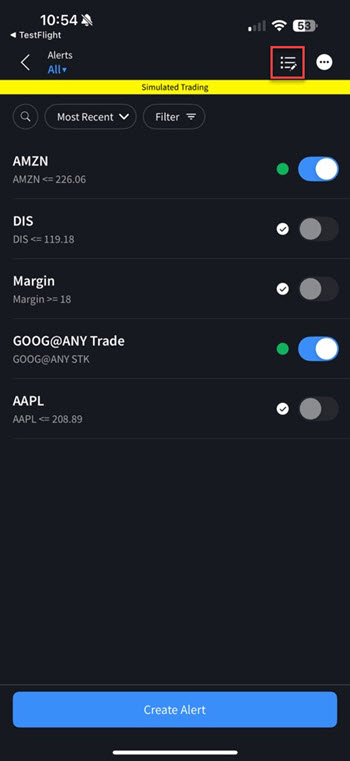
The Alerts page will populate. Select the edit icon in the top right corner.
-
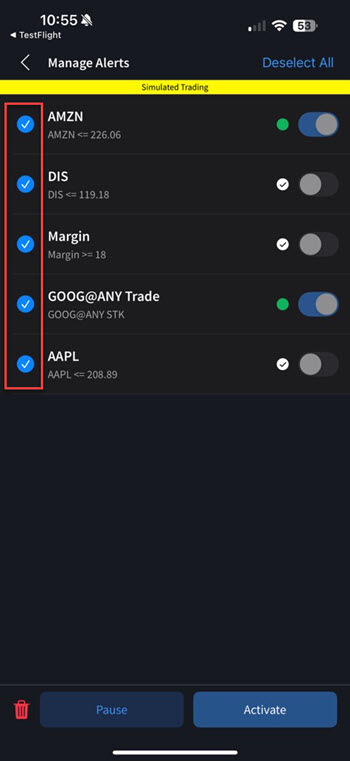
Select the check box's to the left of the alerts you would like to Delete, Pause, or Activate.
-
Click the action at the bottom of the screen.
Version 9.24 - July 2025: Simplified Watchlist
We now offer a new simplified view for Watchlists called the "List view". To access this, follow the steps below.
-
Navigate to the Watchlist
-
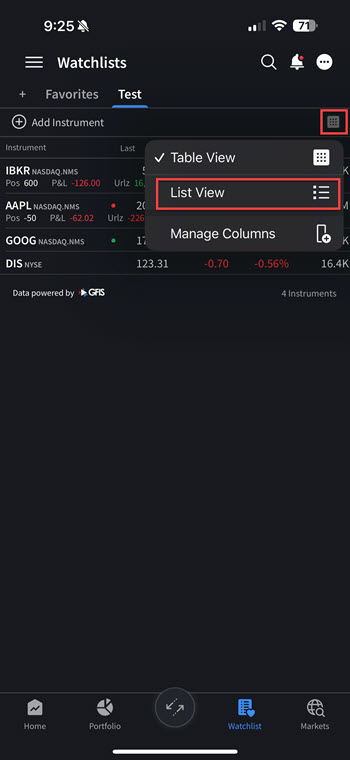
Select the square dotted icon in the top right corner
-
Select List View
-
The List View watchlist will populate on your screen
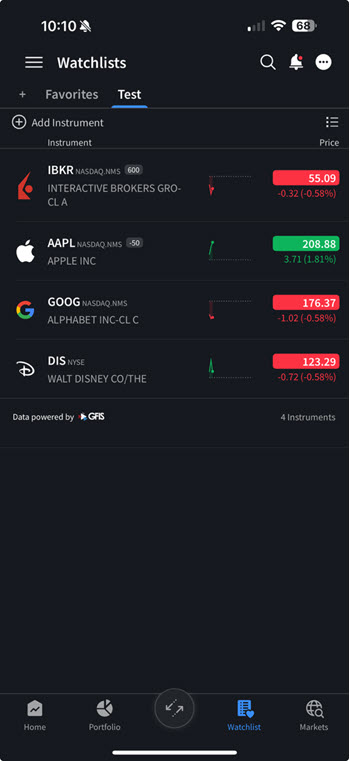
Some added features of the Simplified Watchlist include:
-
Sparklines: This shows intraday price movement relative to previous day's close
-
Metrics Cycling: This allows you to cycle through multiple metrics with a single tap
-
Available Metrics include: Price, Price Change, and Market Cap
-
-
Long Press Action: This is a new contextual menu accessible via long press which provides quick access to frequently used actions including:
-
Buy, Sell, Create Alert, Chart, Option Chain, & Remove
-
Version 9.22 - April 2025: ForecastTrader Integrated Into IBKR Mobile Native
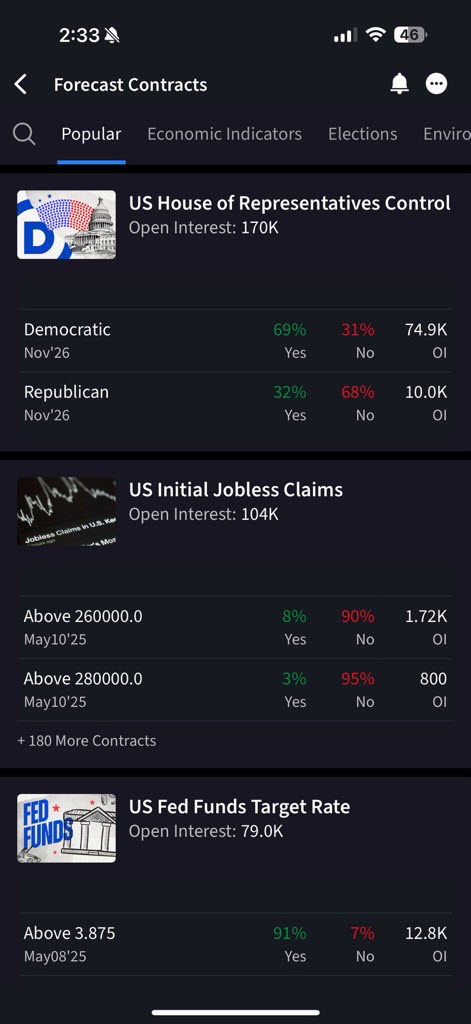
ForecastTrader contracts are now seamlessly integrated into the IBKR Mobile app. With this update clients may now:
-
View and explore Forecast contracts directly in the app.
-
Trade Forecast contracts within the app, without needing to redirect to the external ForecastTrader application.
-
See related Forecast contracts when looking at other financial instruments (currently for limited set of products with more rolling out soon).
-
Navigate to IBKR ForecastTrader by clicking the Menu icon in the top left corner > IBKR ForecastTrader.
-
Click or search for a topic from the tabs at the top of the page.
-
To trade a forecast contract, select the contract and click Buy No or Buy Yes
-
Enter the order details and Slide to Buy.
-
You may view traded Forecast Contracts in the Transaction section of the app.
Version 9.20 - February 2025: MultiSort Screeners
MultiSort Screeners enable users to find and sort data using multiple factors simultaneously. This is essential for traders and investors who need to evaluate diverse information, such as fundamental data, past performance, and technical indicators. MultiSort makes it easy to input multiple preferences, and quickly returns the most relevant results.
Choose up to 10 sort factors by selecting the toggle button to the right of the factor. Use the drop-down menus to specify whether a lower or higher value is most desirable. For example, you might want to see stocks with high dividend yield but low P/E ratio. Additionally, specify the "Importance" level of each factor. By default each is set to Important, but you can modify to be "Somewhat Important" or Very Important."
As you modify factors, the screener updates in real time.
To Create a MultiSort Screener
-
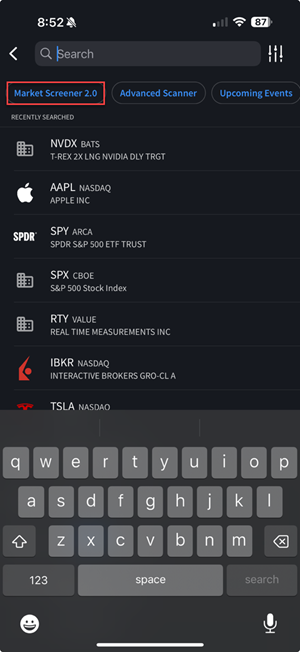
Click the Search button in the top right corner of any screen and select Market Screener 2.0.
Alternatively, select Watchlist > Click the 3 dotted icon in the top right corner and select Market Screener 2.0.
-
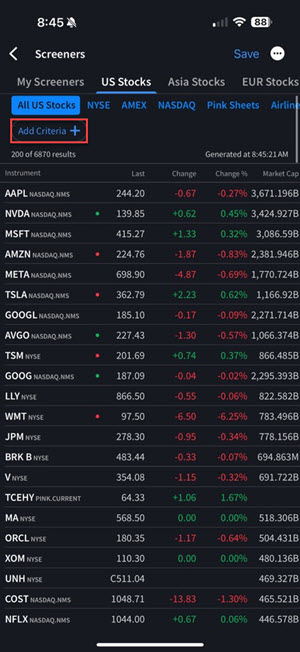
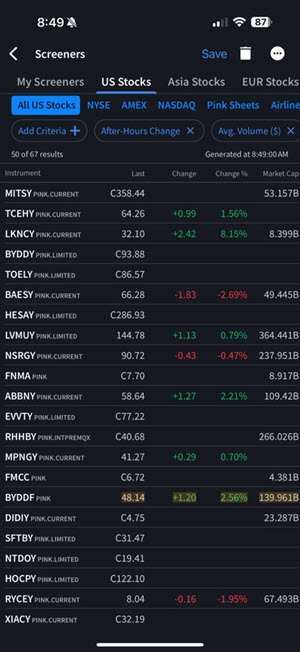
The US Stock Screener page will populate. Click Add Criteria in the top right corner.
-
Select MultiSort Screener.
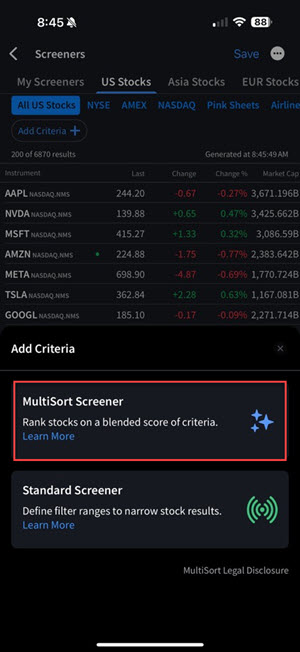
-
Select up to 10 factors by clicking the toggle button to the right of the factor.
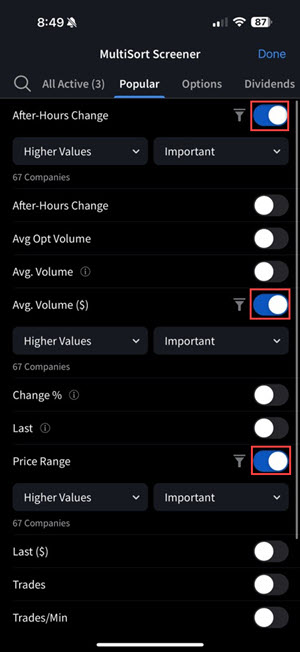
-
Specify a Preference and Importance filter.
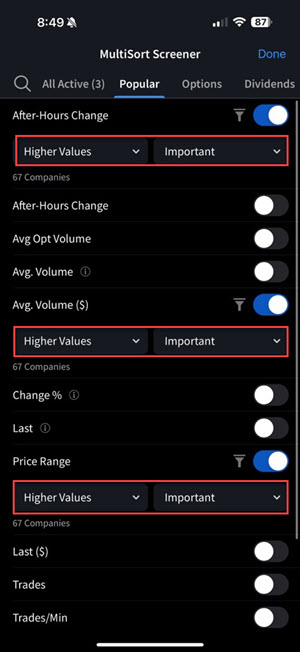
-
Click the Filter Icon to filter with text fields or a histogram.
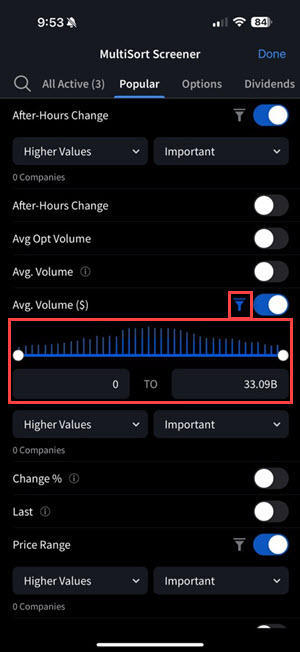
-
Click Done in the top right corner.
-
The Market Screener will populate. Click Add Criteria to add additional factors at any point.
-
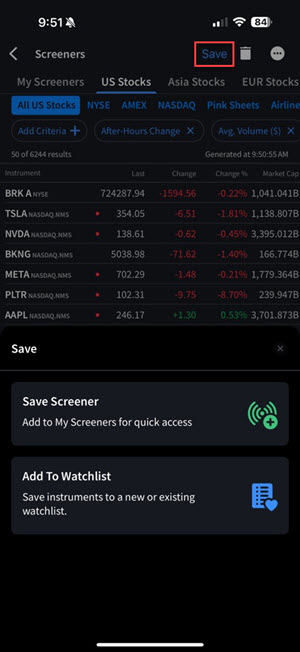
Once the desired criteria has been added, click the Save button in the top right corner to add this to the "My Screener" list, or to save instruments to a new or existing watchlist.