IBKR Mobile for Android 2024 Release Notes
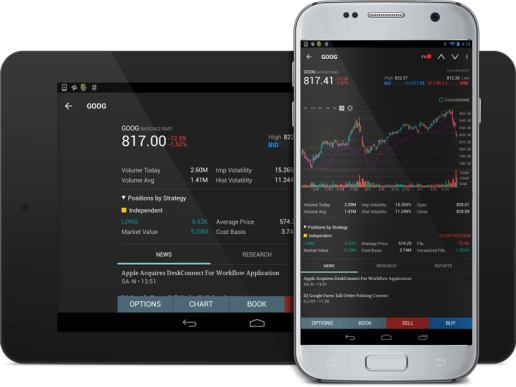
 Build 9.16 - December 2024: News Summaries, Transactions, Trade Push Notifications, Exchange Time Zone Chart Setting
News Summaries
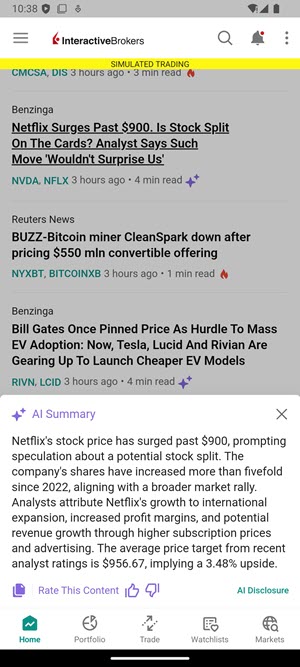
We have added a Summaries widget on the Home page, allowing you to view a news summary of assets in your portfolio. You may also search for a product and view news summaries on the quote page. To do so, please follow the steps outlined below.
-
Click Home > Scroll down to the bottom of the page to view News > Click on an article with the star icons
 populating to view the AI Summary.
 -
Alternatively, search for a product by selecting the magnifying glass in the top right corner of any page and scroll down to the bottom to view the Summaries widget.
Transactions
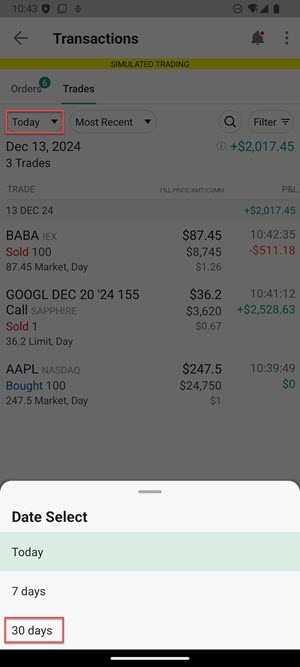
We now show up to 30 days of history; previously the maximum was 7 days.
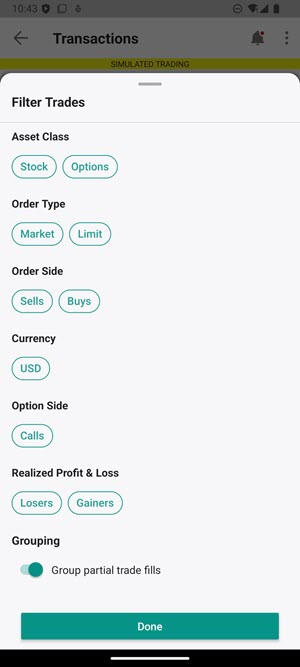
We now have filters to segment the user's trades based on symbol, asset type, buy/sell direction, gain/loss and more.
We additionally show realized P&L aggregated on both daily and on the total time period level (e.g for 30 days, you can see the realized P&L for each day and also for the entire 30 days).
Trade Push Notifications
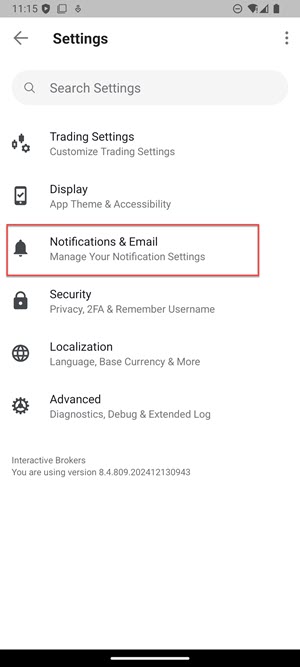
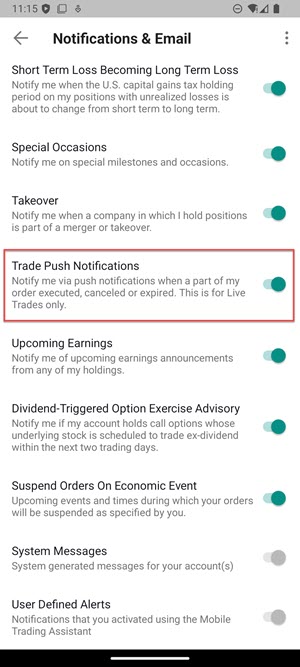
We have added the ability to enable Trade Push Notifications. To do so, please take the steps outlined below.
-
Settings > Notifications & Email
-
Select the toggle button to the right of Trade Push Notifications
-
If an order fills while the app is either in the background or closed, the user will receive a push notification on their phone with the details of the order fill
Exchange Time Zone Chart Setting
We have additionally added the ability for a user to view chart time period in the exchange time zone. Previously, we only showed the user’s device time zone. Previously, a user in England at AAPL.NASDAQ’s market open would see it open at 2:30PM BWT. They can now use the exchange timezone, so the market open would appear at 9:30AM EST. To do so, please take the steps outlined below.
-
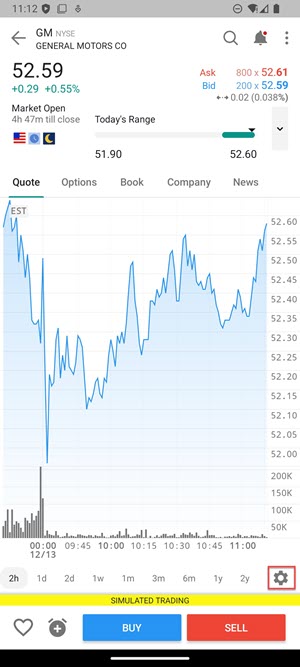
Enter a product into a watchlist and navigate to Quote Details.
-
On the chart, select the gear icon in the bottom right corner.
-
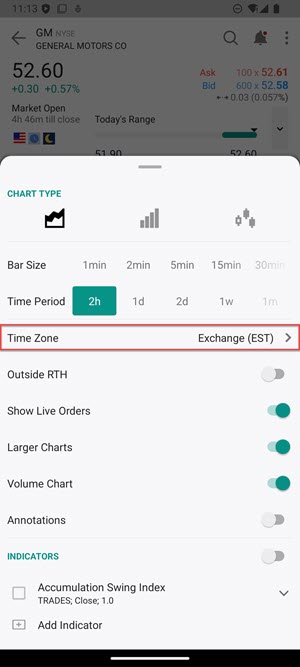
Select the Time Zone button and select Exchange.
-
The Exchange Time Zone will populate on the chart.
Build 8.4.796 - September 2024: One-Cancels-Another
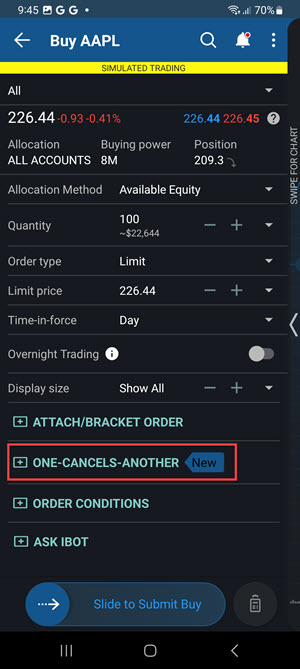
We have added the One Cancels Another order type in IBKR Mobile.
Navigate to the Order Ticket (select a product from your Watchlist or Portfolio), and scroll to find the "One-Cancels-Another" drop-down menu. Select the additional orders, and indicate whether you would like to buy or sell.
For more information on this topic, please view our User Guide.
Build 8.4.781 - June 2024: Updates to Conditional Orders and Direct Debit/Check Deposits
Conditional orders automatically submit or cancel your order if your defined criteria are met. Set conditions on price, change %, volume, margin cushion, another instrument being traded and more!
We’ve also added Direct Debits and Check Deposits tabs to the Transactions screen.
Build 8.4.759 - March 2024: More Updates to Navigation
We've retired the Navigation menu in favor of a new Account menu, which you can access from the top left corner of Home, Portfolio, Trade, Watchlist and Markets. This new menu provides easy access to Settings and other Account Management features. Let us know what you think using Help & Feedback in the Account Menu.