Client Portal Release Notes 2024
 December 2024: Gen AI Summaries, Get Help for Non-English Users
Gen AI Summaries
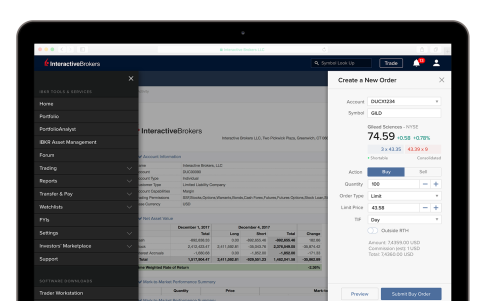
In order to make GenAI Summary and Taxonomy more discoverable to end users in all of our applications, we have added additional news summaries, and display the summary content, along with a link to click on the original news article.
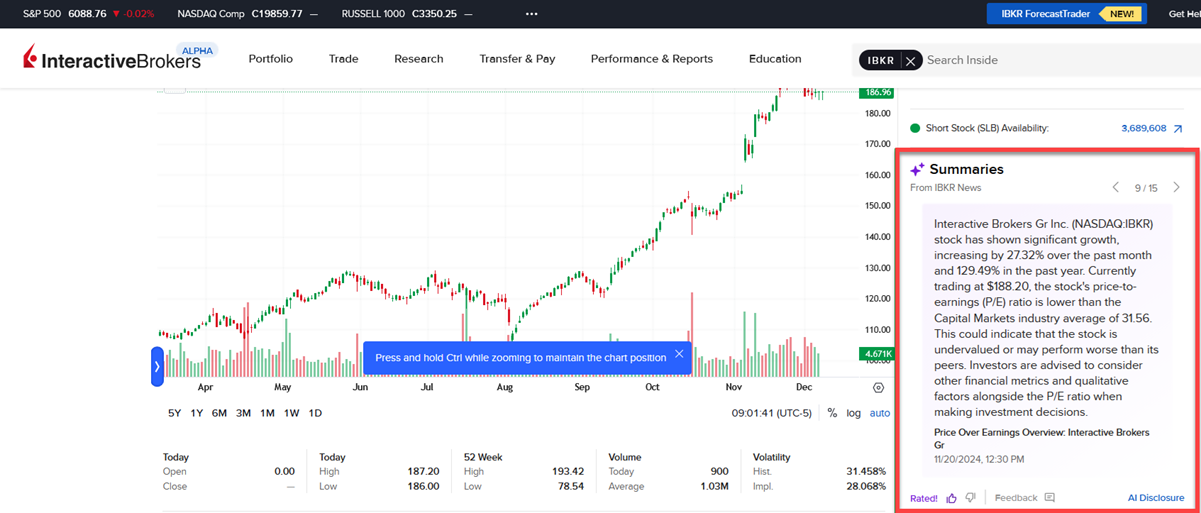
Gen AI Summaries on Home Page
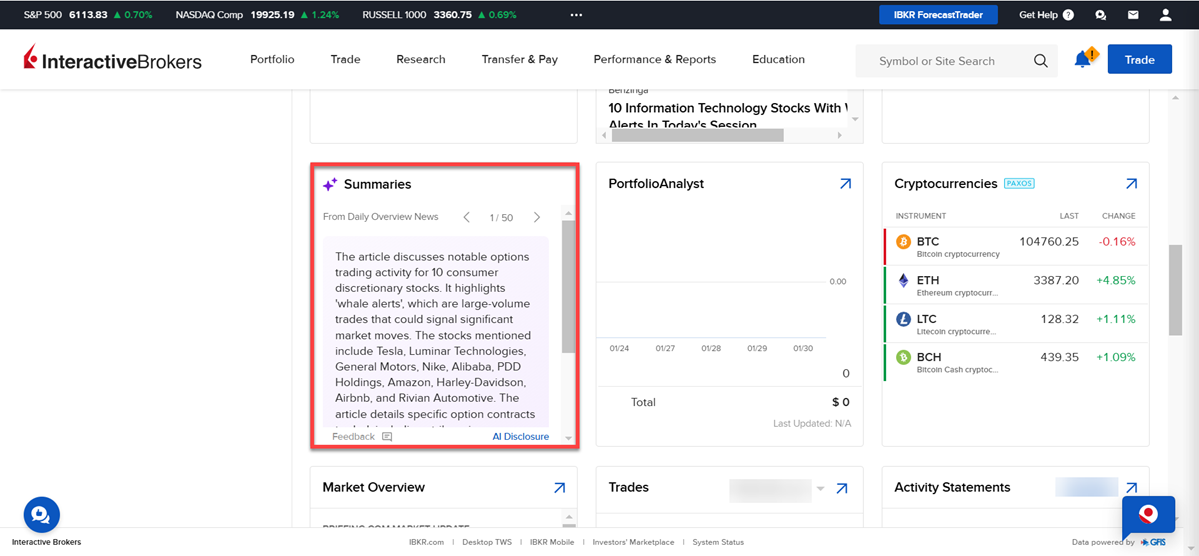
We have added this feature as a widget which can be added on the Client Portal home page.
-
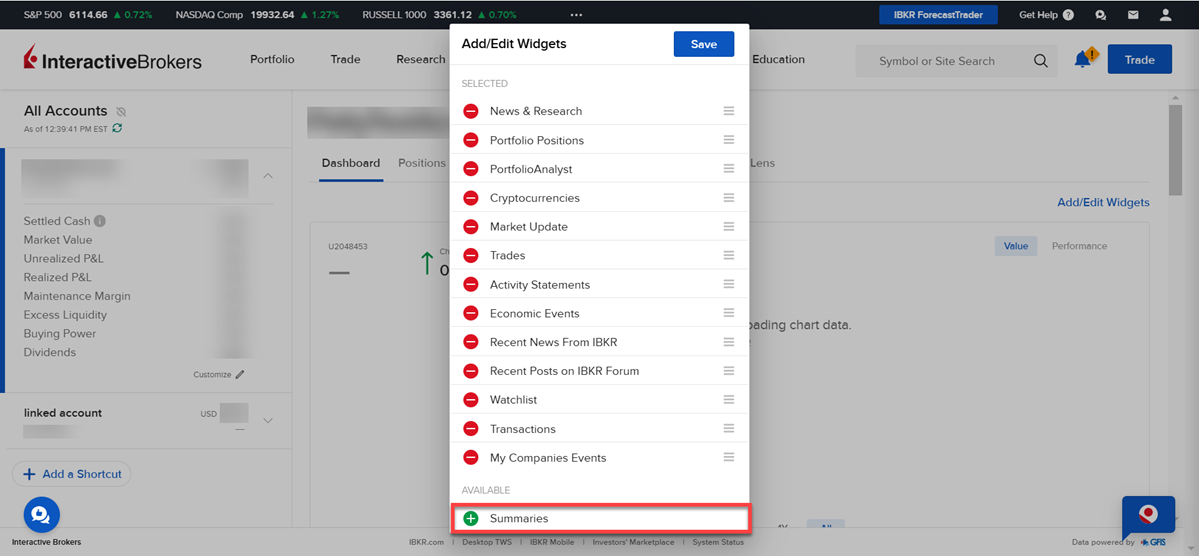
Navigate to the Home page and select Add/Edit Widgets.
-
Select the green + icon to the left of Summaries.
-
This widget will be added on the home page.
Get Help for Non-English Users
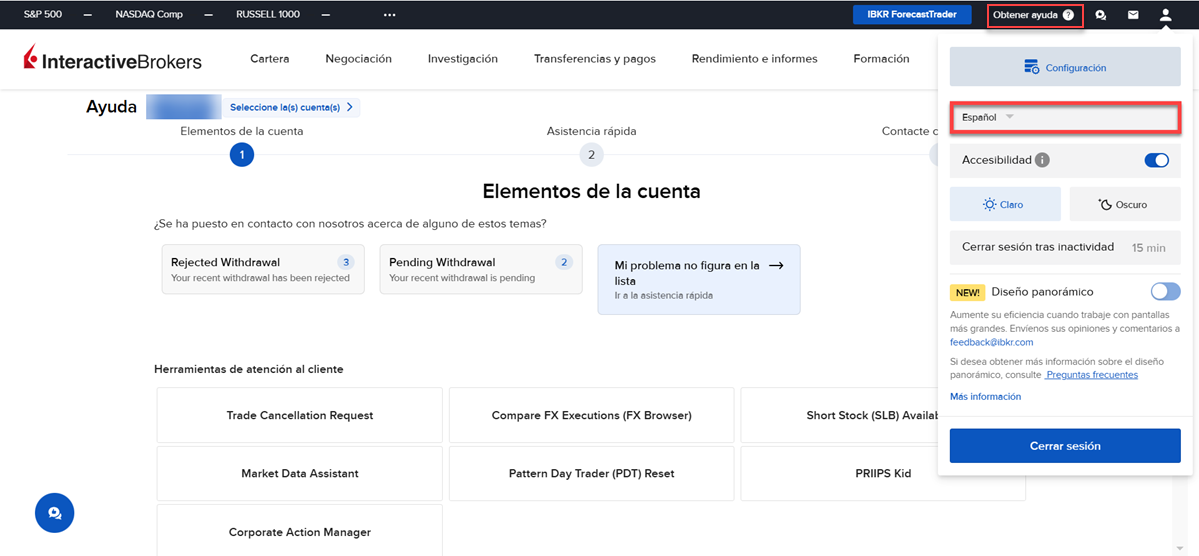
We offer Get Help for Non-English Users. This feature can now be shown in different languages.
-
Navigate to the head and shoulders icon in the top right corner.
-
Select the language drop-down menu and select the desired language.
-
Select Get Help in the top right corner.
November 2024: News Summaries
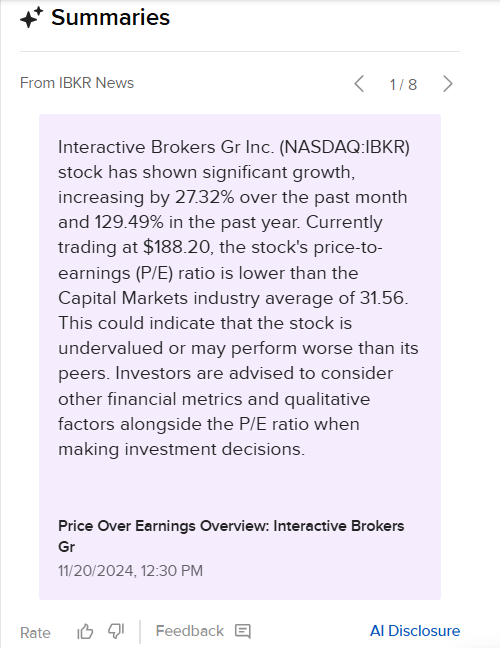
We have added a Summaries widget on the Dashboard home page, allowing you to view a news summary of assets in your portfolio. You may also search for a product and view news summaries on the quote page. To do so, please following the steps outlined below.
-
Click Menu > Home > Scroll down to the bottom of the page to view the Summaries widget.
-
Alternatively, search for a product in the Symbol or Site search box at the top of your home page and scroll down to the right hand side to view the Summaries widget.
September 2024: Cost Impact on MFX, Options Exchange Selector, ISIN Search in Order Ticket, Overnight Trading Hints, Key Profile Widgets for Funds
Cost Impact on MFX
The Cost Impact preview link is now displaying on the Order Preview screen for EUR Mutual Fund Exchanges.
Options Exchange Selector
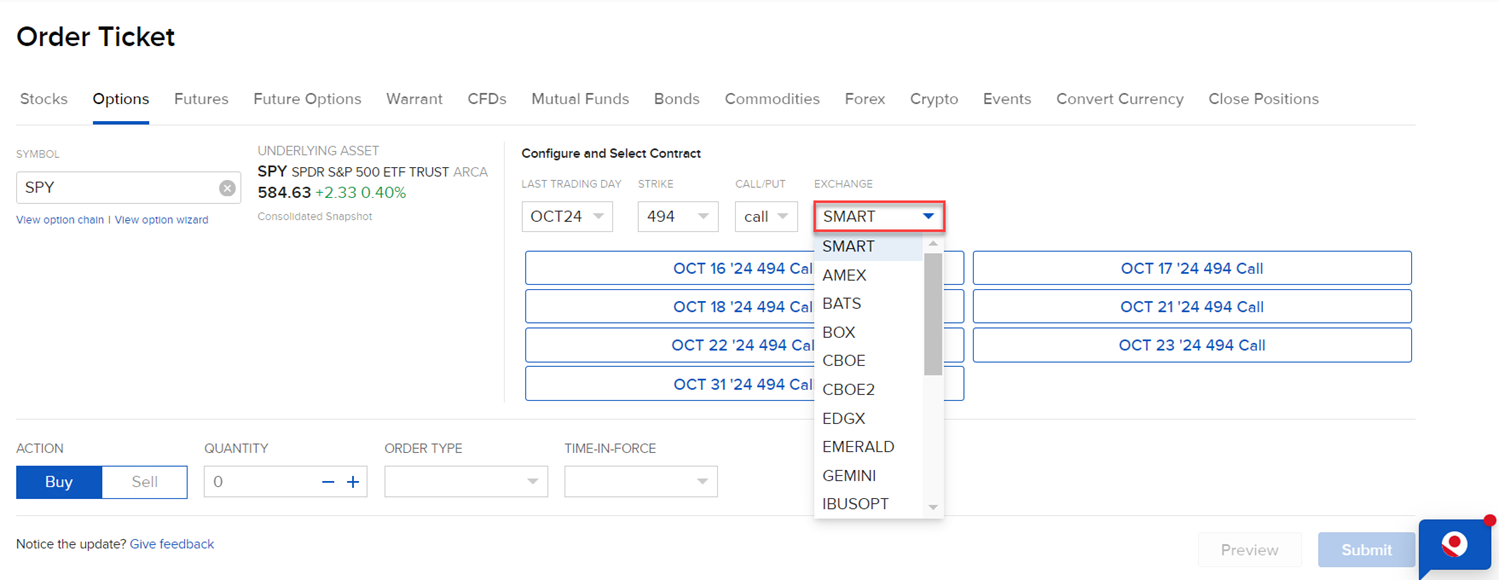
Client may now fill in the option exchange when searching for an options contract, prior to the system suggesting a default contract.
ISIN Search in Order Ticket
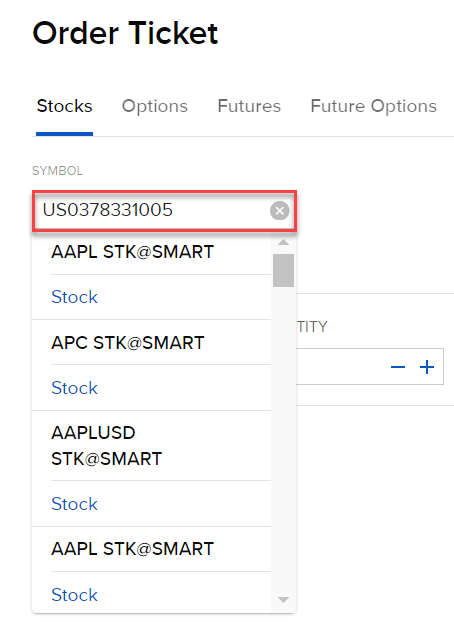
We now support the ability to search for a product by ISIN in the Order Ticket.
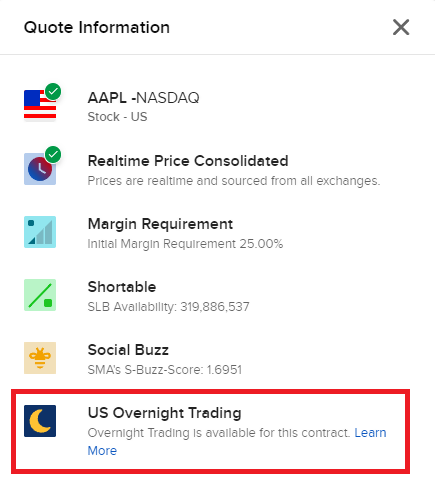
Overnight Trading Hints
We have added a crescent moon icon to the Quote Info panel for all contracts that are Overnight eligible.
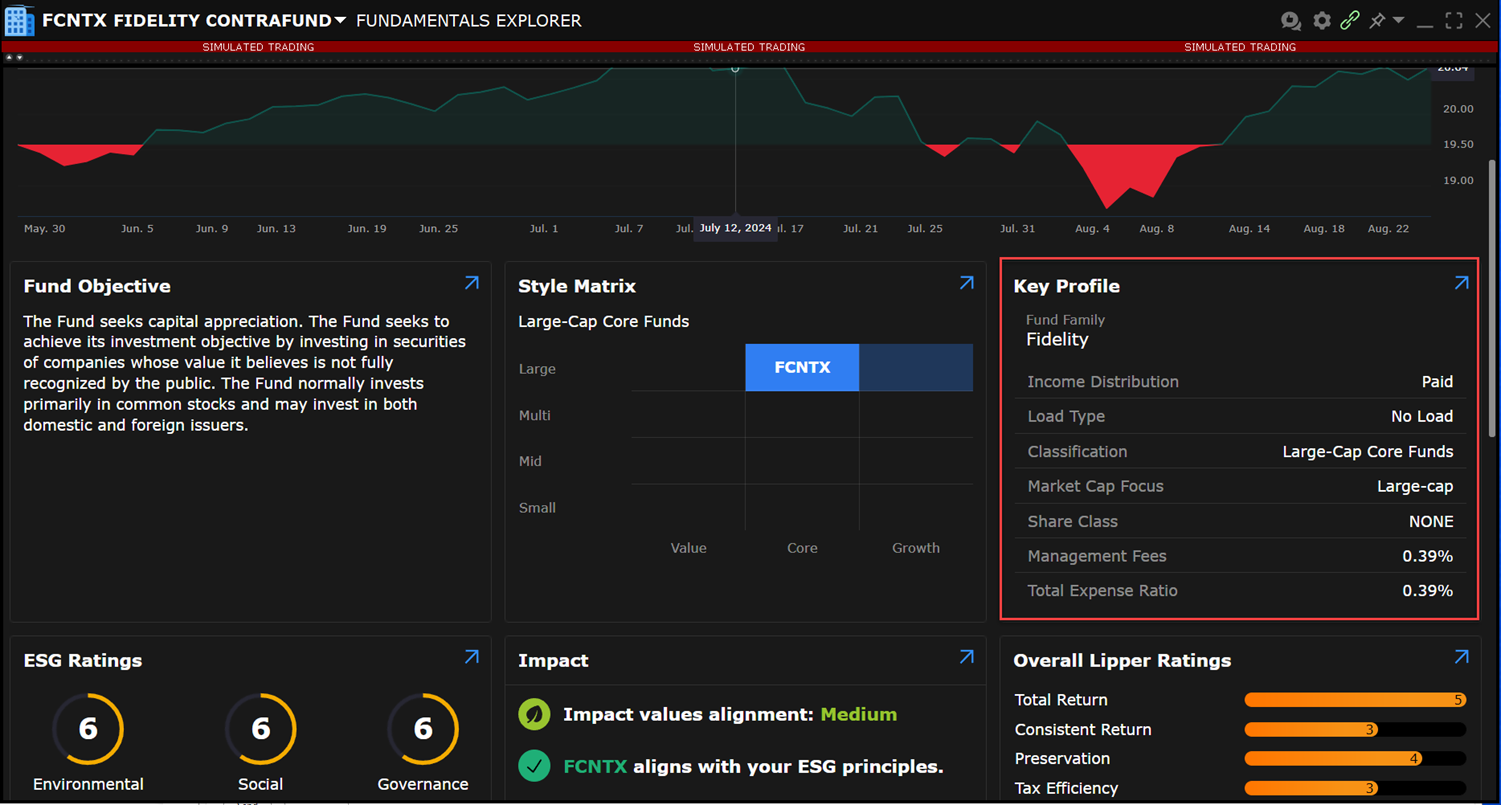
Key Profile Widget for Funds
We have updated the Fundamental Explorer tool to show Key Profile information for ETFs, Mutual Funds, and Open or Closed End Funds.
 May 2024: Third Party Reports Menu
Third Party Reports moved to Performance & Reporting menu
You can now find the Third-Party Reports menu command in the Performance & Reporting menu just after Tax Documents.
March 2024: Bid/Ask Yield Value in Order Ticket, Options Analysis, Link to Stock Margin Calculator
Bid/Ask Yield for Bonds in Order Ticket
The Client Portal order ticket now displays the Bid Yield and Ask Yield fields when the security type is a bond.
Options Analysis
Option Analysis provides a visual and editable in-depth analysis of a single underlying across key metrics including Option Volume, Historical Volatility, Implied Volatility, Open Interest, and Skew.
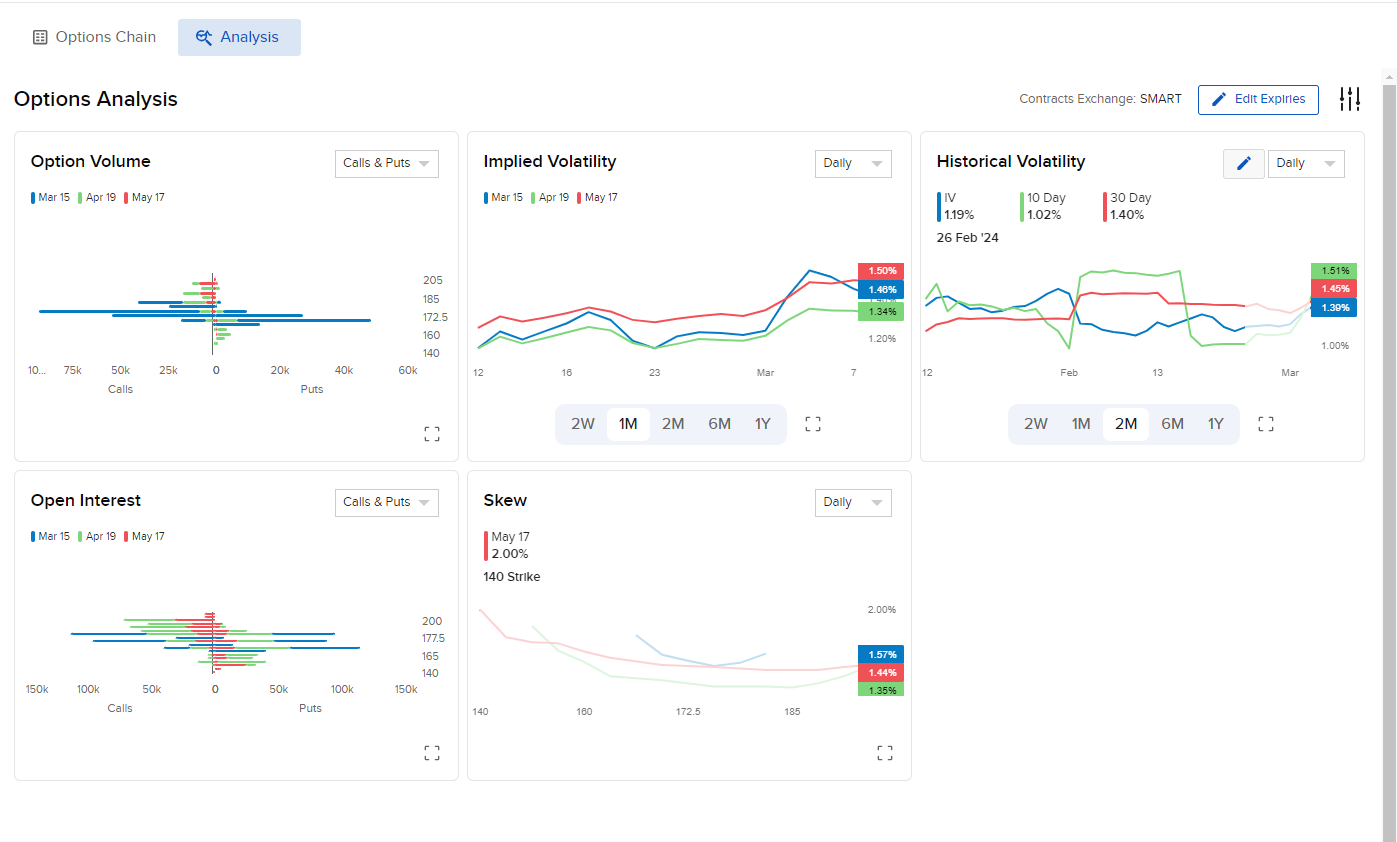
To open Options Analysis
-
Select a symbol and click to open Quote Details.
-
In the Details Dashboard, click Options.
-
Choose Options Analysis from the tab set.
January 2024: Customize Inactivity Duration Before Auto-Logout, Support for Portugese, Bug Fixes
Increase Auto-Logout Duration
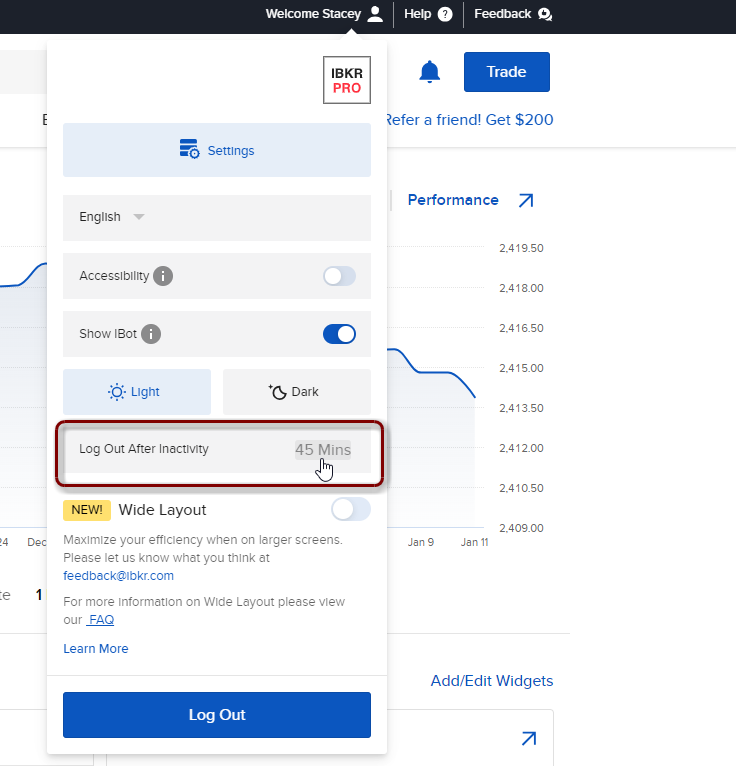
Client Portal automatically logs you out after 15 minutes of inactivity. You can now change this duration and allow a session to remain active for 15, 30, 45 or 60 minutes of inactivity.
To change the inactivity time-to-logout, from the Welcome Avatar menu find the Log Out After Inactivity command and click the current time period. Select a new duration and Save.
Note that when the inactivity time is reached, we will provide the option for you to stay logged in. This offer will display for 30 seconds and if not taken, you will be logged out.
Support for Portuguese Language
As we continue to expand our ongoing support for translation/localization, we are excited to announce that Client Portal now supports Portuguese.
Stock Margin Calculator Link
We've added a link to open our Stock Margin calculator to the Client Portal Education menu.
Bug Fixes
-
In CP wide layout, the full page price chart's price axis is partially covered when the sidecar order ticket is opened.
-
Users were unable to trade Warrants in the order ticket.
-
Users were unable to delete tickers from a Watchlist.