Configure Reports for Delivery
Instructions
-
Select the Reports button in the top right corner of the PortfolioAnalyst page.
-
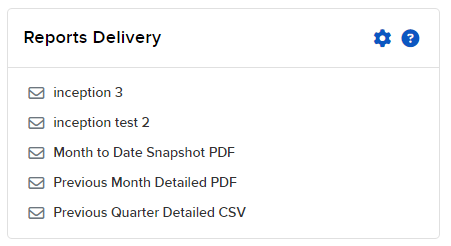
Go to the Reports Delivery section.
The Delivered Reports panel displays all reports you have configured for delivery.
-
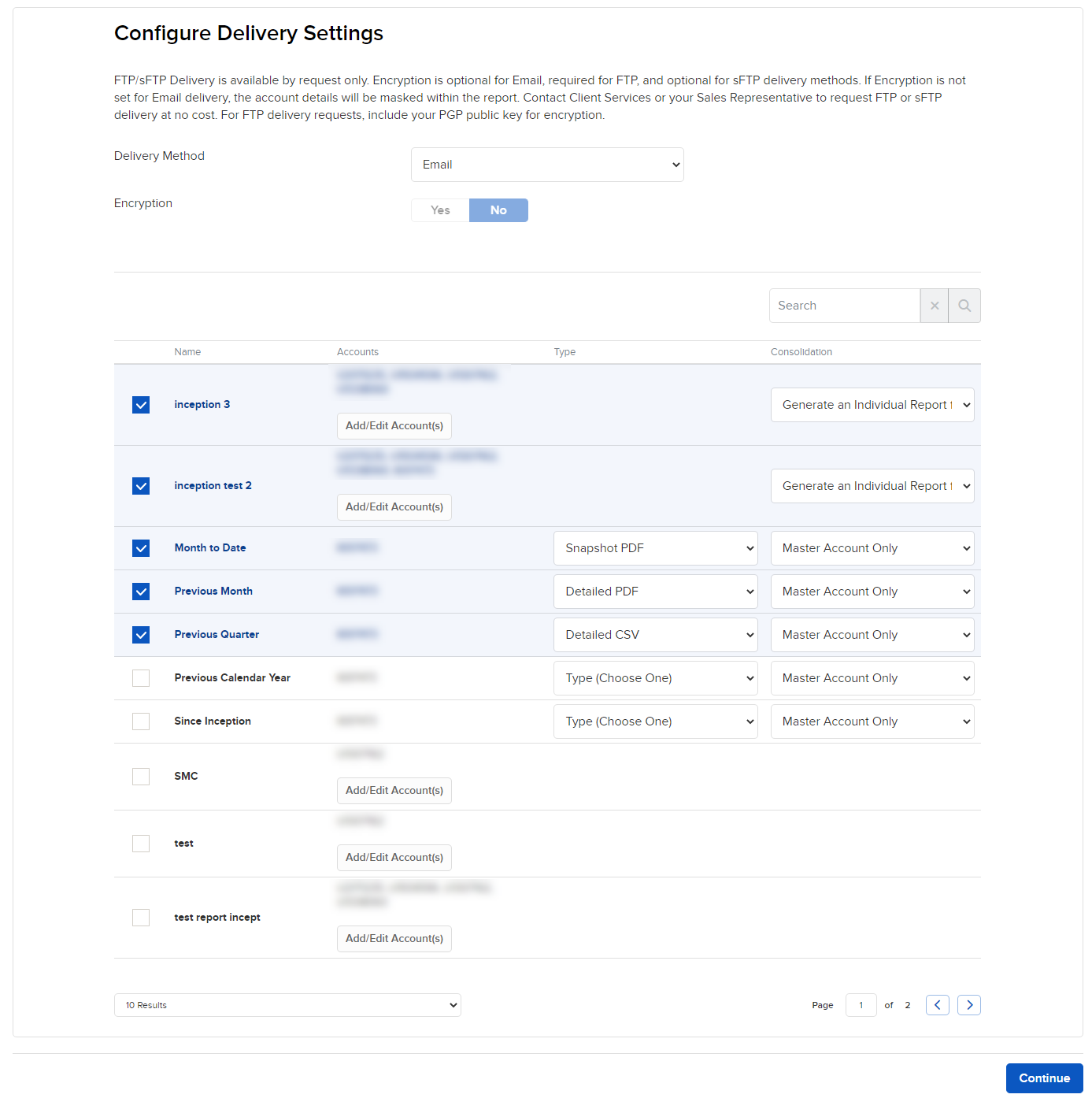
Click the Configure (gear) icon in the Reports Delivery title bar and the Reports Delivery screen opens.
-
Delivery Method: Select whether you would like to receive the reports via Email or sFTP.
Note: To enable sFTP delivery you must first contact your Sales Representative or Client Services.
-
Encryption: Select Yes to encrypt the report statements.
Note: You must request Encryption to enable this option. Contact your Sales Representative or Client Services.
-
Click the check box next to each default report and saved custom report you want to configure for delivery.
-
In Type, select the output type for the report: Snapshot PDF, Detailed PDF, or Detailed CSV.
-
In Consolidate, select one of these options:
-
Consolidate All into Single Report: If you have multiple accounts, a single consolidated report will be generated.
-
Generate an Individual Report for Each Account: If you have multiple accounts, a separate report will be generated and delivered for each.
-
-
If you have multiple accounts, you can select which account or accounts will receive each custom report. For each report, click Add/Edit Accounts, then choose accounts in the Account Selector. This option is unavailable for preconfigured reports.
-
Click Continue.
-
Review your delivery configuration then click Continue.
-
Click Ok.