Contact - Statements
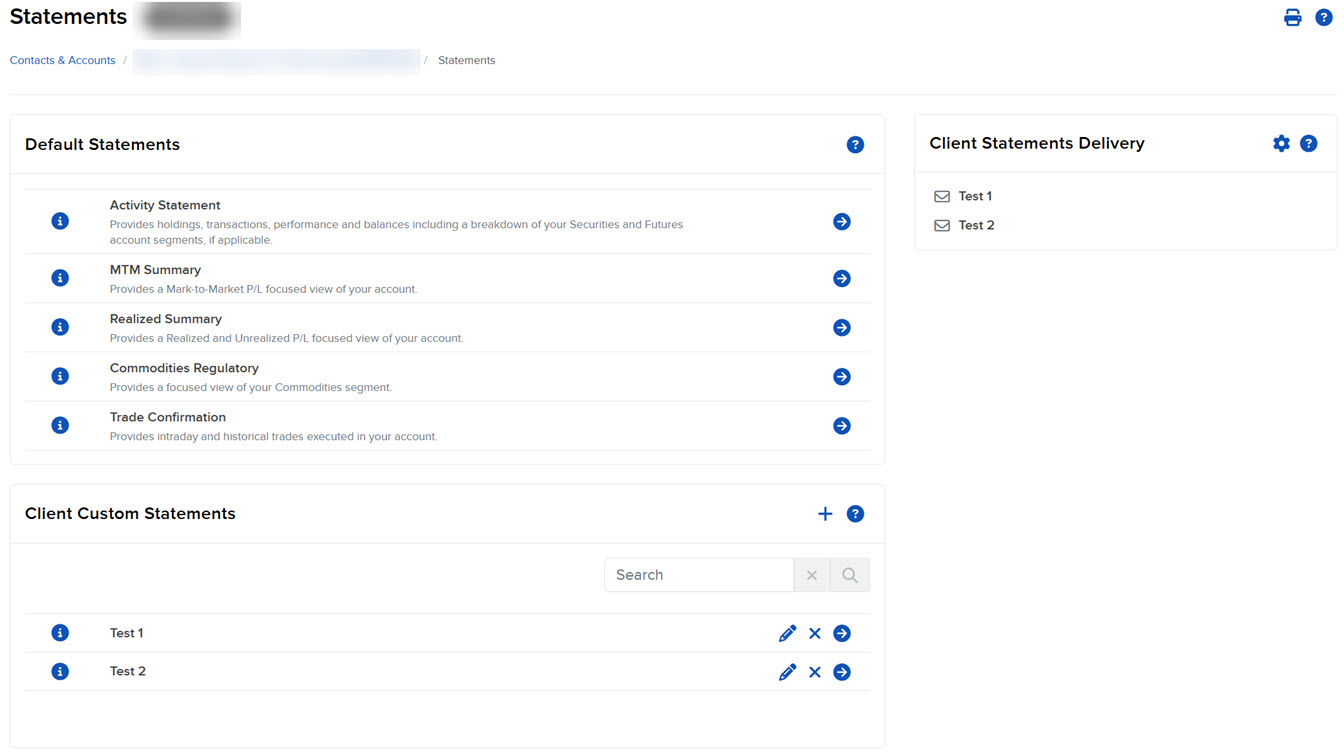
Use the statements page to run default or custom reports at any time and configure automatic delivery of these reports. To generate anyof the Default Statements click on the blue run arrow and select the period, date, format, and language for the report.
Instructions
To navigate to this page take the following steps.
-
From the Contact page, click Menu in the top left corner > Contacts & Accounts
-
Click the contact's name to open the Contact Information page.
-
From the Contact page, click Menu in the top left corner > Select Reporting > Statements.
-
Access the following statements:
- Activity Statements - These statements include information about your contact's account activity, which can be generated on a daily, monthly, and yearly basis for all accounts.
- MTM Summary - A simpler statement that includes NAV and Position and MTM profit and loss summaries as well as other summary information related to changes in NAV.
- Realized Summary - A simpler statement that includes NAV, Positions and realized P&L summaries as well as other summary information related to changes in NAV.
- Commodities Regulatory - Provides a focused view of your contact's commodities segment.
- Trade Confirmation Report - Real-time trade confirmations are generated for all executions. You can view a trade confirmations report, which lists trade confirmations separately by asset class. Trade confirmations are available for the four previous calendar years and from the start of the current calendar year.
- Custom Statements - Let you choose which sections to include in an Activity Statement and other options.
-
Select the blue Run arrow icon to the right of the statement you want to view.
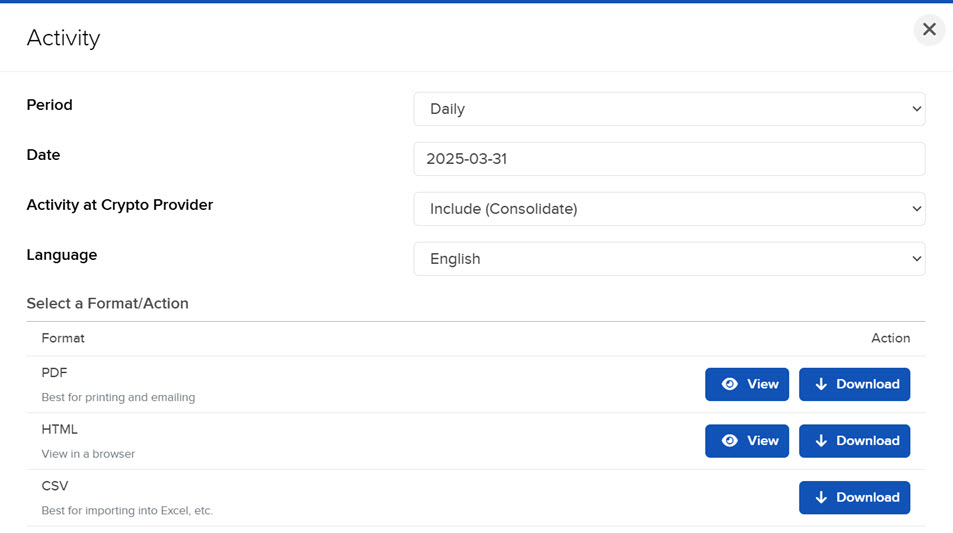
- Select the Period you want the report to cover: Daily, Custom Date Range, Monthly, Annually or Year to Date.
- Select a Date. If you selected Custom Date Range, enter From and To Dates.
- In the activity at the Crypto Activity menu select whether to include or exclude.
- Select which Multi-Account Format you want for your report; select how you want the statement to be configured for multiple selected accounts and/or partitions. Select between All-in-One Summary (All trades, balances, and positions consolidated as if one portfolio) or Account-by-Account Bundle (A collection of separate account statements, delivered together).
- Under Advanced Options:
- Select the Cash Report Details you want for the report.
- Select the language you want for the report.
- Select the format for the generated statement: PDF, CSV (comma-separated values); a CSV file is compatible with Microsoft Excel and similar programs., HTML, or view statement.
- Select View to see the web version of the statement.
- Select Download to download the statement as a PDF or HTML file.
- If you selected PDF or CSV as the format, you will be prompted to save the file to your computer. If you selected HTML, the statement will open in the Portal.