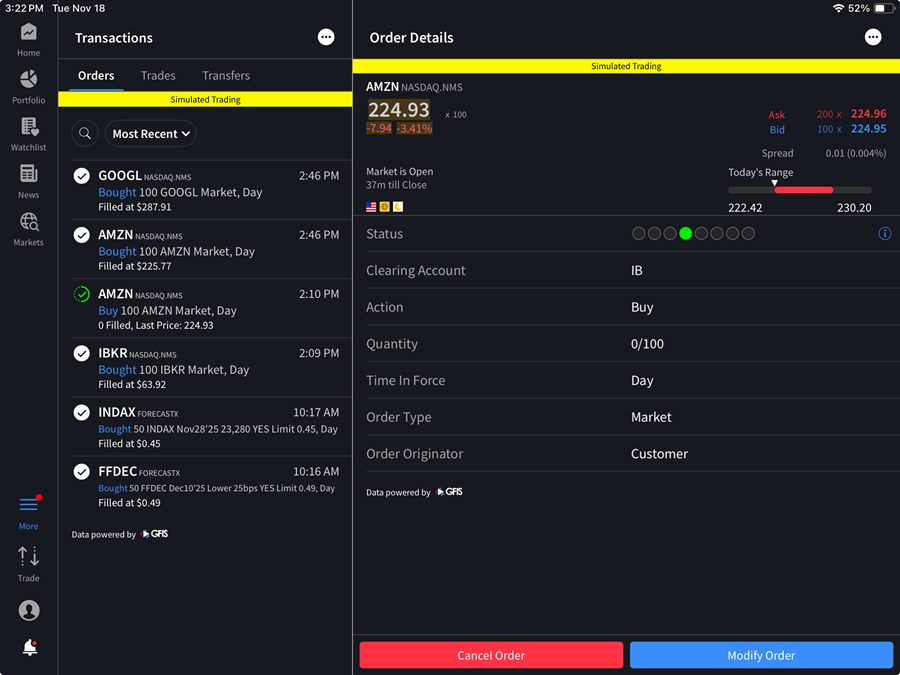
Orders
Instructions
Use the Orders & Trades window to monitor today's working orders and view up to seven days of trade reports.
-
Click the More menu and select Transactions.
-
At the top of the screen tap Orders.
-
A list of the last seven days displays below the Orders | Trade buttons. Swipe then tap a date to show a list of trades for that day.
-
From the list, tap a pending order to view the Order Details.
-
Sort the list by tapping any header showing the double arrows. Tap the double arrow icon for that header to change the sort from ascending to descending.
-
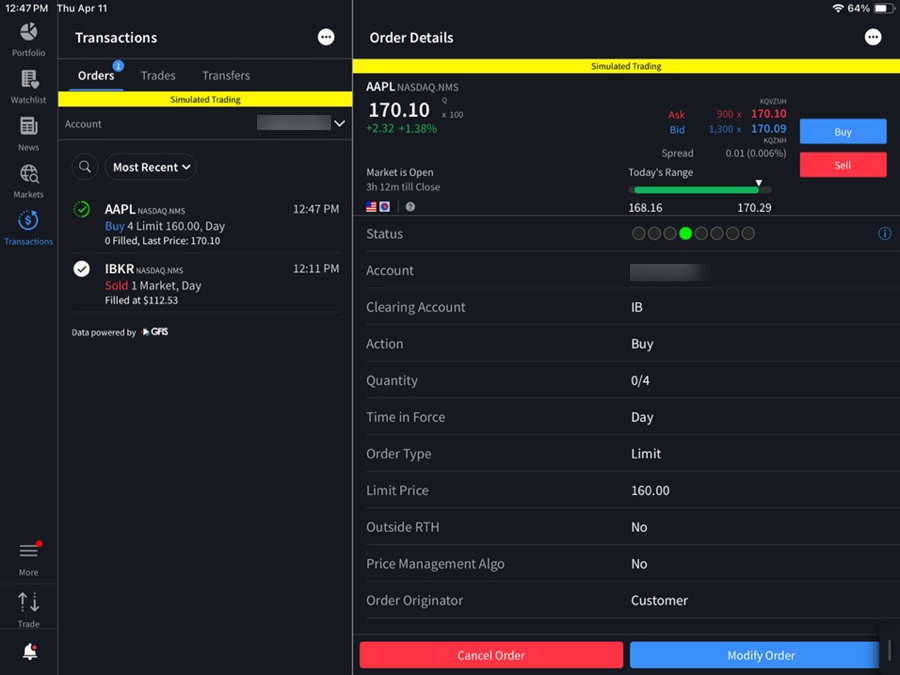
If you have a multiple account structure, you can tap the Account button to view trades for all accounts or select a specific account.
-
Tap an order to view the Order Status.