Layout Settings
Instructions
The Layout Settings section allows you to save settings, or to restore trading pages and tickers you had set up on a previous day. You can elect to restore the entire settings file, which includes all trading pages and their tickers.
Note: Restoring a page file completely replaces all of your current trading pages with those from a previous day.
Layout Settings Recovery
-
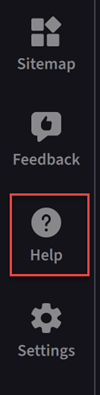
Click the Help menu in the bottom left corner of your screen.
-
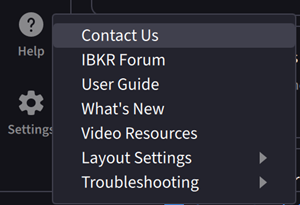
Select Layout Settings.
-
Select Layout/Settings Recovery.
-
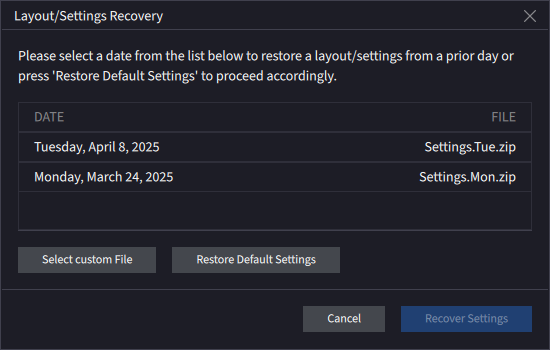
Click on the day's file you want to use to replace the current set of pages and tickers.
Select custom File will allow you to browse your computer files and import.
Restore Default Settings will allow you to import the default
-
Once you have selected a date, click Recover Settings to restore trading pages and tickers from that specific day.
-
A pop-up will appear advising that the application will restart. Click Yes to proceed.

-
The application will restart and the trading pages will be replaced with those from the day selected.
Save Settings
You may save any settings to the application by taking the steps outlined below.
-
Click the Help menu in the bottom left corner of your screen.
-
Select Layout Settings.
-
Select Save Settings.
-
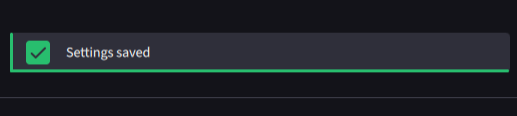
A pop-up at the bottom of the screen will appear advising that the settings have been saved.
Save Settings As
You may save any settings to your computer by taking the steps outlined below.
-
Click the Help menu in the bottom left corner of your screen.
-
Select Layout Settings.
-
Select Save Settings As...
-
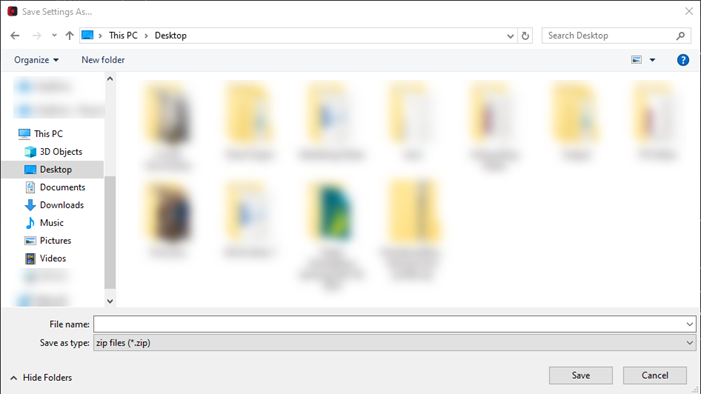
Choose a computer location and enter a name to save.