Hot Keys
Instructions
Assigning actions to specific keys and key combinations helps you rapidly create and transmit orders to the marketplace. You can assign any keystroke, or a combination of the "Ctrl" and "Shift" keys with one of the 26 keyboard letters, to map specific order creation and order transmission commands, such as buy, sell, transmit and cancel. To do so, please take the steps outlined below.
-
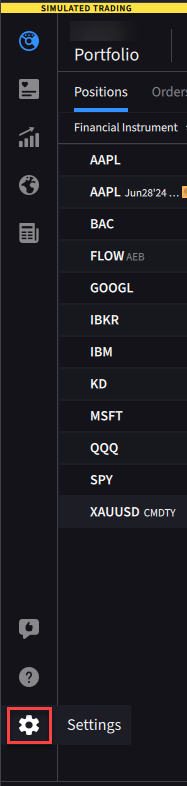
Click the Settings Icon.
-
Click the Hotkeys tab.

-
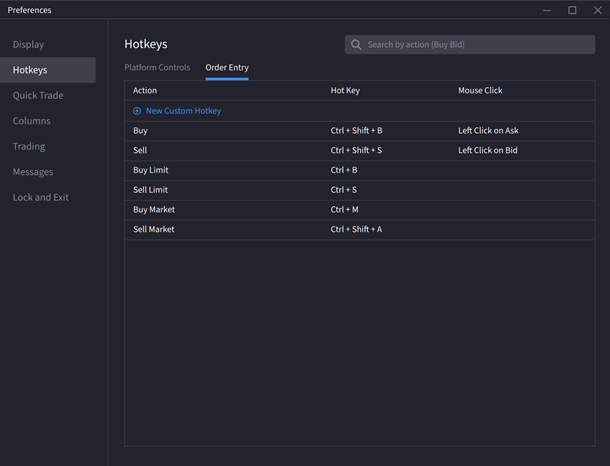
To delete a hotkey, click the grey x icon to the right of the hotkey. To edit a hot key, click the Hot Key column and use your keyboard to enter the new hotkey.
-
Click the Order Entry tab at the top of this window to set up hotkeys for placing orders.
-
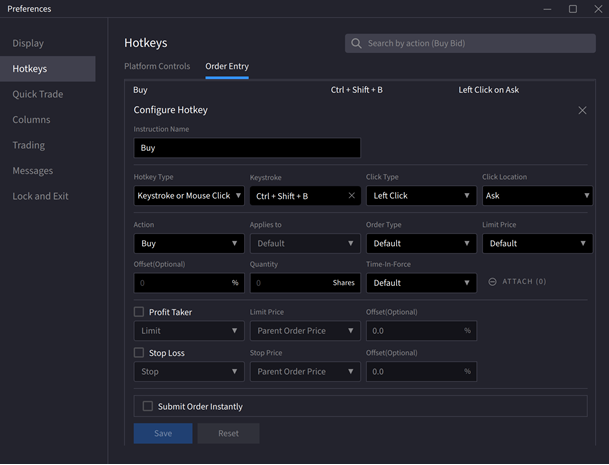
Click an existing hotkey to edit. Use the drop-down menus to change the parameters such as Action, Hotkey Type, Keystroke, Quantity, etc.
-
Check the Submit Order Instantly box to automatically execute the trade when entering the hotkeys.