Accounts
Instructions
Select "Accounts" from the menu to view a list of Employee accounts. Drill down further by selecting a single entry to see all restrictions, including those that have specifically been applied to that account, and to view the relationship history of all associated restrictions to the employee.
Use the Accounts page to re-apply an INACTIVE restriction to a specific account. When a restriction has been made inactive it is removed from all account, but if you apply it directly to one or more employee accounts, the direct association overrides the generic INACTIVE command, and the Status of the restriction in the Restriction Library will change to "Active for Some." You can also create direct associations from the Status field by selecting "Active for Some" and selecting the accounts from the display.
If you apply an active restriction directly to an account, and later elect to make that restriction INACTIVE, the direct association will be deleted and the restriction will become inactive for all employee accounts. You must apply the association after the restriction has been made inactive.
You can easily see if a restriction is applied to all employees from the Status field on the Restrictions page. If the restriction is ACTIVE it is applied to all employee accounts.
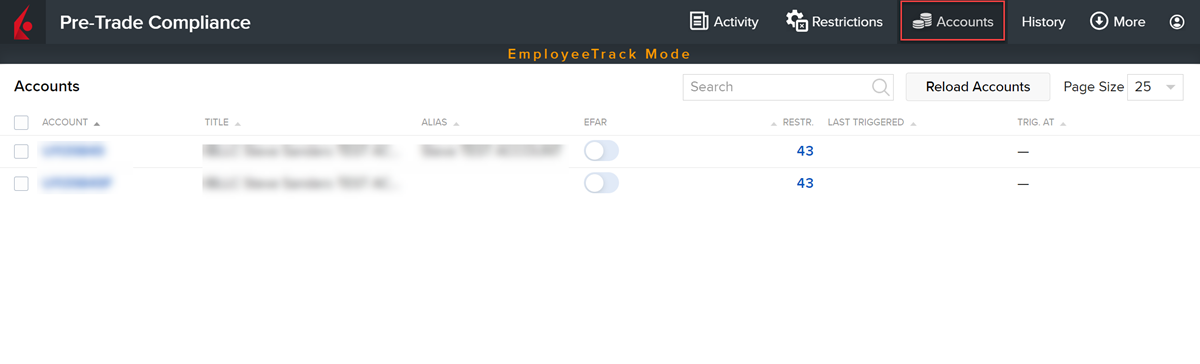
 Exclude Accounts from all Restrictions
We offer the ability to exclude a client account from all restrictions. To do so, please take the steps outlined below.
-
On the Accounts page, you will see an EFAR column.
-
Navigate to the account you would like to exclude from all restrictions.
-
Click the EFAR toggle to switch on or off.

-
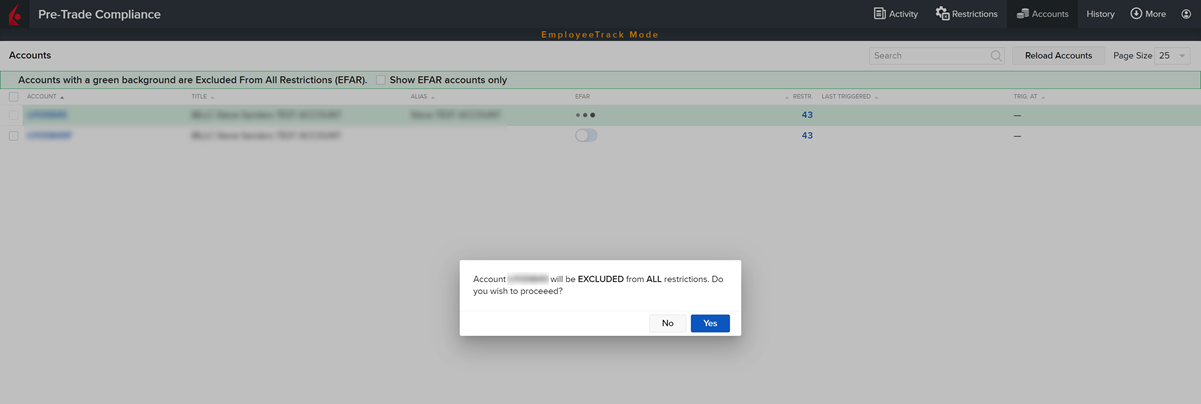
A confirmation pop-up will appear. Select Yes if you would like to continue.
-
Accounts with a green background are Excluded From All Restrictions (EFAR).
-
Select the Show EFAR accounts only check-box at the top of the screen to display accounts that are excluded from all restrictions.
