Trade Confirmation Flex Queries
Instructions
To create a Trade Confirmation Flex Query use the Custom Flex Queries screen.
-
Click Statements & Reporting in the top left corner and select Flex Queries > Trade Confirmation.
-
If you manage or maintain multiple accounts, the Account Selector opens. Search for and select an account.
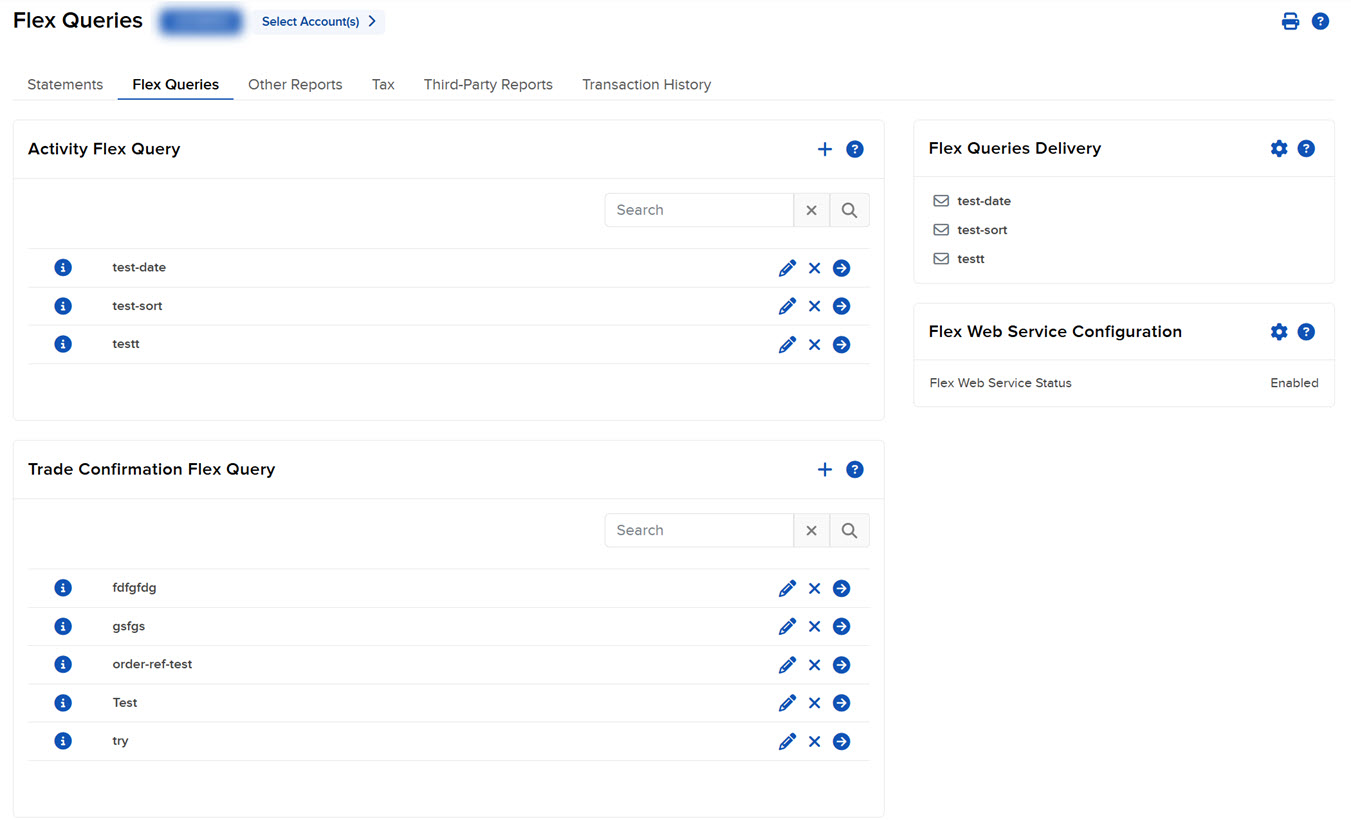
The Flex Queries screen opens.
-
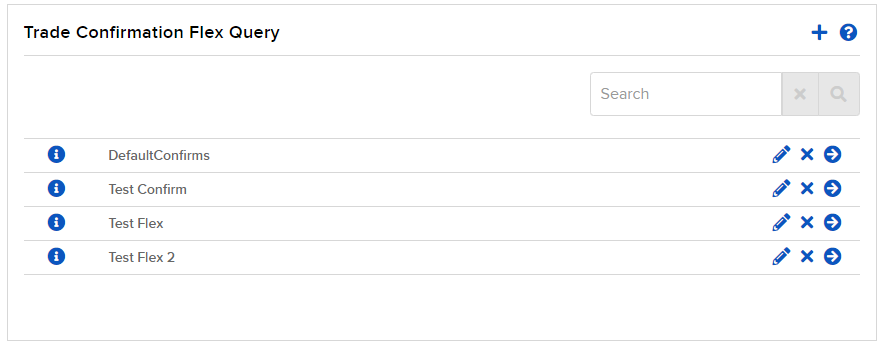
Click the + icon in the Trade Confirmation Flex Query Templates section.
-
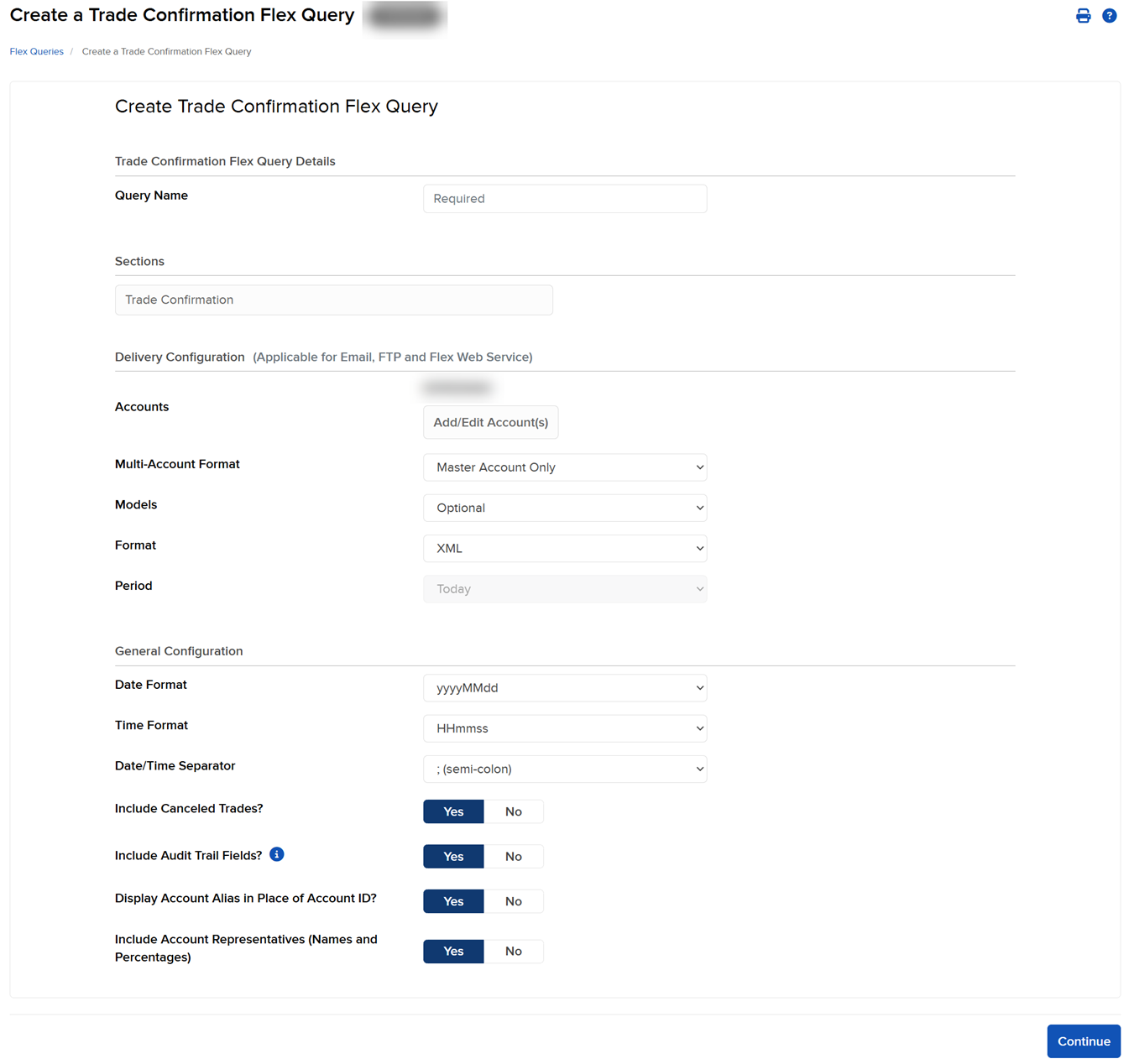
Enter the name of the Flex Query.
-
In Sections, click each section that you want to appear in your Flex Query.

-
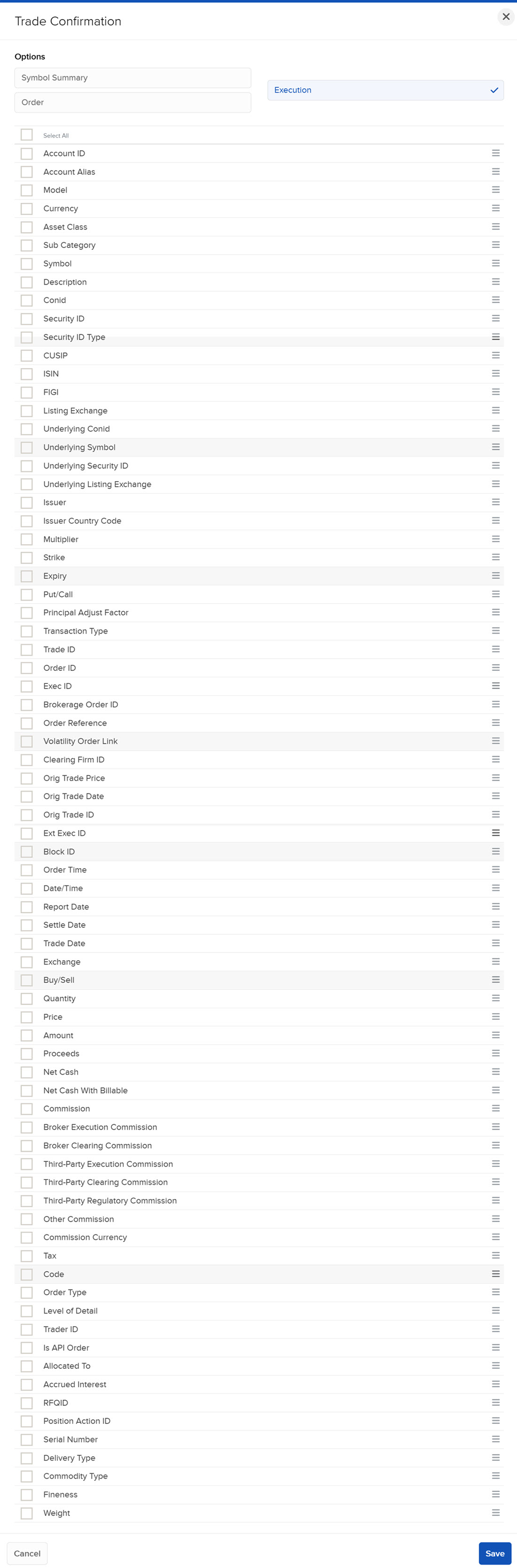
At the top of each section’s pop-up, select the level of detail you need. Next, click each field you want to include. Change the order by dragging them up or down using the bars symbol at right.
-
Click Save.
-
-
In Date Configuration, choose how you want the report delivered.
- Accounts - Click Add/Edit Accounts to bring up the Account Selector
-
Models - Choose from Optional or All
-
Format - Choose from XML, CSV, Text (Pipe), Text (Tab)
-
Period - Choose from Last Business Day, Last Business Week, Last Month, Last Quarter, Last 30 Calendar Days, Last 365 Calendar Days, Last N Calendar Days, Month to Date, Quarter to Date or Year to Date
-
In General Configuration, enter the date format, time format, and date/time separator. Select the output format (XML, CSV, or Text). If you select Text, select from the additional options. You can also choose whether or not to include canceled trades and audit trail fields, and display your account alias.
-
Click Continue.
-
Review your Flex Query and click Create.