Trade Confirmation Report
Instructions
Run Trade Confirmation reports from the Default Statement panel on the Statements page.
-
Click Statements & Reporting in the top left corner and select Statement > Trade Confirmation.
-
If you manage or maintain multiple accounts, the Account Selector opens. Search for and select an account.
The Statements screen opens.
-
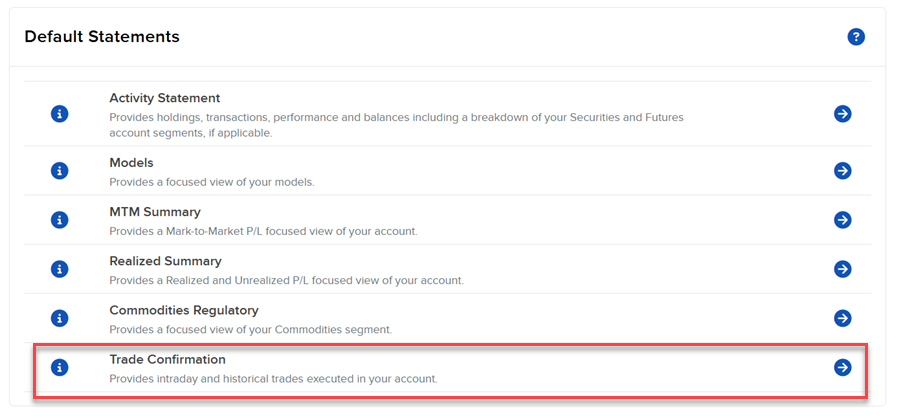
In the Default Statement panel, select the blue arrow Run icon to the right of Trade Confirmation.
-
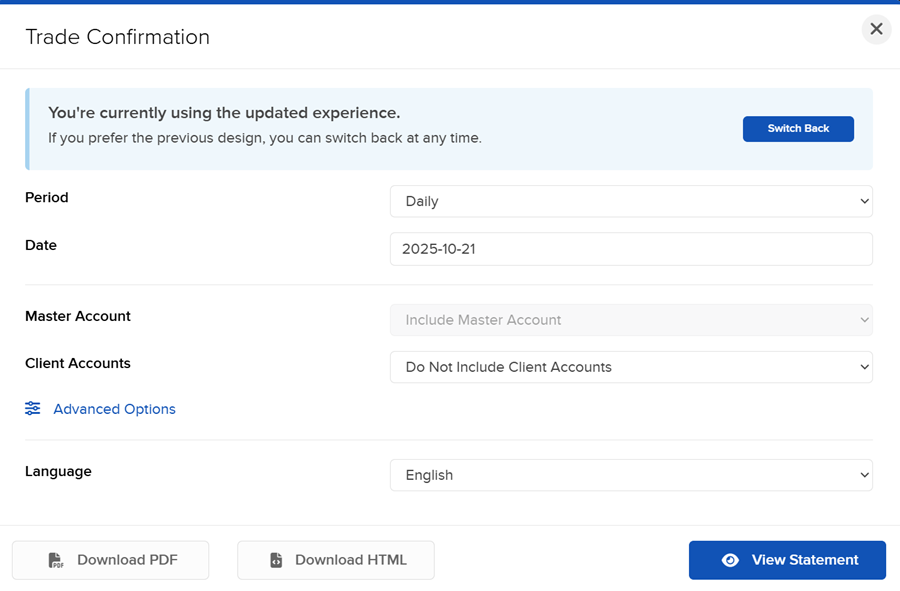
Select the Period you want the report to cover. Select Daily or Custom Date Range.
-
Select a Date. If you selected Custom Date Range, enter From and To Dates.
-
Select whether or not to include the Master Account.
-
Select whether or not to include Client Accounts.
-
Select which Multi-Account Format you want for your report; select how you want the statement to be configured for multiple selected accounts and/or partitions:
-
All-in-One Summary - All trades, balances, and positions consolidated as if one portfolio.
-
-
Select a language.
-
Click View or Download.
-
If you selected PDF as the Format, you will be prompted to save the file to your computer.
-