Book Of Business
Instructions
The Book of Business serves as the primary hub for all account activities, conveniently accessible under Account Management. This upgrade streamlines navigation, reducing clicks and enabling instant access to all the accounts of your full client base. This tool incorporates new functionality within the grid display, giving the advisors the ability to sort and filter, add columns, pin columns and use full screen mode among other things.
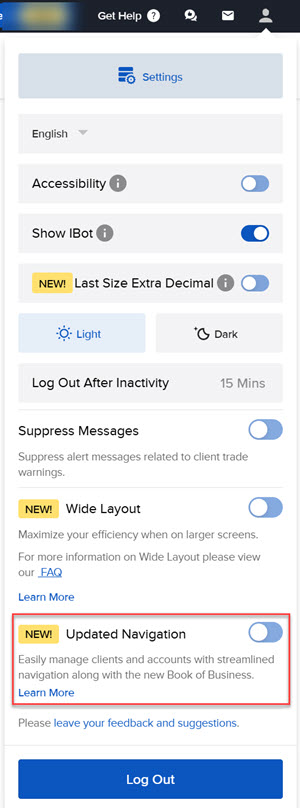
To open Book of Business, enable the new Updated Navigation in the settings by taking the steps outlined below.
-
Select the Head and Shoulders
 icon in the top right corner of any portal page.
 -
Click on the Updated Navigation toggle.
-
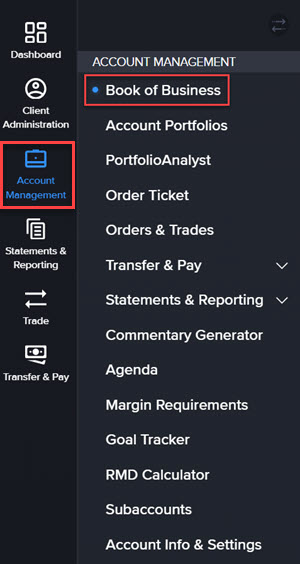
Click Account Management in the top left corner and select Book of Business.
-
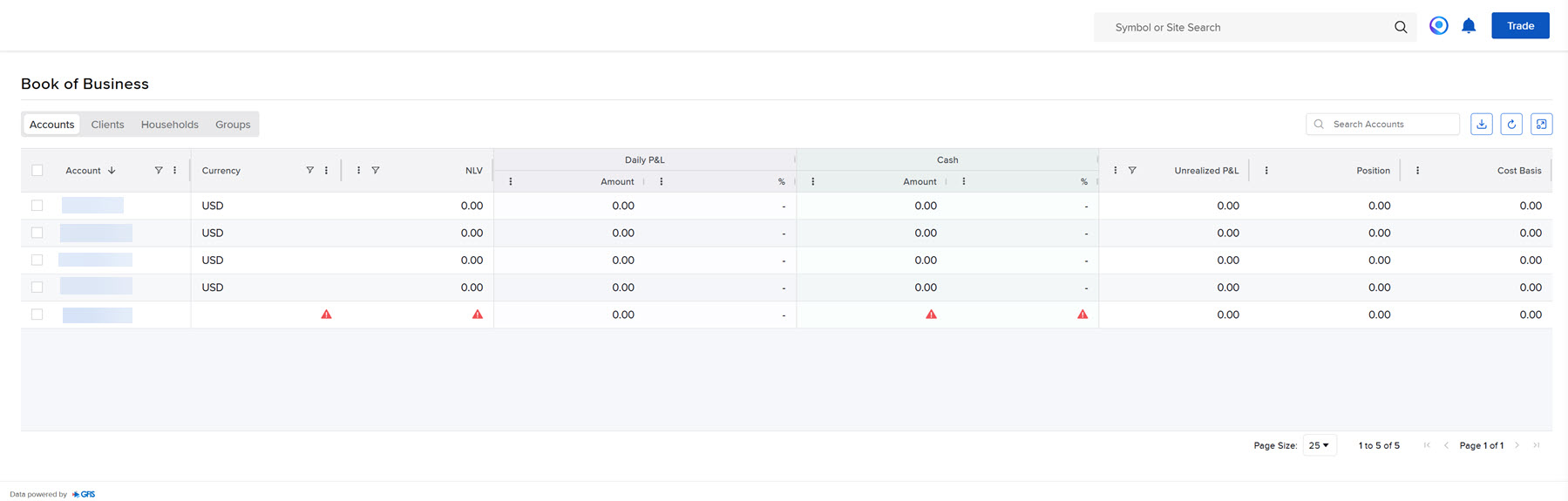
The Book of Business page will populate on your screen.
-
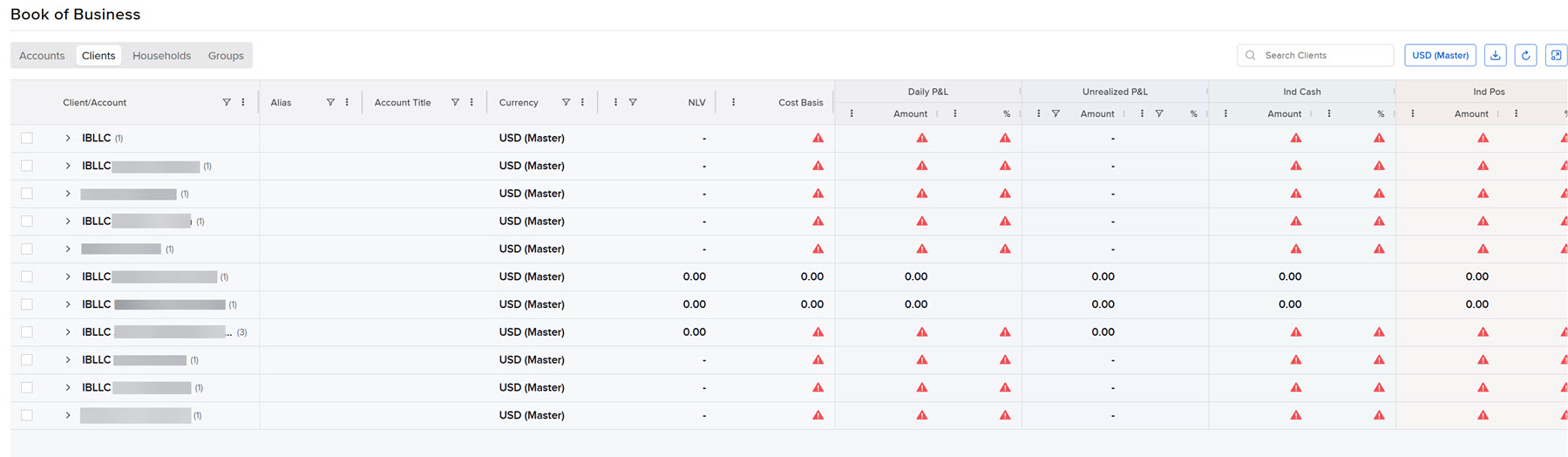
You may view your book of business by Accounts, Clients, Households, or Groups.
-
Accounts
-
Clients
-
Households

-
Groups

-
-
Click a client account to view information regarding Positions.
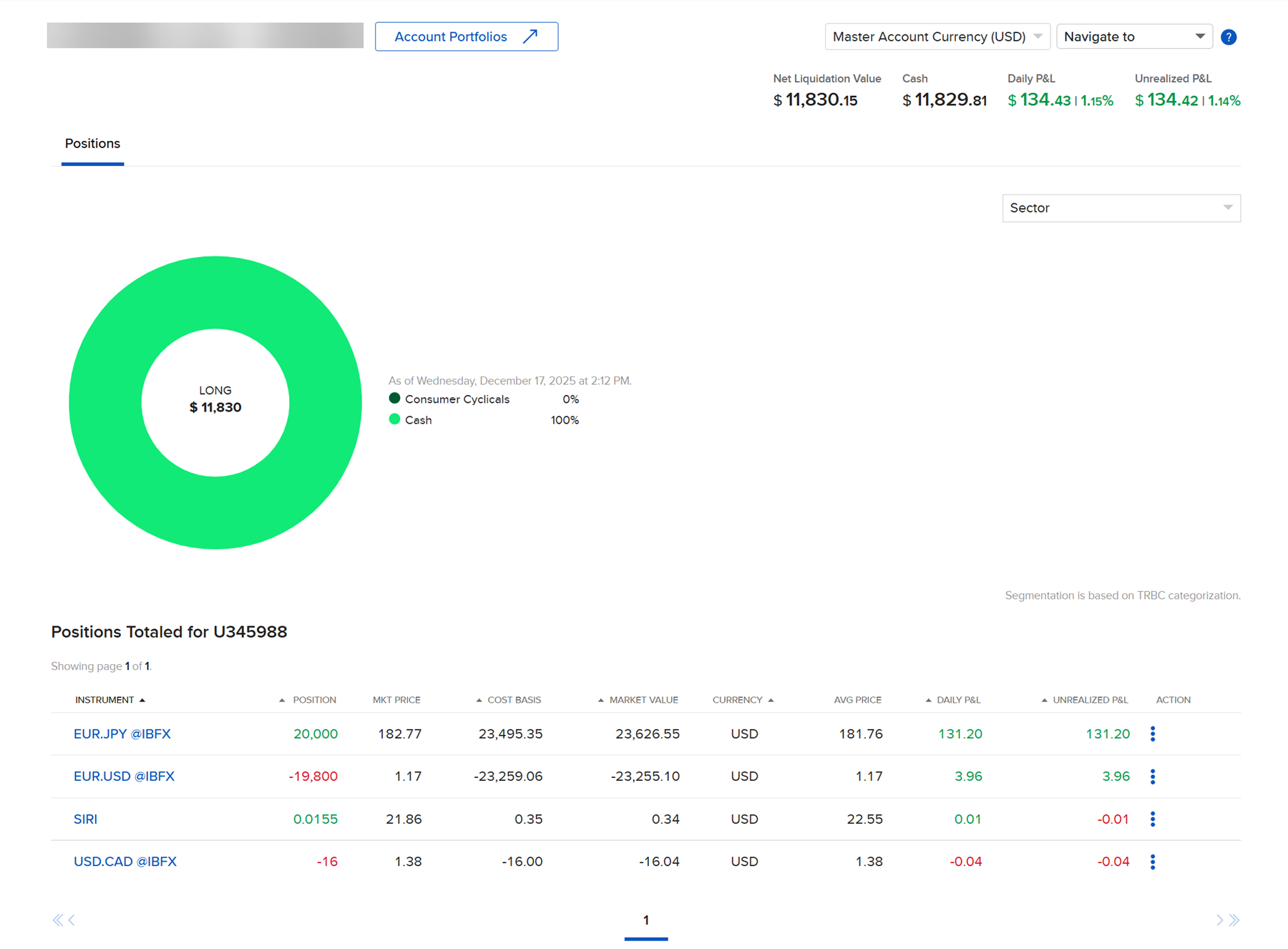
-
To Export Current View as a .csv file, select the Export button in the top right corner of the Accounts, Clients, Households, or Groups screen.

-
To Refresh Data on the page, select the Refresh button in the top right corner of the Accounts, Clients, Households, or Groups screen.

-
To Enter Fullscreen mode, select the expand button in the top right corner of the Accounts, Clients, Households, or Groups screen.
