Dashboard - Home
Instructions
The Home Page provides a single point of access to quickly and easily manage client information and many components of each account.
-
Click Dashboard in the top left corner.
-
The home menu opens
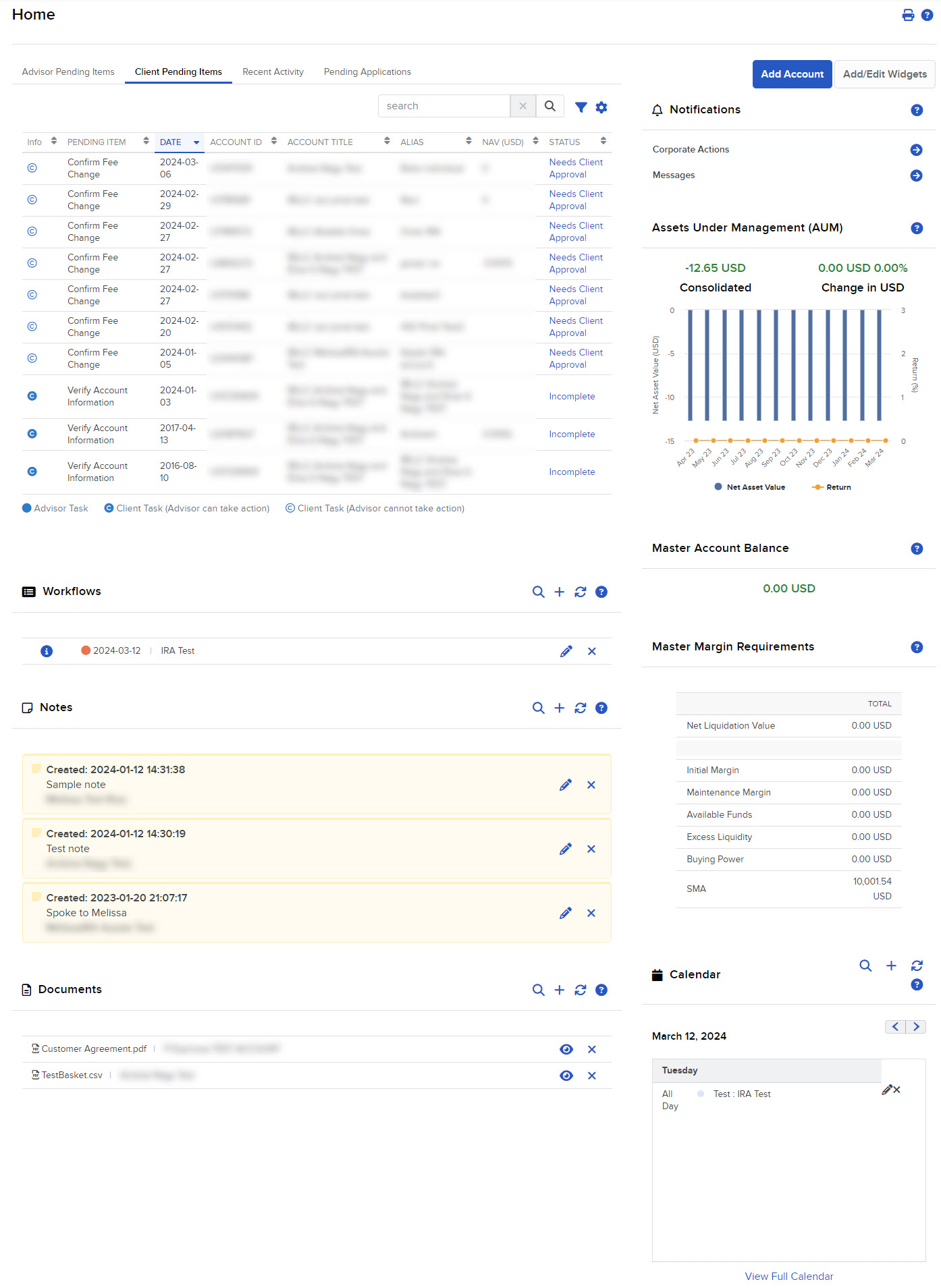
This includes:
-
Advisor Pending Items: Advisors may now view a list of pending items from both the home page and the bell icon.
- Client Pending Items: A list of records that you can sort and search.
- Recent Activity Tab: All recent funding and account application activity during the past five days in all client and fund accounts.
- Add Account: Invitations to clients to complete account applications either electronically or semi-electronically.
- Add/Edit Widgets: Allows users to hide, relocate and customize the panel on the homepage.
- Top Ten Performers: Displays ten clients ranked by their year-to-date (YTD) performance.
- Notifications: Information on upcoming corporation actions related to positions held in each account.
- Assets Under Management: The consolidated NAV and YTD return of your AUM.
- Master Account Balance: The total balance in your master account.
- Margin Requirements - Shows you the current margin requirements for your account.
- Calendar: A mini-calendar for scheduling and reviewing upcoming events.
- Workflows: A simple way to assign tasks and monitor the workflows.
- Notes: Create, view, edit or delete notes for your contacts.
- Documents: Upload, view, or delete documents.