View User Role Details
Instructions
You can view the details of any saved user role on the Users & Access Rights screen.
To do so, please take the steps outlined below.
-
Click the User menu (head and shoulders icon on the top right corner) > Settings > User & Access Rights..
-
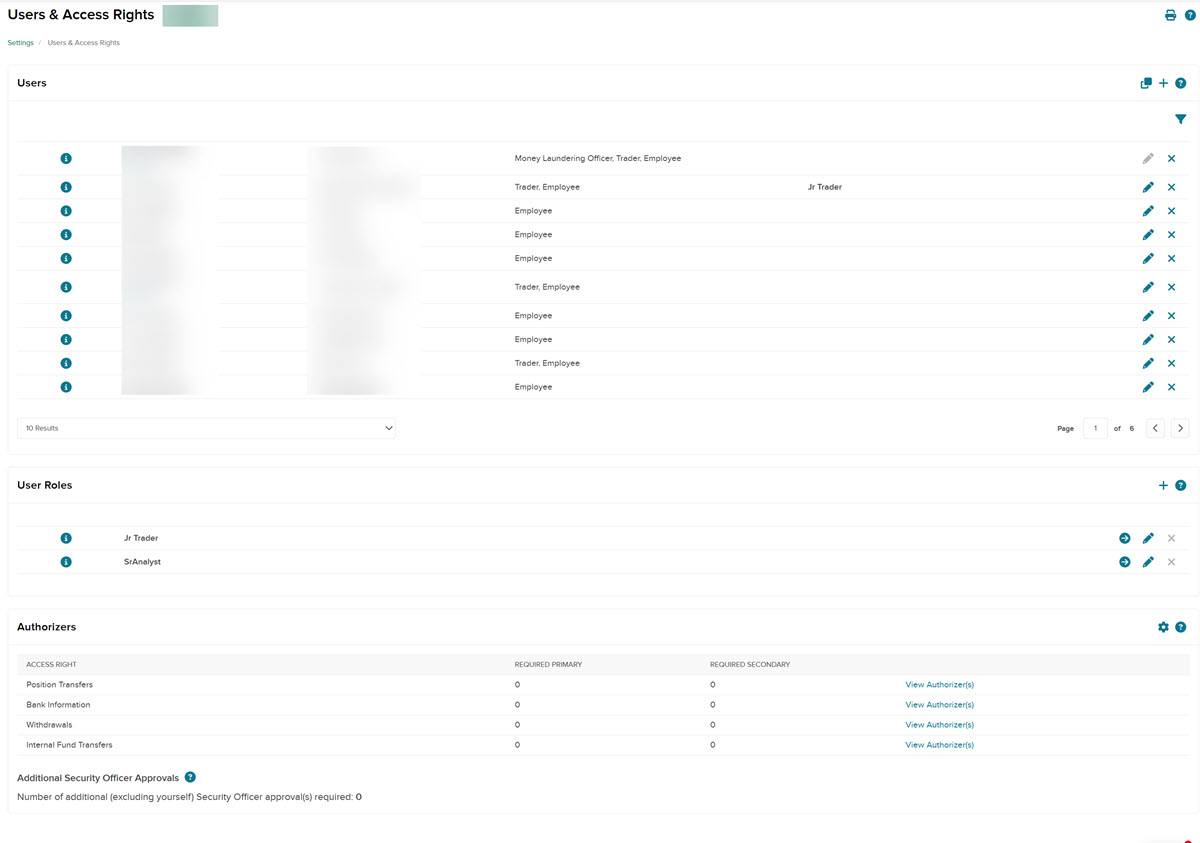
The User Roles panel shows all of the user roles that you have added to the account. Click the i icon to view information for any user role listed.
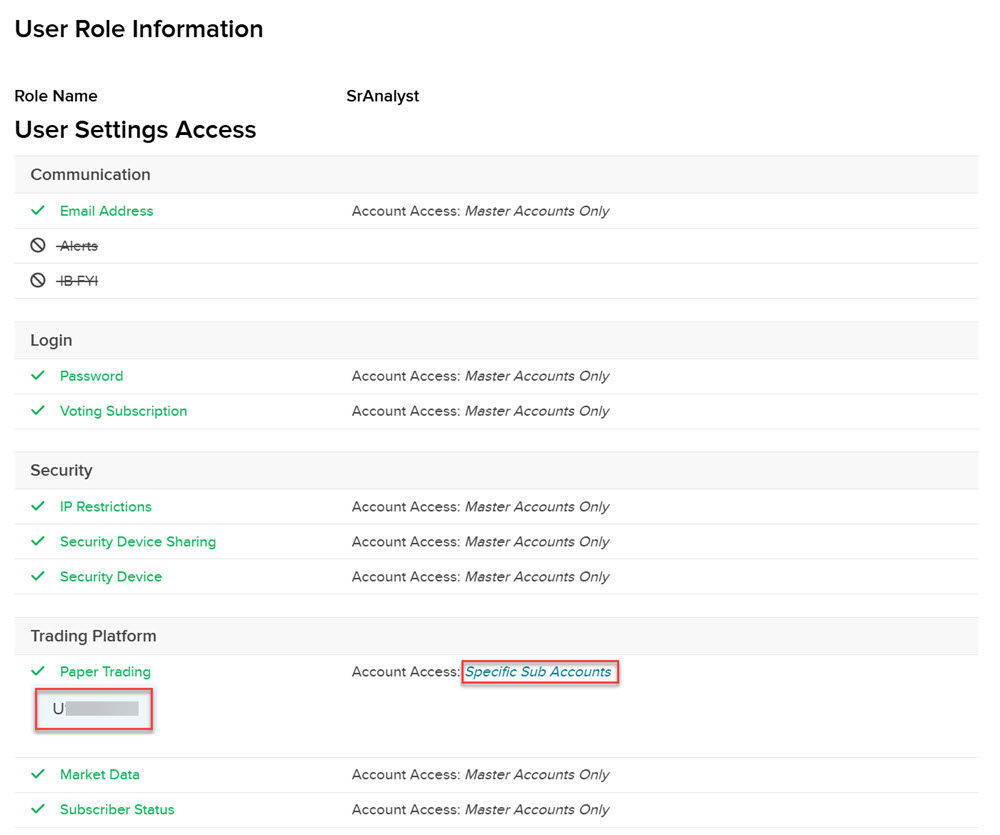
The complete list of access rights granted to the user role appears in a pop-up window. Granted access rights appear with a checked box while access rights NOT granted appear crossed out. Scroll down to view more information.
To close the pop-up, click the Close button in the bottom right corner or click anywhere outside the pop-up.

-
Use the Account Access button to see which accounts the user role can access.