Affiliate and Public Symbol Designation
Instructions
To update the regulatory affiliate information associated with your account, follow the steps below.
-
Click > Settings > Account Profile.
-
Select Affiliate and Public Symbol Designation and answer the prompted questions.
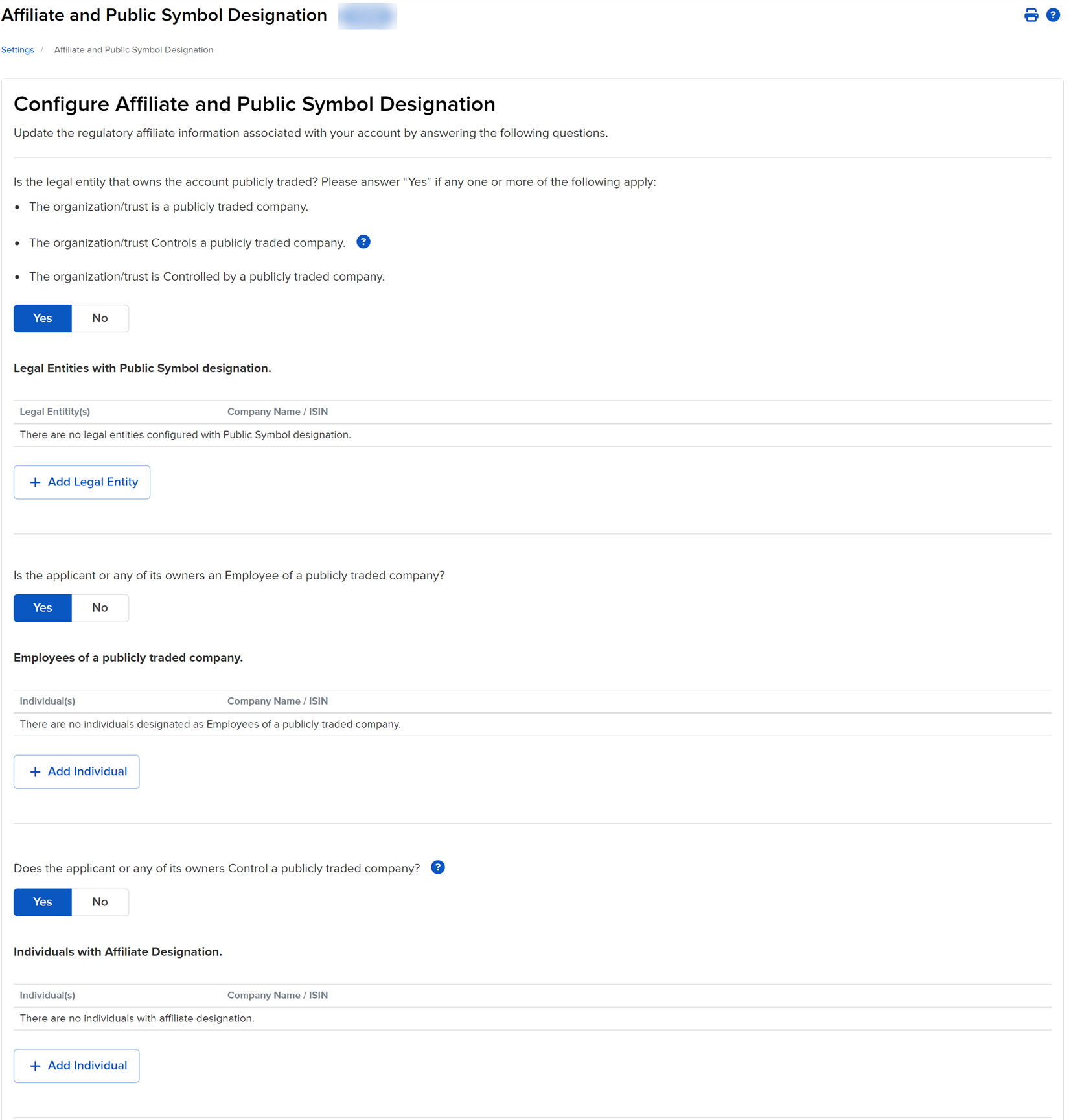
Note: If you select Yes to the first question Is the legal entity that owns the account publicly traded? Please answer “Yes” if any one or more of the following apply: click + Add Legal Entity and select the Legal Entity in question from the drop-down list to add the Legal Entity.
-
Select Yesto the questions.
-
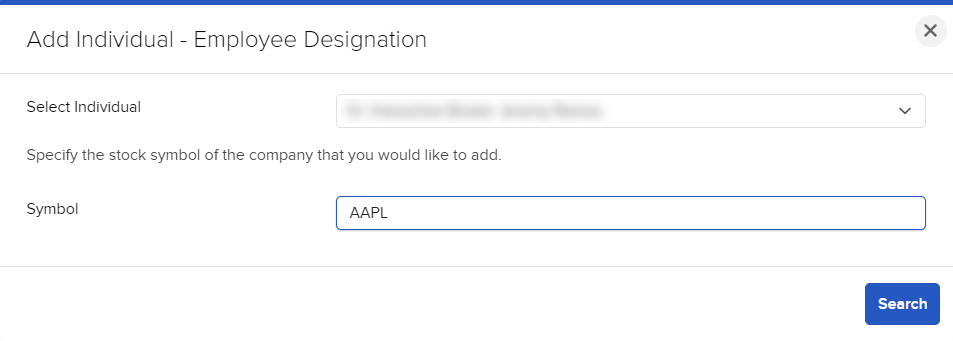
Once you select Yes select the + Add Individual option and then select the individual in question from the drop-down list and the symbol and select Search.
-
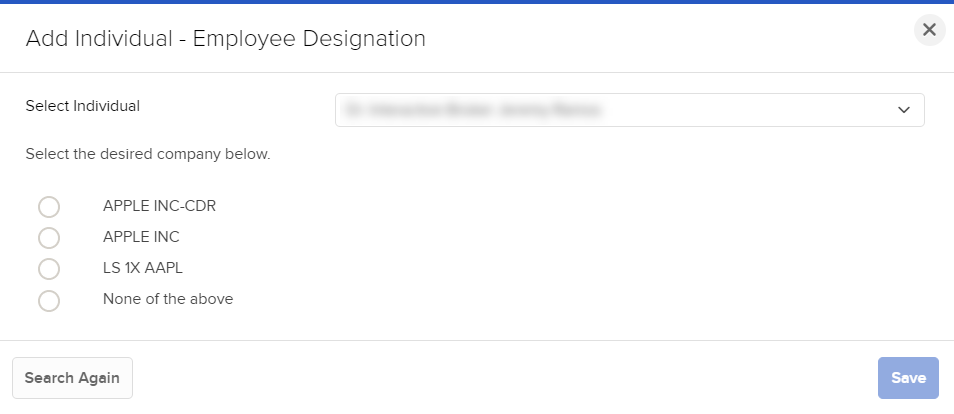
Select the desired company from the search results, then clickSave.
-
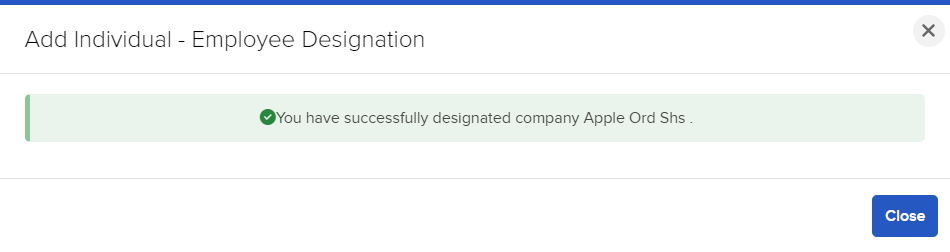
Once confirmed select close; repeat the process to add another stock.
 To remove a company from an Individual or Entity
-
Click the User menu (head and shoulders icon in the top right corner) > Settings > Account Profile.
-
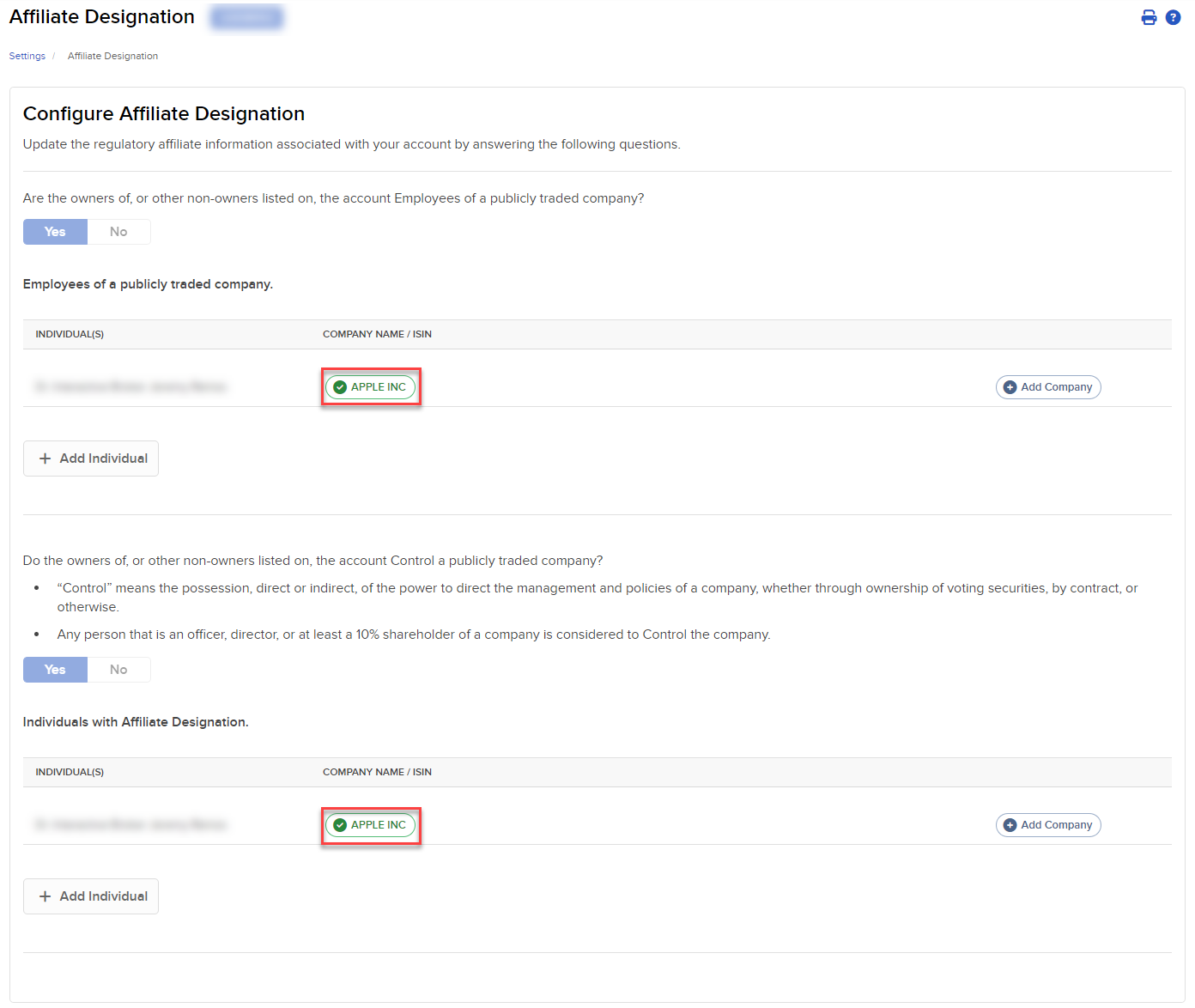
Select Affiliate Designation and select the Company Name / ISIN to remove.
-
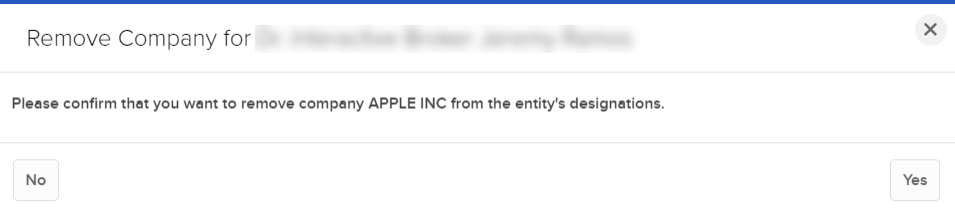
Click Yes to confirm.